
What it is
You decide what you hear about. Behaviors & Notifications watches your robots and your team's tasks for you: when a robot errors, a battery drops too fast, a run falls below target or a task sits untouched, it tells the people you chose, creates a Task for the team or starts the next task. Every notifying rule sends through one channel: a push message or an email, right away or collected into a daily or weekly email. The rules live on the "Behaviors & Notifications" page under "Automation"; every robot also has its own tab, and a dashboard widget sums up the last 30 days.
Who uses it
Managers who keep the whole team informed and want an early warning when a robot needs attention, and the team members on site or anyone who wants a personal alert.
Steps
Set up a rule
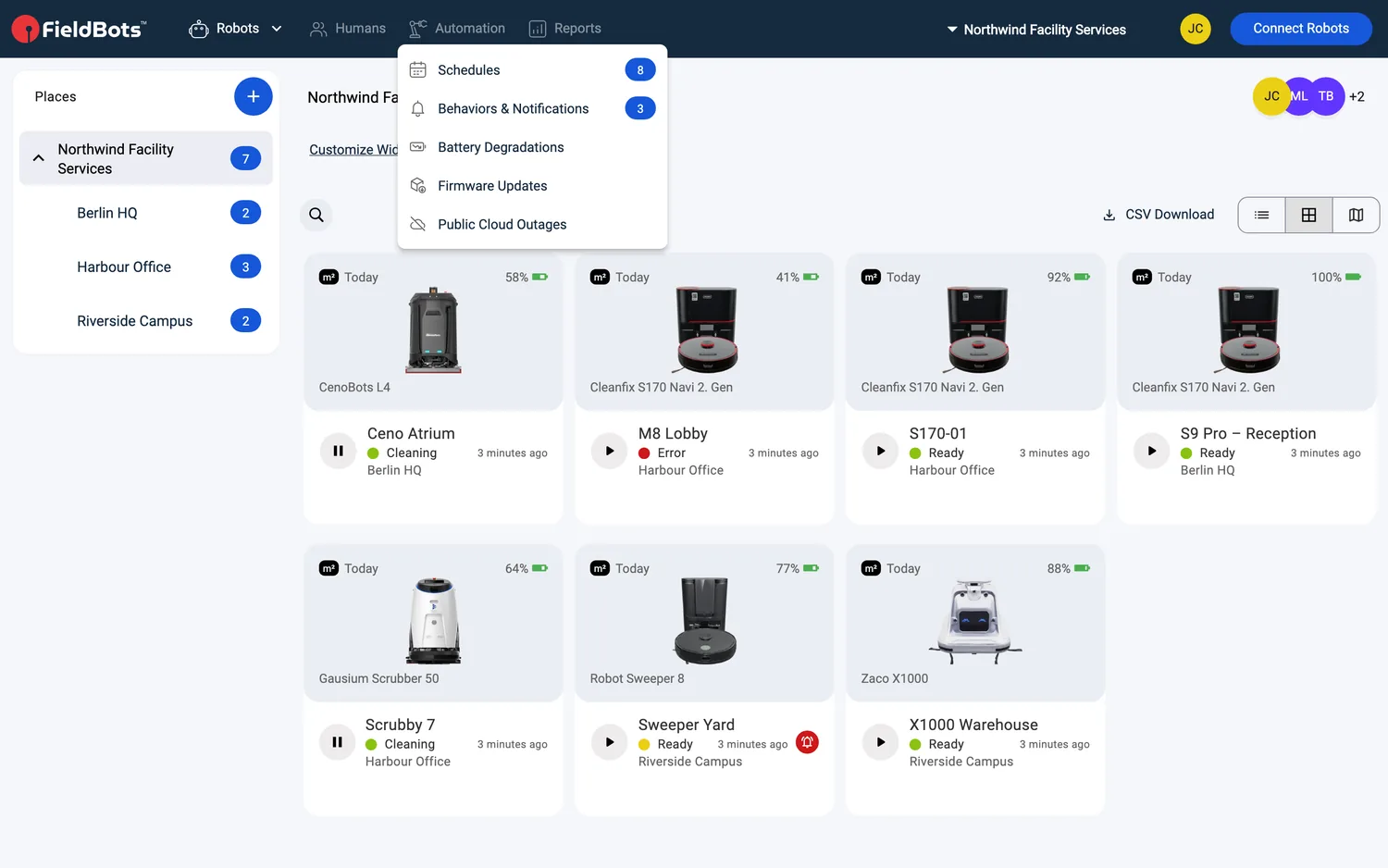
- Open "Automation" and select "Behaviors & Notifications". On the web, the entry carries a bell icon and a count pill with the switched-on rules; on a phone, the same entry sits in the "Automation" menu.
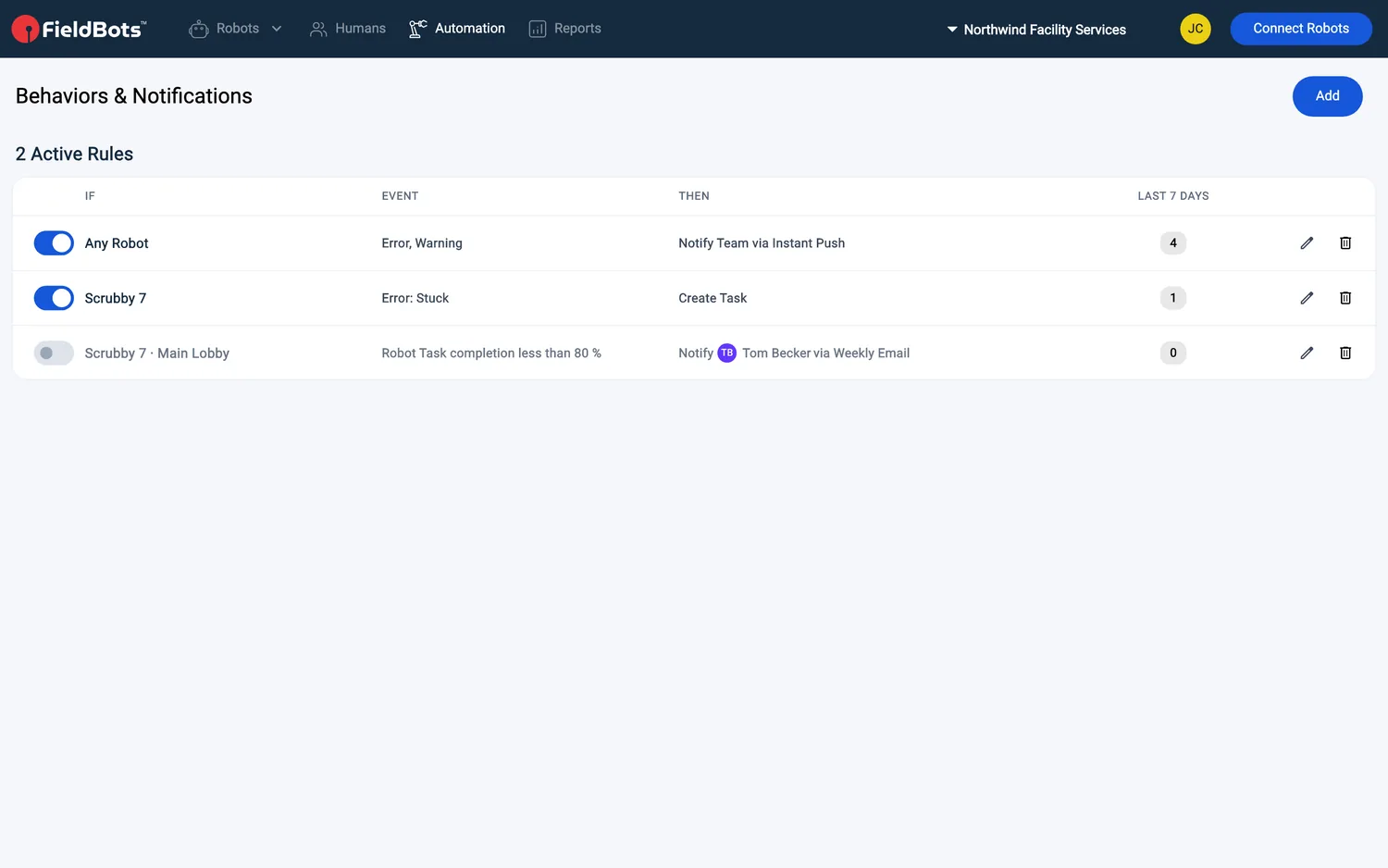
- The page lists your team's rules in an "IF · EVENT · THEN" table — switched-on rules first, under a headline counting them, like "3 Active Rules". With no rules yet it says "No rules yet.".
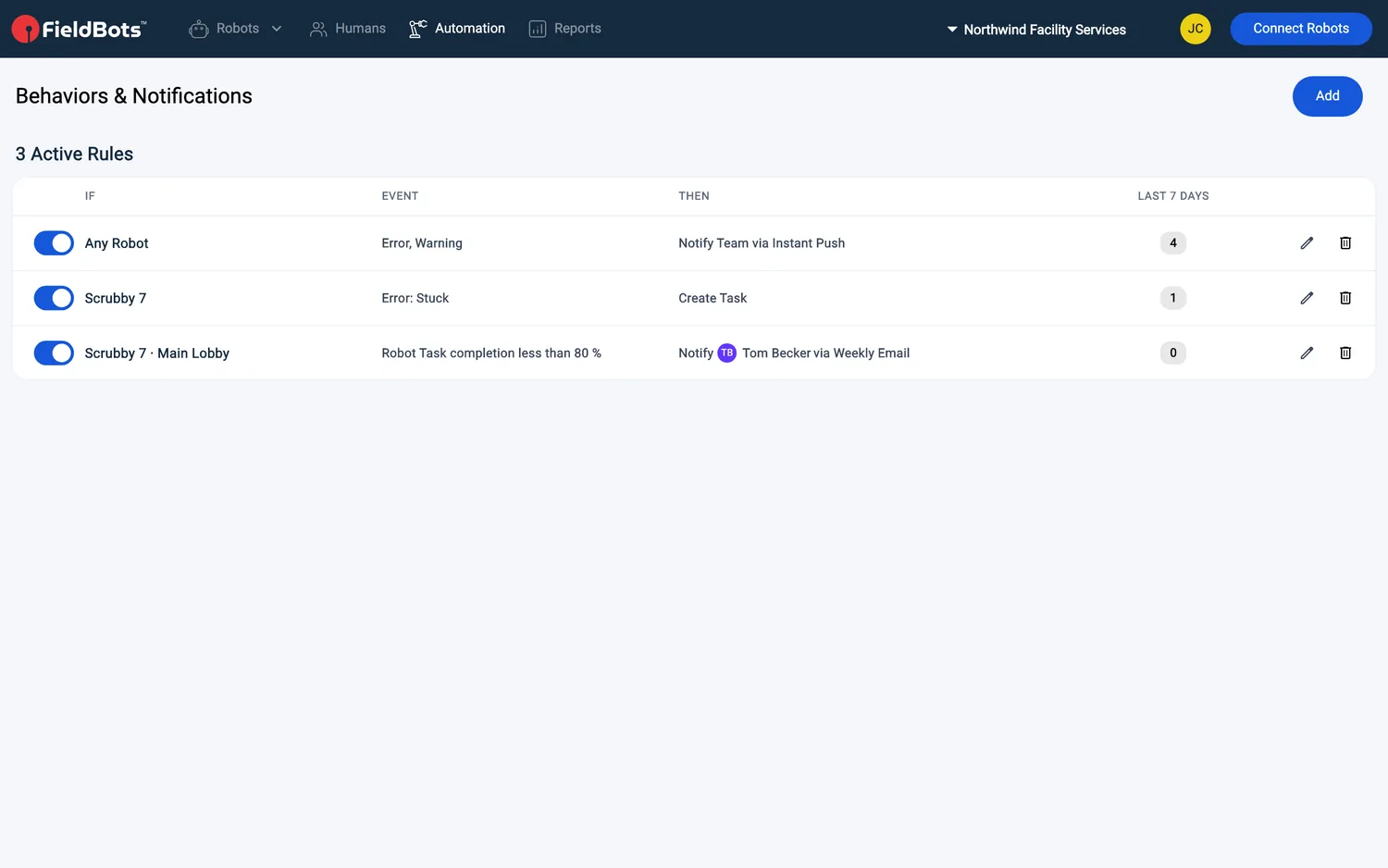
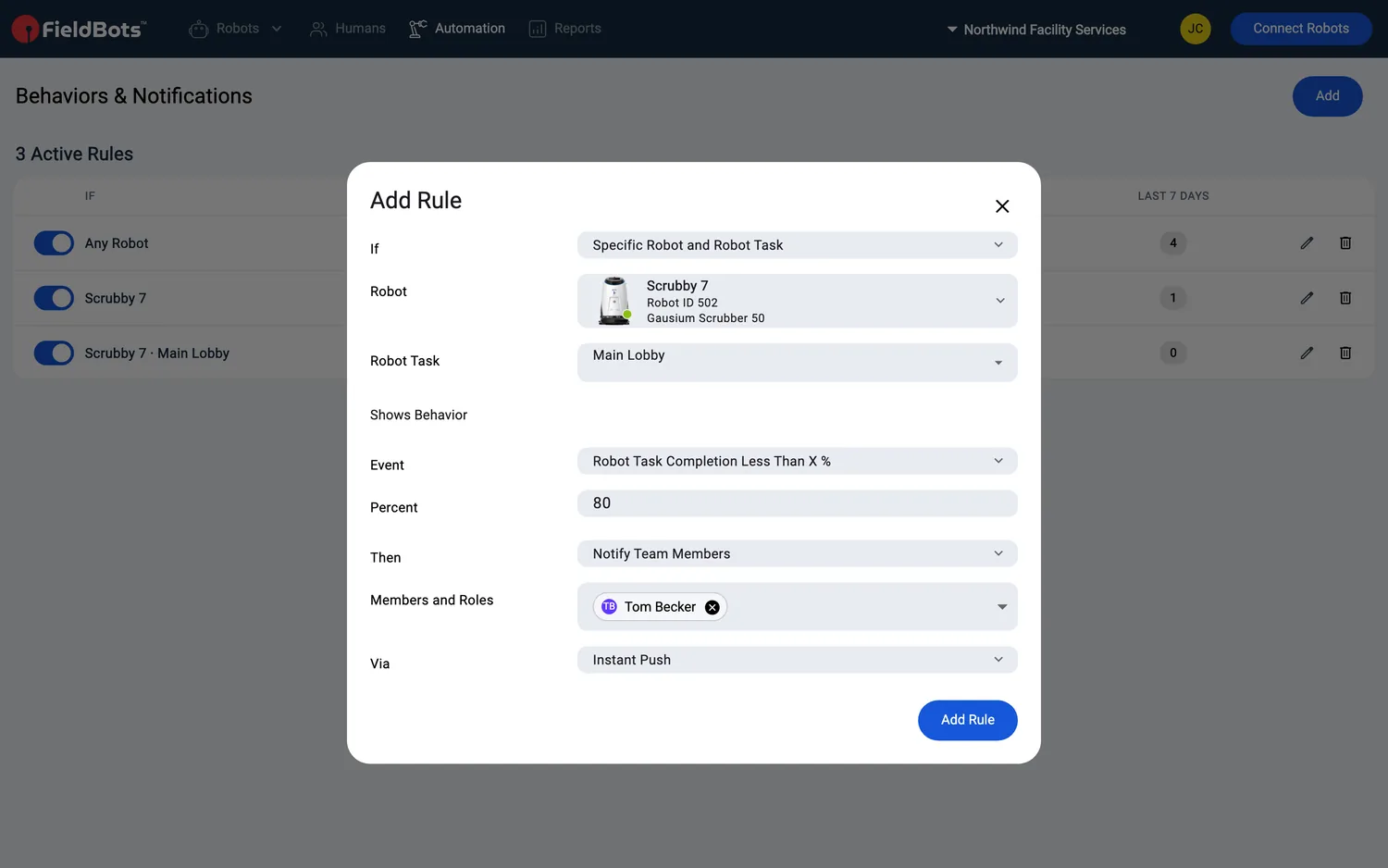
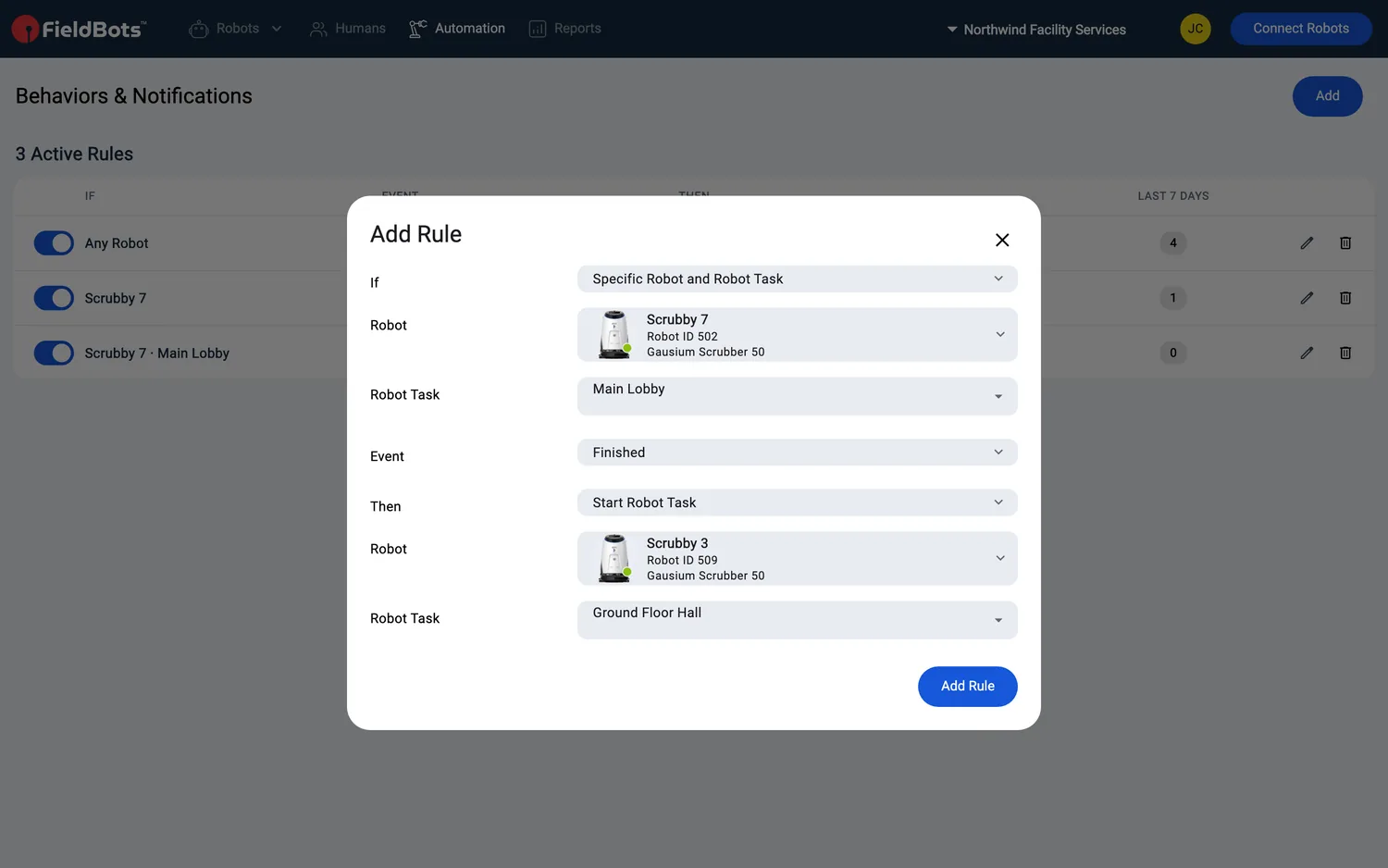
- Click "Add" to open the "Add Rule" dialog with its four fields: "If" (what the rule watches), the event, "Then" (what happens) and "Via" (the channel the message travels through).
- "If" — choose what the rule watches:
- "Any Robot" — the whole fleet.
- "Any Robot of a Place" — then pick the "Place".
- "Specific Robot" — then pick the "Robot".
- "Specific Robot and Robot Task" — then pick the "Robot Task"; only robots with saved Robot Tasks are offered, and if there are none the dialog says "This team has no robots with Robot Tasks yet.".
- "Any Task" and "Mention in Task" — see "Watch your tasks and start the next run" below.
- "Event" — choose when the rule fires:
- The "Logs" section offers the statuses "Error", "Warning", "Notice" and "Notification" (the bell status, when a robot expects an action), plus "Map Reset" (the robot reset its map during a run — choosing it replaces the statuses). In the "Error" chip's menu you can tick "Stuck Only" to watch stuck robots alone; the chip then reads "Error: Stuck".
- For "Specific Robot and Robot Task", the "Shows Behavior" section offers "Idling for X Days", "Battery Drop of More Than X %", "Robot Task Completion Less Than X %", "Water Usage Below or Above a Limit" and "Battery Health" — and "Finished" (see "Watch your tasks and start the next run" below). Until a robot and a task are picked, the field is disabled and says "Choose a robot and a Robot Task first.".
- Fill in the threshold where the event asks for one: "Days", "Percent", or "Less than (l)" and "More than (l)" for water usage — one of the two water fields is enough.
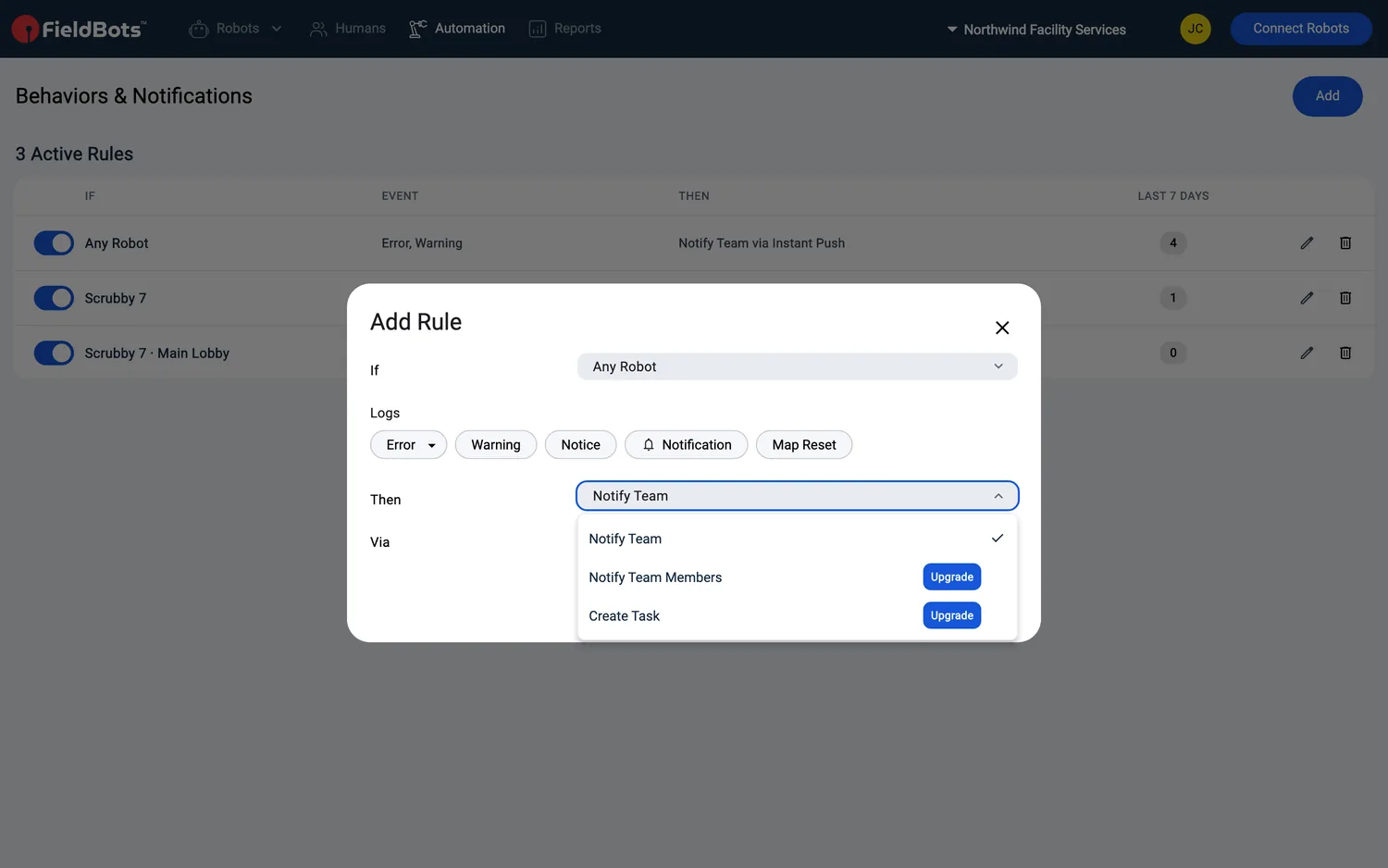
- "Then" — choose what happens: "Notify Team" tells your whole team; "Notify Team Members" opens "Members and Roles", where you pick people or whole roles (Manager, Operator, Technician); "Create Task" opens a Task for the team — it is offered for every robot rule.
- "Via" — choose the channel: "Instant Push", "Instant Email", "Daily Email" or "Weekly Email". Rules that only act — "Create Task", "Close Task", "Start Robot Task" — ask for no channel; a notifying rule sends through exactly one, so to reach people in two ways, create two rules.
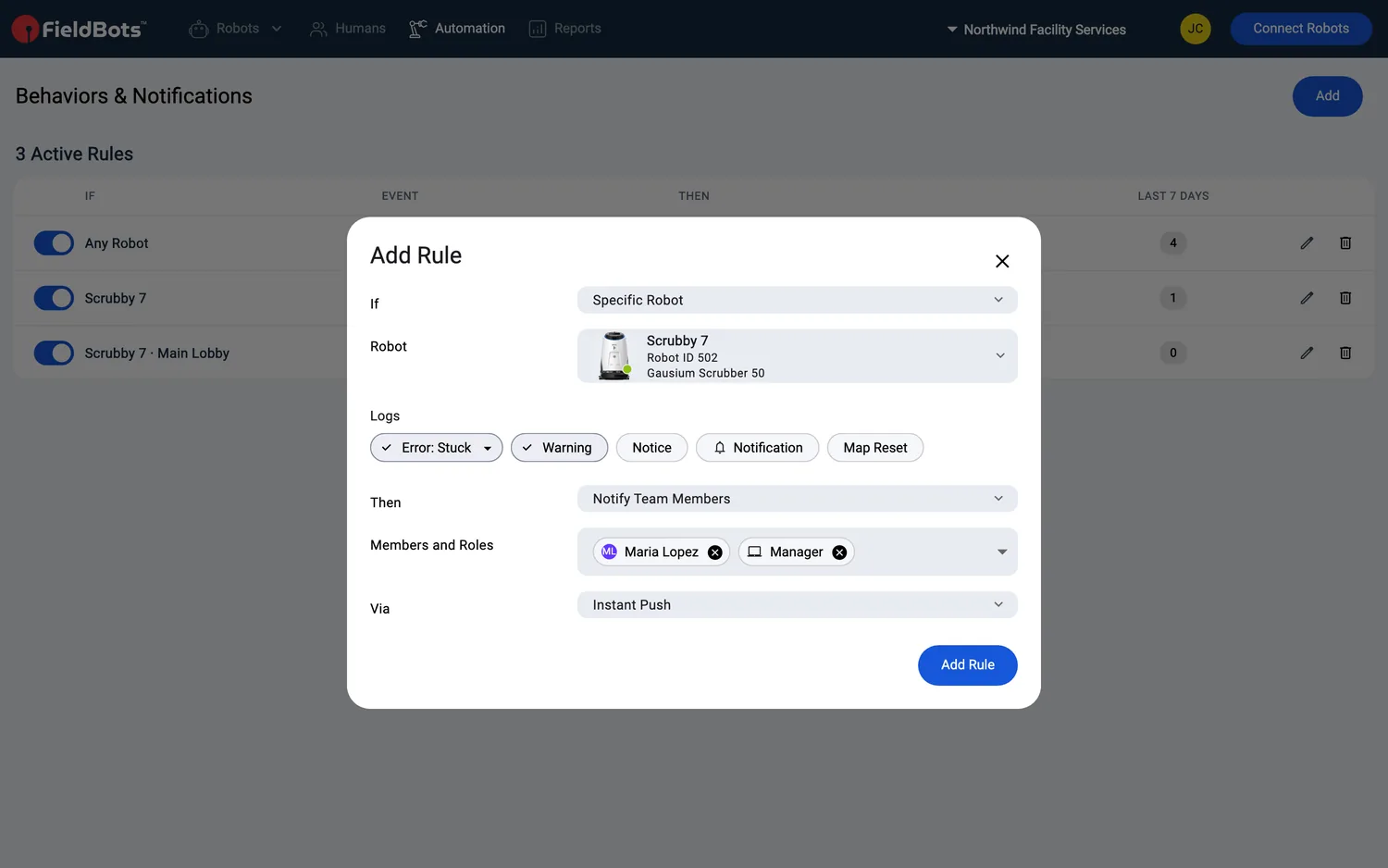
- Click "Add Rule". If a field is missing, the dialog says "Fill in every field of the rule.". If you save a rule with "Instant Push" on a phone, the phone asks you to allow notifications — allow it, or the message cannot arrive on that device.
- Example: "If" "Specific Robot and Robot Task" with robot "Scrubby 7" and its "Lobby daily" Robot Task; event "Shows Behavior" › "Robot Task Completion Less Than 80 %"; "Then" "Notify Team Members" with "Lukas (Operator)"; "Via" "Instant Push". Click "Add Rule" to save.
Manage rules
- The switch on a row turns a rule on or off — a switched-off rule stays in the list and does nothing. Switched-on rules appear first.
- The pencil opens "Edit Rule"; the bin asks "Delete this rule? It stops right away." and deletes the rule.
- On phones the bin is not shown — delete a rule from inside the "Edit Rule" dialog.
Who can change which rules:
- Creating and changing the team's rules needs write access.
- With read-only rights you can change the rules that notify only you: in those rules the "Then" field is replaced by the hint "With read-only rights you can change the rules that notify only you.".
- Rules that update firmware sit on the "Firmware Updates" page and only Managers can create or change them; a Manager limited to certain places sets them for those places only.
See what your rules have been doing
- Each rule row carries a "Last 7 Days" column: a count pill with the rule's runs of the last seven days.

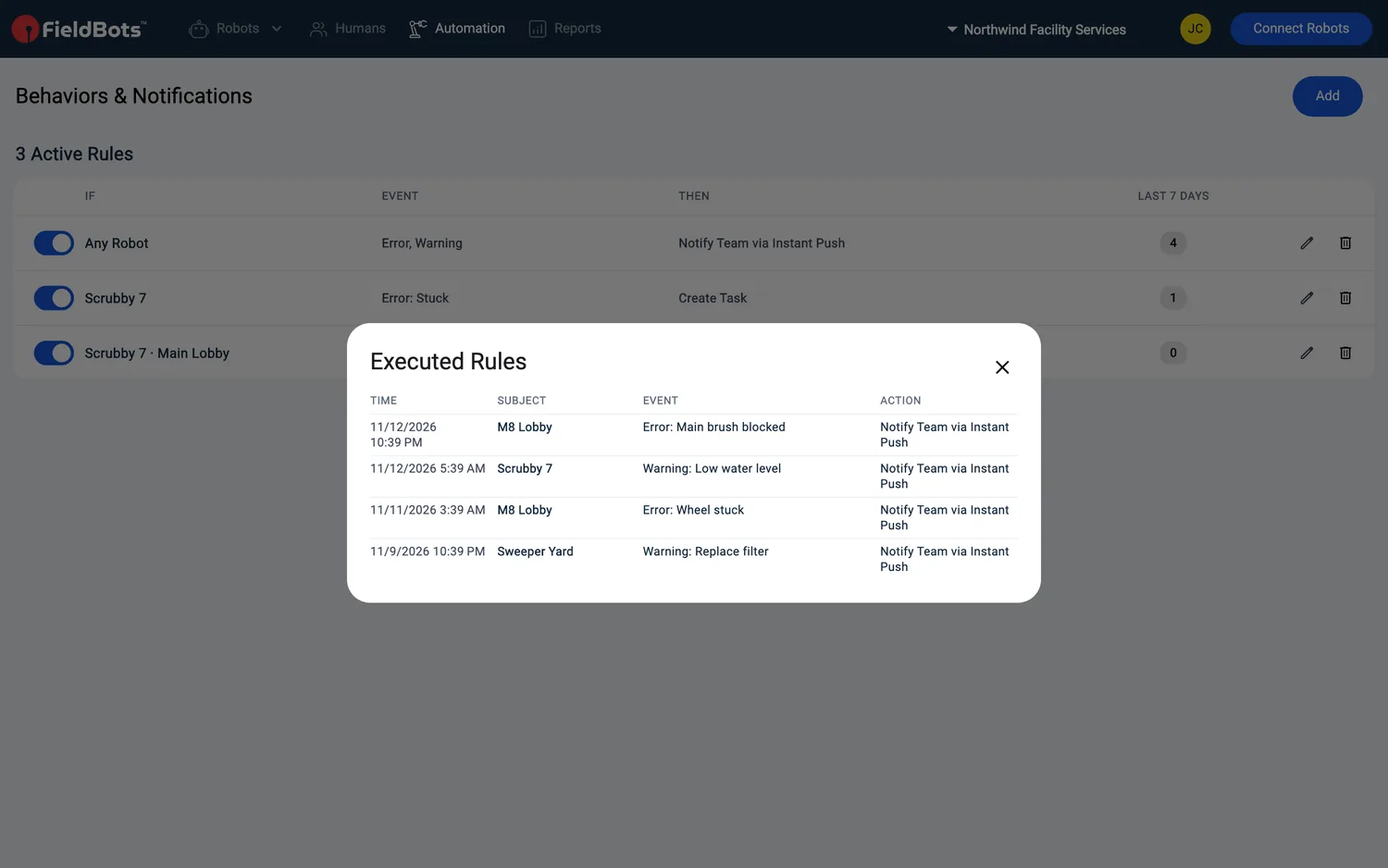
- Click the pill to open "Executed Rules": a dense table with Time, Subject, Event and Action for each run, the latest run first. A rule that never ran shows "No executions yet.".
Rules for a single robot
- Open the robot under "Robots" and switch to its "Behaviors & Notifications" tab — the tab carries a count tag with the robot's rules and is there on every robot and for every role.
- Under "Individual Rules", click "Add" — a rule created here always watches this robot (with or without one of its Robot Tasks).
- "General Rules" underneath lists the team rules that cover this robot, greyed and read-only; "Open Behaviors & Notifications" takes you to the team page to change them. Empty sections read "No individual rules yet." and "No general rules yet.".

Watch your tasks and start the next run
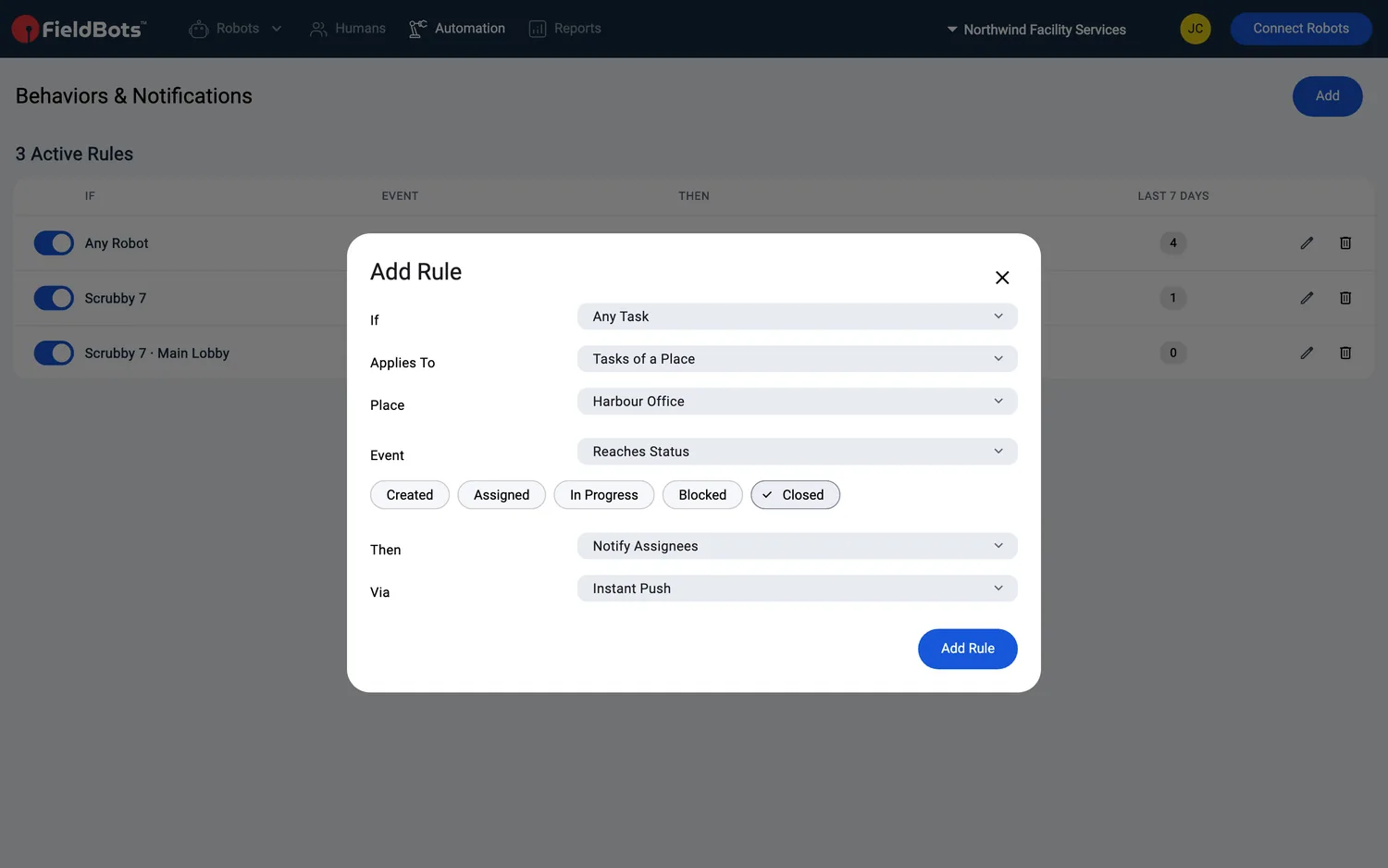
- "Any Task" rules watch the team's tasks. In "Applies To", pick "All Tasks", "Tasks of a Place" or "Tasks of a Robot". The events are "Reaches Status" (choose one or more of "Created", "Assigned", "In Progress", "Blocked", "Closed"), "Untouched for X Days" and "Status Not Changed for X Days". The actions are "Notify Assignees", "Notify Team", "Notify Team Members" and "Close Task".
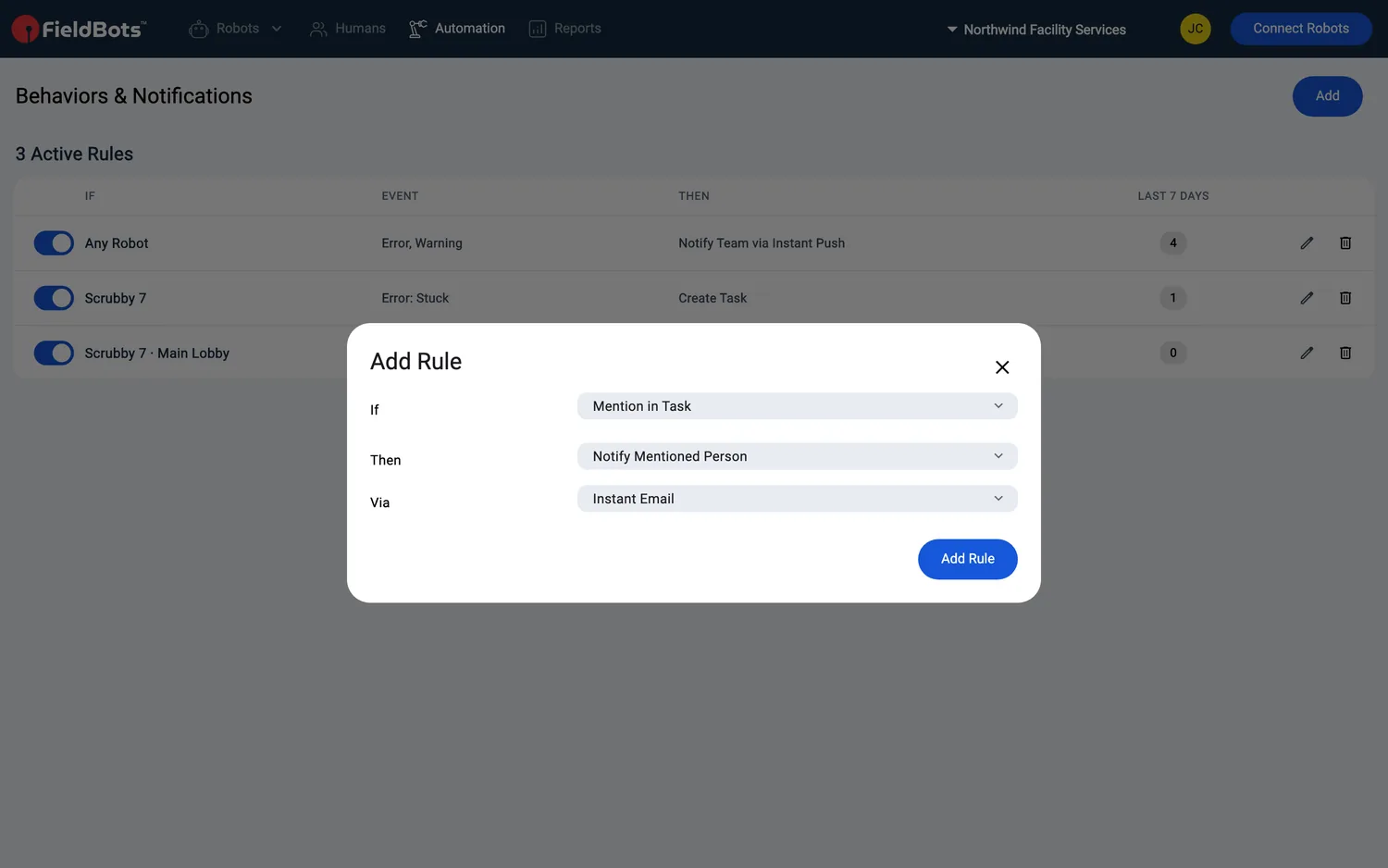
- "Mention in Task" rules fire when someone is mentioned in a Task: the event is "Someone Is Mentioned" and the action "Notify Mentioned Person" — only the mentioned person is told.
- "Finished" rules start the next run: choose "Specific Robot and Robot Task" as the watch and "Finished" as the event; as the action, choose "Start Robot Task" and pick the target robot and its Robot Task — a finished run then starts that task. This rule asks for no channel.
See the results on your dashboard
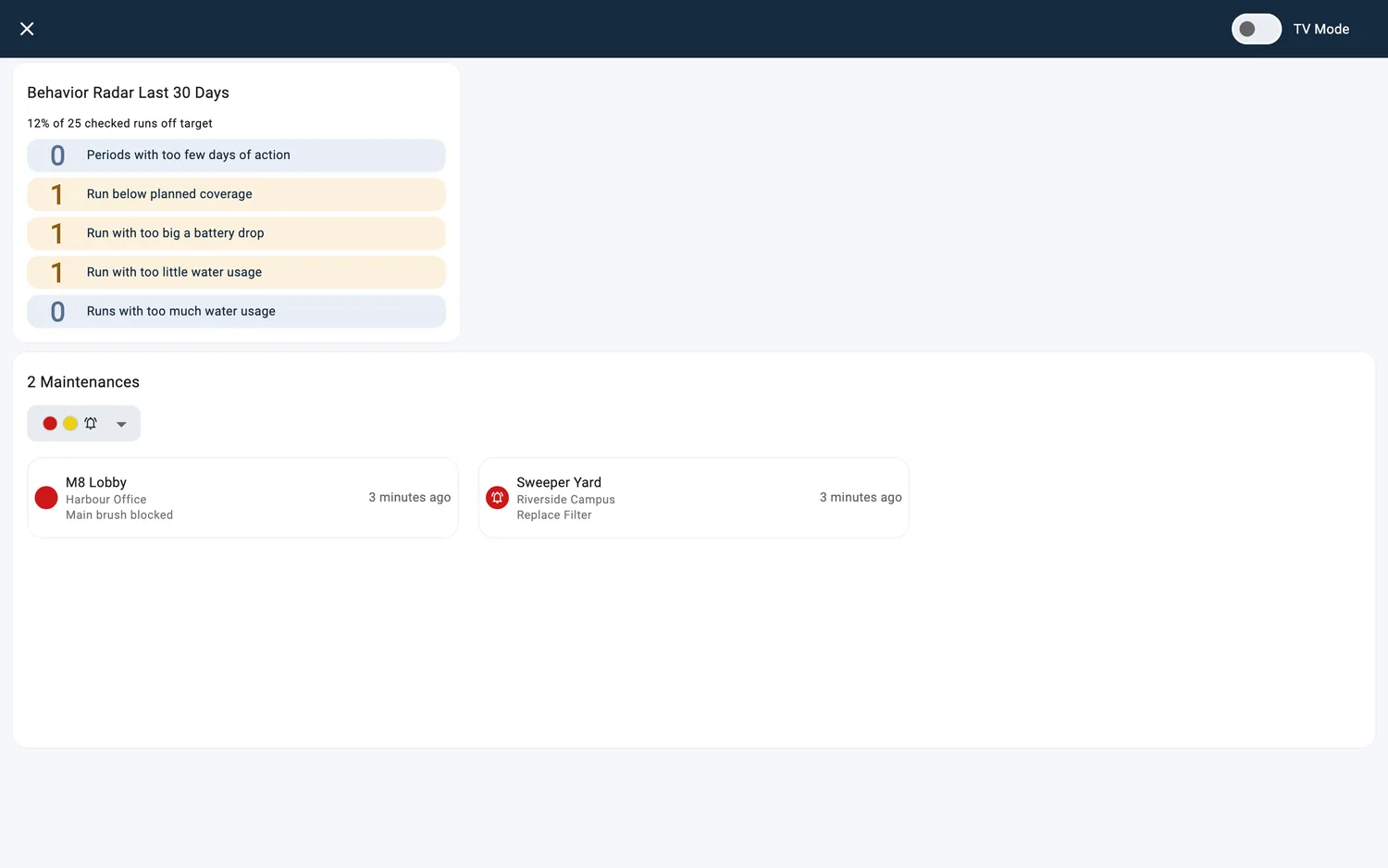
The "Behavior Radar Last 30 Days" widget sums up how often your robots stayed off target in the last 30 days: one row per kind of goal — "Periods with too few days of action", "Runs below planned coverage", "Runs with too big battery drops", "Runs with too little water usage", "Runs with too much water usage" — plus a blended line such as "12% of 25 checked runs off target". Blue means on target, yellow up to 10 % off target, red more than 10 %. Click the widget to open the rules behind it. If nothing is set up, the widget says "Not set up yet." with an "Add Behavior Rules" button; until the first runs have been checked, it says "Waiting for data.".
Web / Mobile: The features are the same on both. On a phone the table stacks the "IF", "EVENT" and "THEN" information into one column, and you delete a rule from inside the "Edit Rule" dialog.
Supported robot models
Notifications: Notification rules are available for all robots; the on-robot notification reset via FieldBots is available for 28 models.
Behaviors: Works with all robots; which events can be tracked depends on the data the robot reports (e.g. coverage, battery, missed targets).
Notes and limits
- One action and one channel per rule — to reach different people in different ways, create one rule for each; a rule that starts a Robot Task on "Finished" carries no channel at all.
- "Shows Behavior" events are offered for robots with saved Robot Tasks — robots that run vendor tasks or virtual tasks; status events can watch every robot.
- A rule fires on the change it watches: when a robot enters the watched status again, the rule notifies again.
- When you clear an alert in FieldBots (for example a required action, marked by a red bell), some models also clear the message on the robot itself (see the model note above). On other models the alert is cleared in FieldBots only; nothing is sent to the robot.
- The "Via" channel decides how fast a message arrives: "Instant Push" and "Instant Email" alert right away; "Daily Email" collects the day's events; "Weekly Email" collects the week's.
- "Instant Push" needs the FieldBots mobile app on the phone that should get the alerts; emails arrive on any device. Saving a push rule on a phone turns notifications on for that phone; each person must allow them on their own device.
- On a Free team, "Weekly Email" is included and is the channel a rule starts on. "Notify Team Members", "Create Task" and "Update Firmware" (on firmware rules), and the channels "Instant Push", "Instant Email" and "Daily Email", carry an "Upgrade" tag — choosing one opens the upgrade options and the field keeps its previous value. Rules that already use these options keep working; only switching into them is blocked.
- On a Free team the widget is shown blurred behind an "Upgrade" badge; on a robot that is not licensed, the widget is locked.
- The widget always reports the last 30 days, calculated in your team's time zone.
- Firmware rules live on the Firmware Updates page and outage rules on the Public Cloud Outages page — the table here does not list them.