
What it is
There is no separate "Error Log" page in the app: manufacturer faults appear as their own rows in a robot's "Logbook" tab, right where the rest of its history lives. Each row shows the severity, the manufacturer's error code and the message — translated into your app language where a translation exists — and unfolds to the original message and the map from the moment the fault appeared.
Who uses it
Operations teams checking what went wrong and when, and technical staff who need the manufacturer's codes for maintenance or support requests.
Steps
Find fault rows
- Open a robot and switch to the "Logbook" tab; make sure the "Robots" pill's "Statuses" checkbox is on.
- Every fault is its own row: a coloured dot with "Error" (red), "Warning" (yellow) or "Notice" (grey), the manufacturer's code as a chip — for example "102" — and the message below it. The message is shown translated when a translation is available; otherwise it stays in the manufacturer's original language.
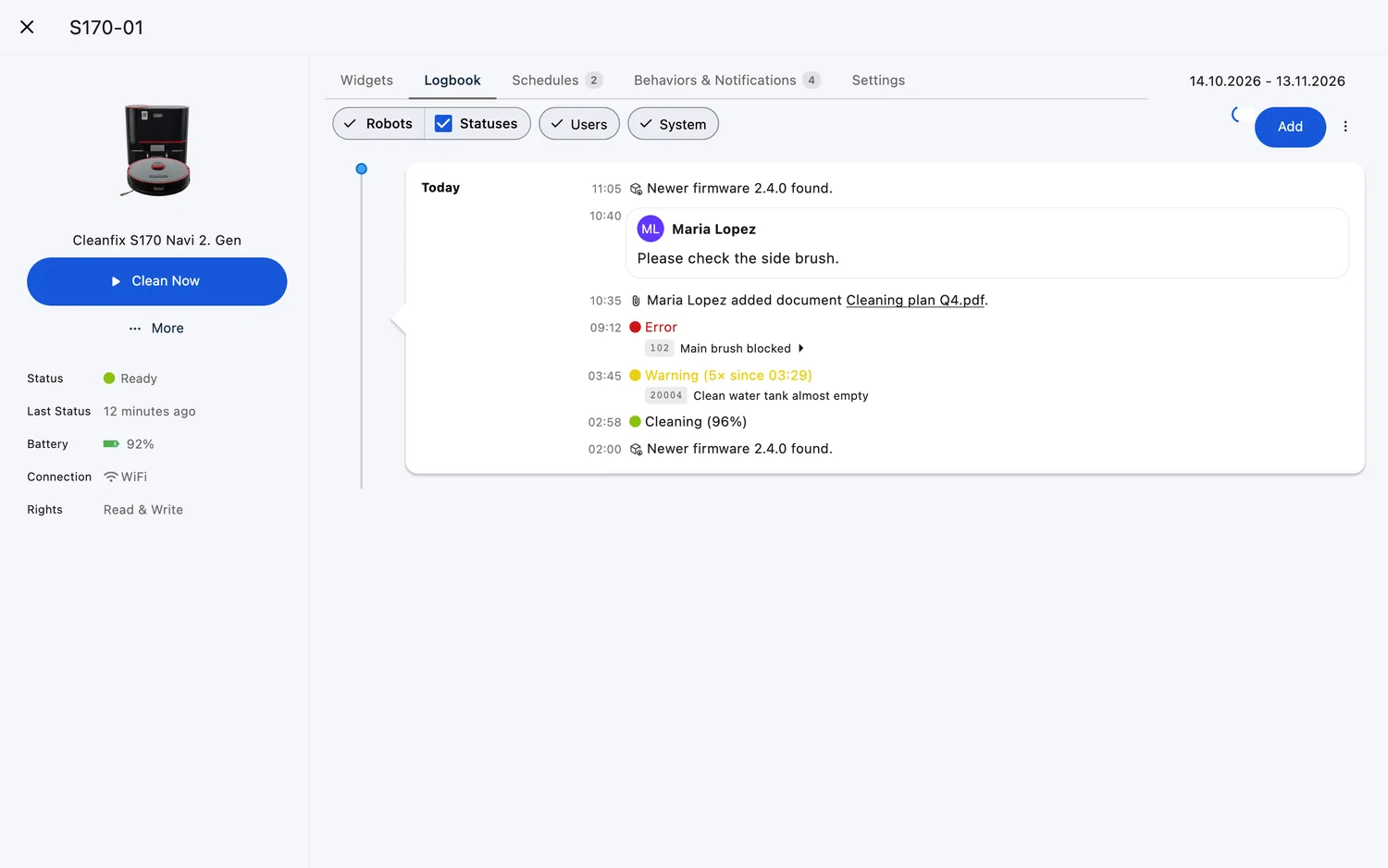
- A fault that keeps repeating without changing folds into one row with a count, for example "Warning (5× since 02:29)" — you see how often it happened without the timeline filling up.
Unfold a row for details
- Click the arrow on a row to unfold it: the original text under "Original message in {language}" — or "Original Message" when the language is unknown — and the picture "Map when Error occurred", showing where the robot was at that moment.
- Tap the picture to open it full size. A row with nothing more to show is not clickable.
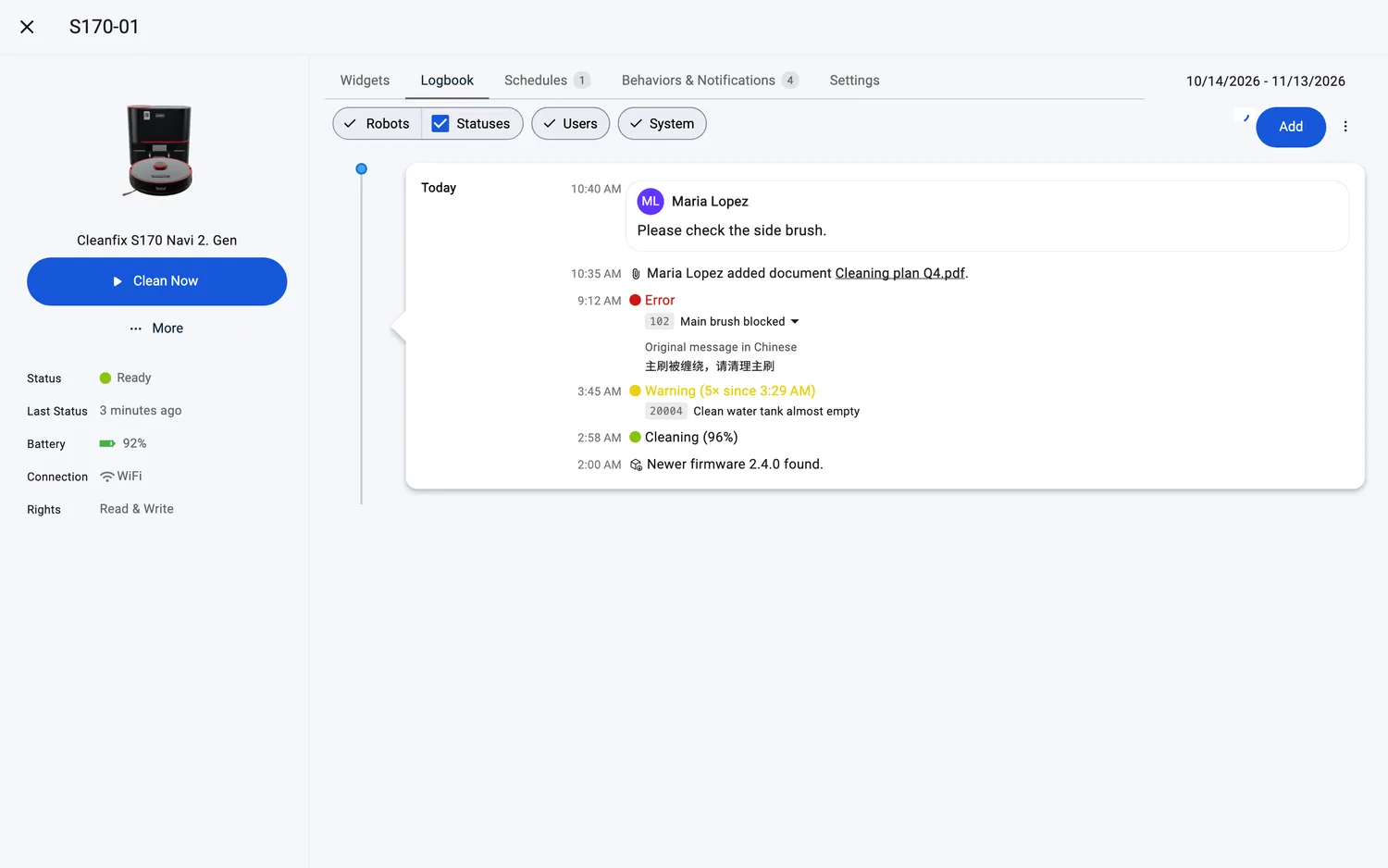
- Status rows that carry a fault show the same code and message beneath the status text — so yesterday's warning stays readable even after the status has changed.
Look deeper with "Show Logs"
- Managers and Technicians find "Show Logs" in the robot menu (⋮), for models whose manufacturer provides a full device log.
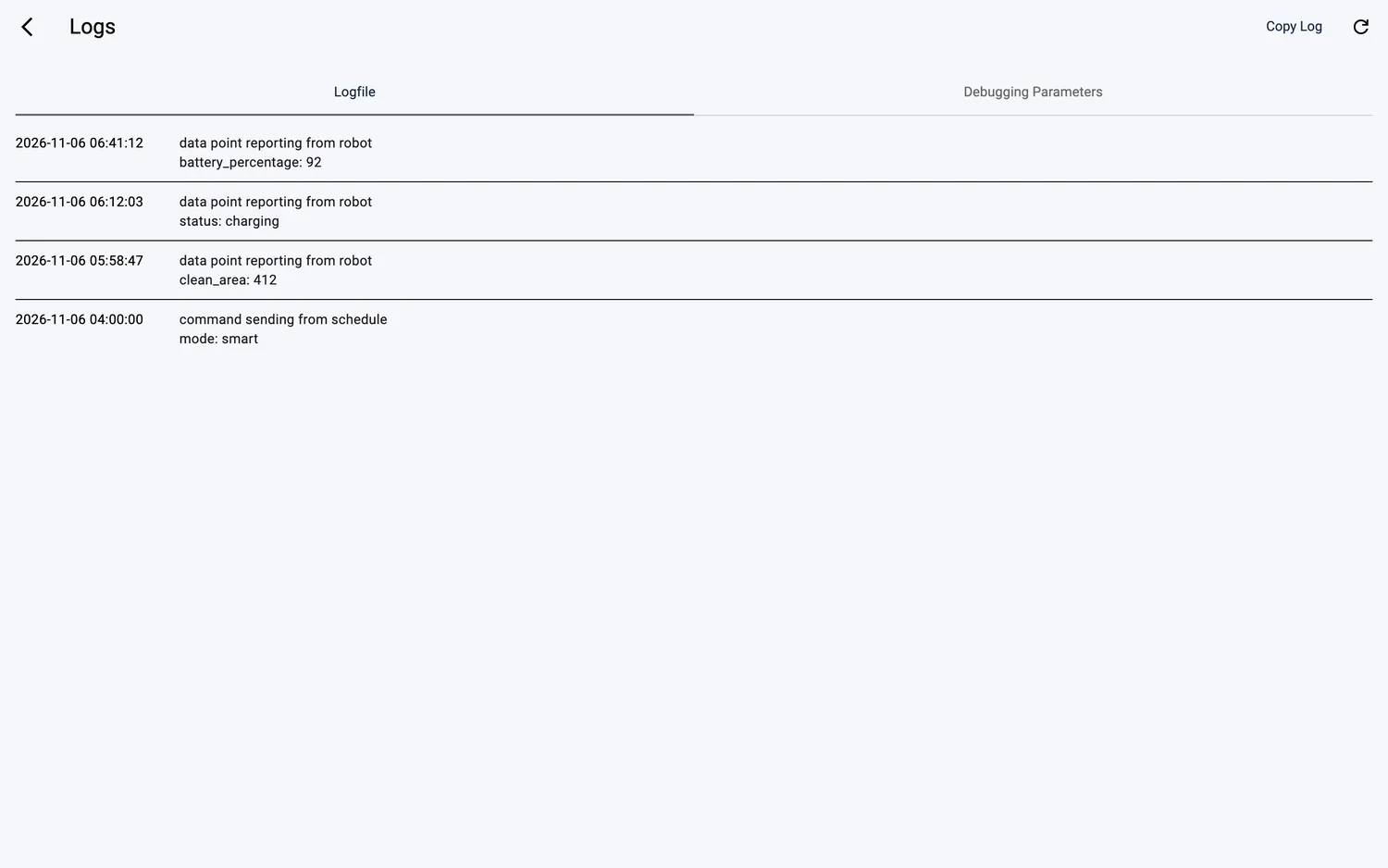
- The page opens as "Logs" with two tabs: "Logfile" (dated entries) and "Debugging Parameters" (a label/value list, including the device's time zone). "Copy Log" copies the log text; "Refresh Logs" reloads it.
Supported robot models
Manufacturer fault codes appear for all robots that report them; the technician view with full device logs ("Show Logs") requires technical log support (10 models).
Notes and limits
- If no translation exists, the original-language message is shown (for example Chinese) — the "Original message in …" fold is then not offered.
- A fault can appear in the manufacturer's language until its translation is available.
- The map picture exists only if it was captured while the fault was open.
- Sometimes only the code appears — when the manufacturer sends no message text, FieldBots shows the code on its own.
- While a fault is active, the "About the Status" dialog on the robot's page shows the manufacturer's message as well, with the original text underneath. The dialog is available for the S170, Robot Sweeper 8 and co-botic 1700 families, or when a robot carries a manufacturer incident message.
- Fault rows follow the robot's license: on an unlicensed robot they do not appear — see Logbook.