
What it is
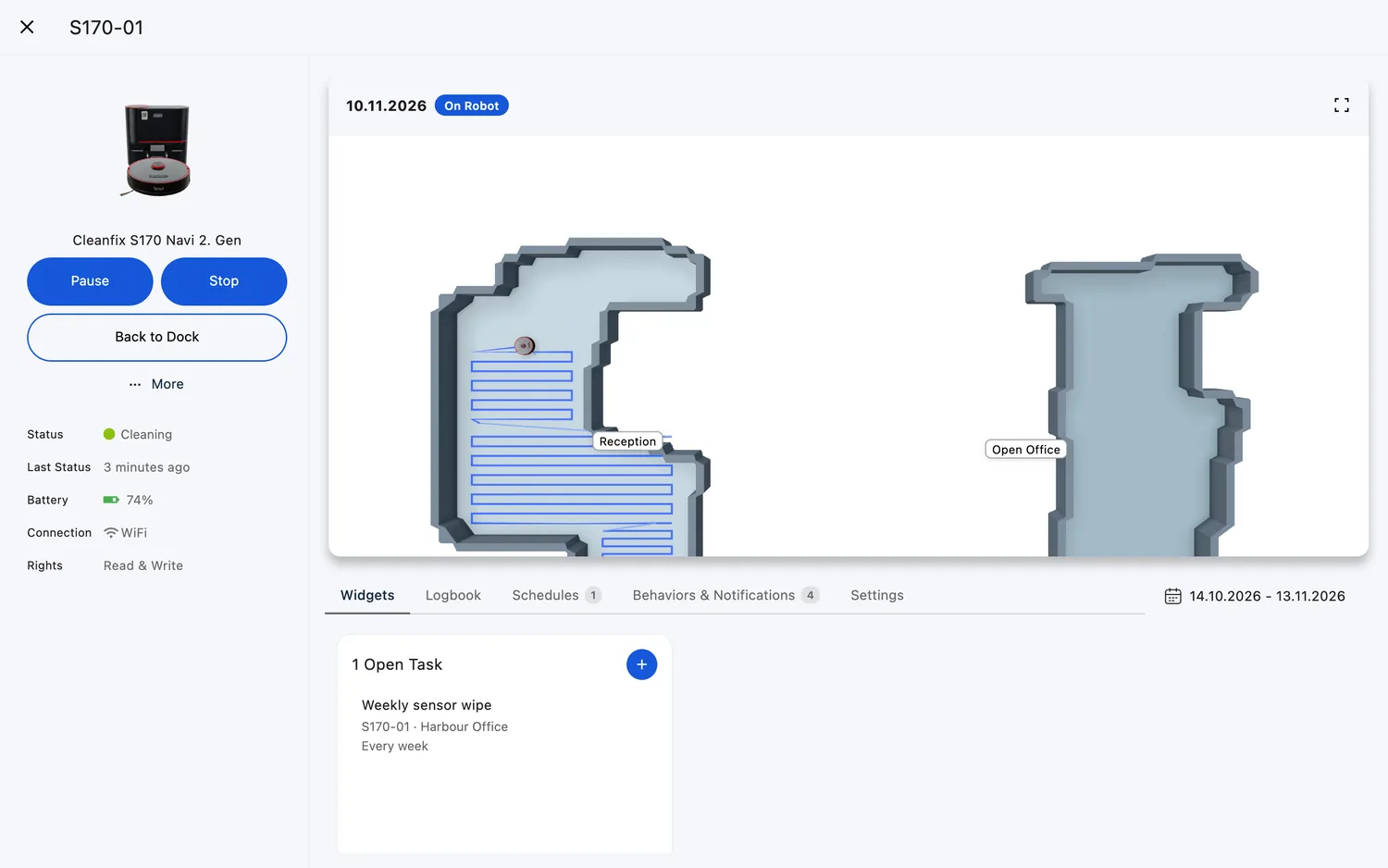
The Live Map shows where a robot is and what it is doing — on the map of its cleaning area. It is the quickest way to follow a run from your desk, or to look up where a robot is at any moment. The map sits at the top of the robot's page and refreshes automatically every 10 seconds.
Who uses it
Fleet managers checking progress, on-site teams locating a robot, and anyone who wants to see the cleaned route at a glance.
Steps
Open the Live Map
- Open "Robots" and select a robot.
- The map card sits at the top of the robot's page. It shows the robot's position and the area it is cleaning; its top row carries the map's title and pills, the "Edit Map" button and the expand icon.
Explore the map
- Click the map — or the expand icon in its top-right corner — to open it full screen over the app. The box that opens also holds the robot's tasks and saved maps; see The Map Box for the full tour.
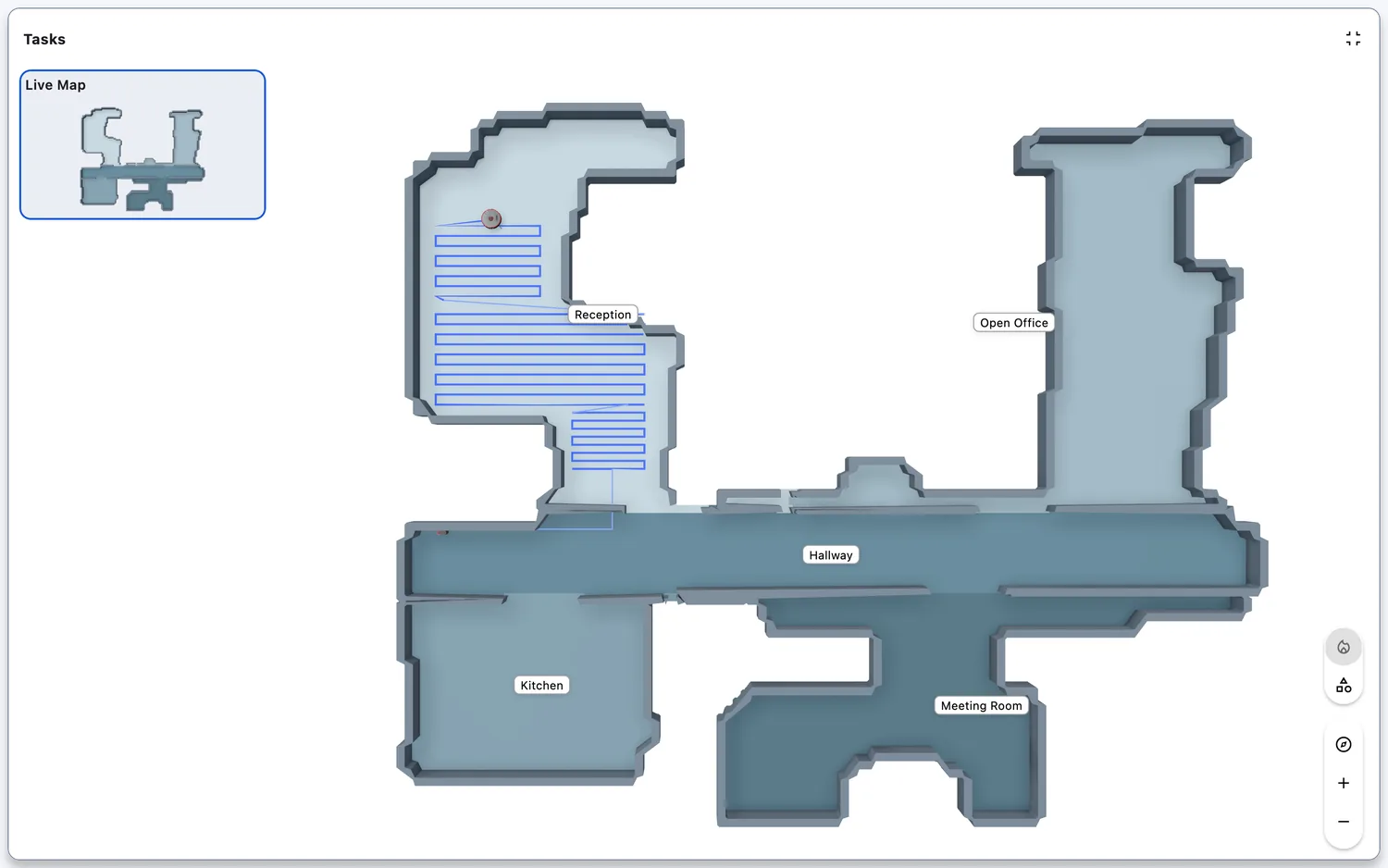
- Zoom with the + and − buttons or your mouse wheel; drag to move around.
- Bottom right, switch layers on and off: "Map Objects" (the walls, no-go areas, cleaned path, and the robot and dock icons — on by default), and "Monthly Coverage" or "Heat Map" on the models that offer them (see Heatmap).
- On models whose map FieldBots draws in 3D, drag to turn the view; the camera card at the bottom right holds "Top-Down View" and the zoom buttons.
Web / Mobile: On phones and tablets the card is smaller; tapping it opens the same full-screen box.

More actions on the map card
- "Edit Map" opens the map editor — for models with map editing (see Edit Map). Where FieldBots shows a robot's maps without editing them — for example Lionsbot or Nilfisk — the same button opens the saved maps instead (see Map History).
- Gausium and Pudu robots manage their maps in their own systems and show no "Edit Map" button. CenoBots robots list their maps in the map box's "Tasks" panel (see The Map Box).
- For Zaco X1000, a "Save Map" icon appears while a freshly mapped area is settling — click it to keep the current map.
Web / Mobile: the same actions on both.
Supported robot models
Available for 46 of 52 catalog models:
CenoBots
L3L4L50S5SP50
Cleanfix
S170 Navi 1. GenS170 Navi 2. Gen
Gausium
BeetleMarvelMiraOmniePhantasScrubber 50Scrubber 75Sweeper 111Vacuum 40
GeniusⓇ
Swift
Keenon
Butlerbot W3C40C55
Kärcher
Kira B 200Kira B 50Kira CV 50
Lionsbot
LeoR3 ScrubR3 VacR5Rex
Nilfisk
SC25
Pudu
BG1CC1CC1 ProET1MT1MT1 MaxMT1 VacT300
Robot Sweeper
Robot Sweeper 8
Taski
Ecobot 40Ecobot 50Phantas
Zaco
X1000
i-team
co-botic 1700co-botic 1700 (2025)co-botic 1900
iRobot
Roomba i7+
Notes and limits
- "Live" means the picture refreshes every 10 seconds — a robot may not be exactly where the picture shows it.
- Robot offline? The map shows "No map available right now." — check again when the robot is back online. Gausium robots keep showing their last known map while disconnected.
- Editing or saving a map needs write access to the robot.
- If the map area is unusually large for the model, FieldBots shows a red "Limited Mapping Capabilities" notice — the map is bigger than the maximum cleaning area of the model, so the robot will not cover all of it.
- CenoBots maps cannot be restored onto the robot (see Map History).