
What it is
The Logbook is the complete history of a single robot, day by day: cleaning results with run previews, status changes and manufacturer faults, comments, tasks, documents, replaced consumables, and automatic findings such as a recommended firmware update, a weak battery or a cloud outage. Every robot has its own Logbook as a tab on its page.
Who uses it
Anyone working with your robots — operations teams following up on a warning, managers checking whether a job ran, colleagues leaving notes for each other.
Steps
Open the Logbook
- Open "Robots" and select a robot.
- Switch to the "Logbook" tab. The timeline fills with the robot's entries, grouped per day.
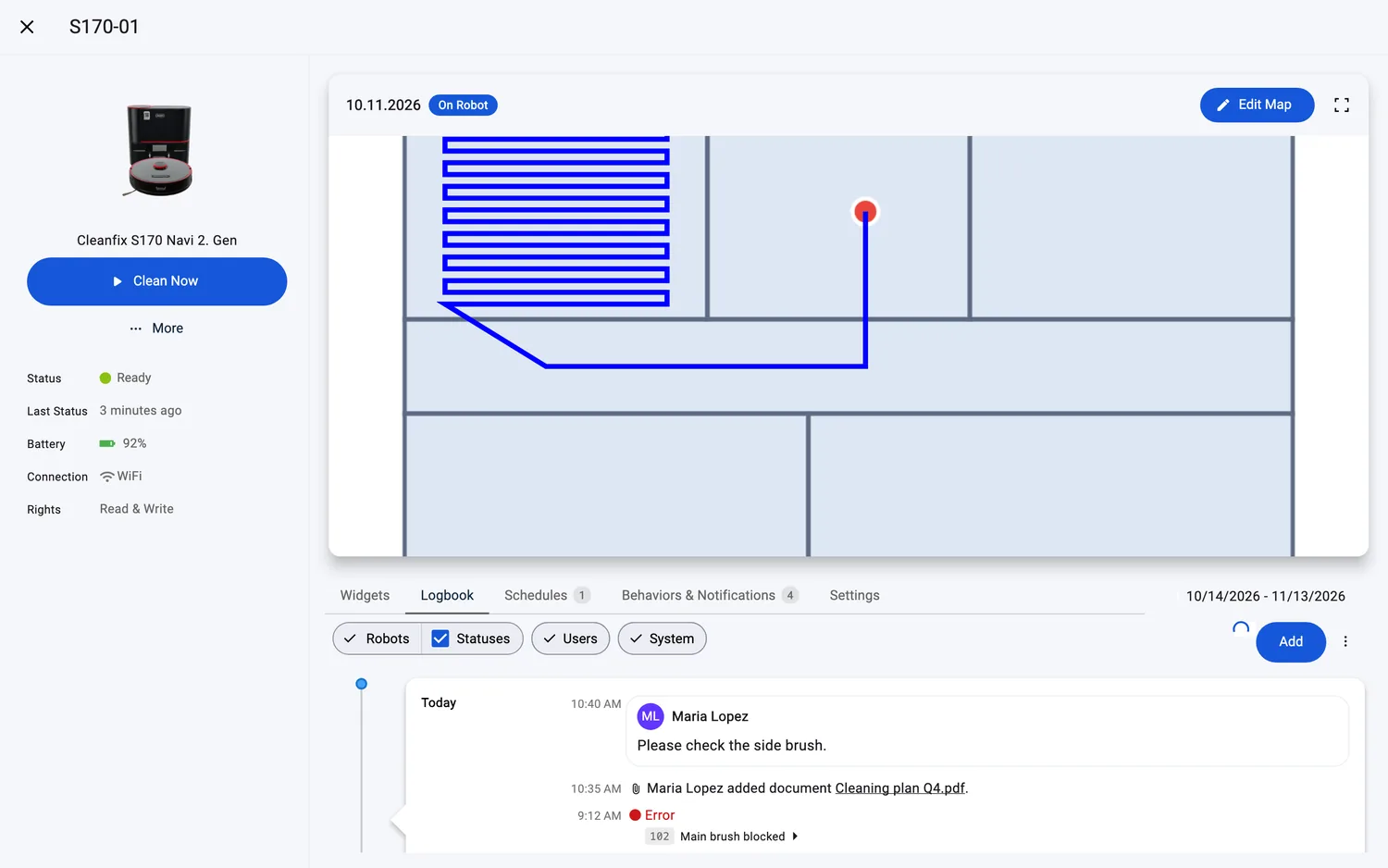
Set the time window
- Use the date control next to the tabs: "Last 30 Days", "Last Month", "This Year", "All Time" or "Custom"; it ticks the preset the shown dates match. "All Time" shows the robot's complete history.
- Your choice is remembered — the next time you open a Logbook, it starts with the same window.
Filter the timeline
- Three filter pills sit above the timeline, all on by default:
- "Robots" — cleaning reports and notices; its "Statuses" checkbox controls status changes and manufacturer faults.
- "Users" — everything people do: comments, tasks, documents, replaced consumables and form submissions.
- "System" — who changed what, for example a schedule adjustment or a license change, and the automatic findings about firmware, battery health and cloud outages.
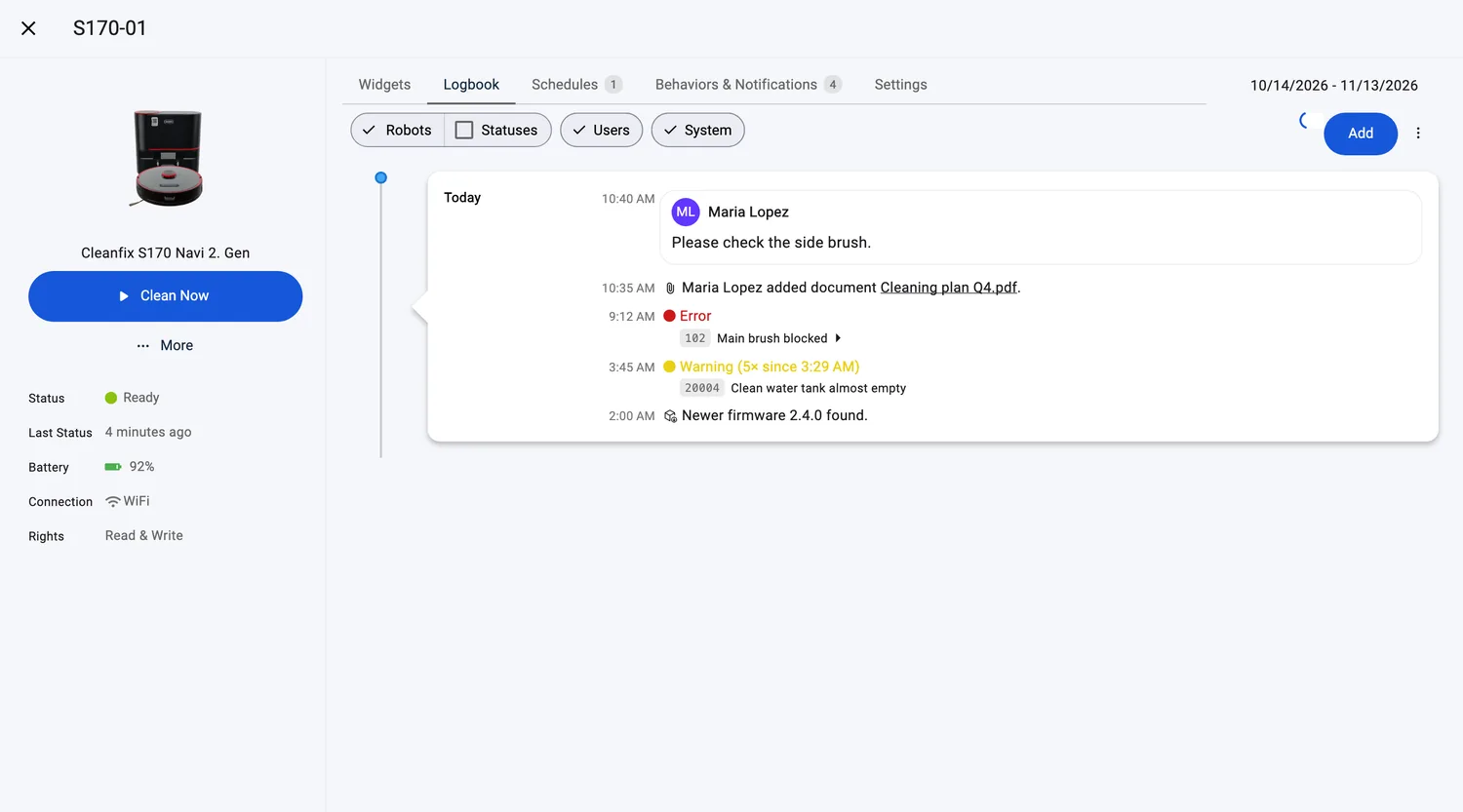
- Repeated faults and routine jobs don't flood the timeline: several reports of the same job fold into one row, and identical faults collapse with a count, for example "Warning (5× since 02:29)".
Read an entry
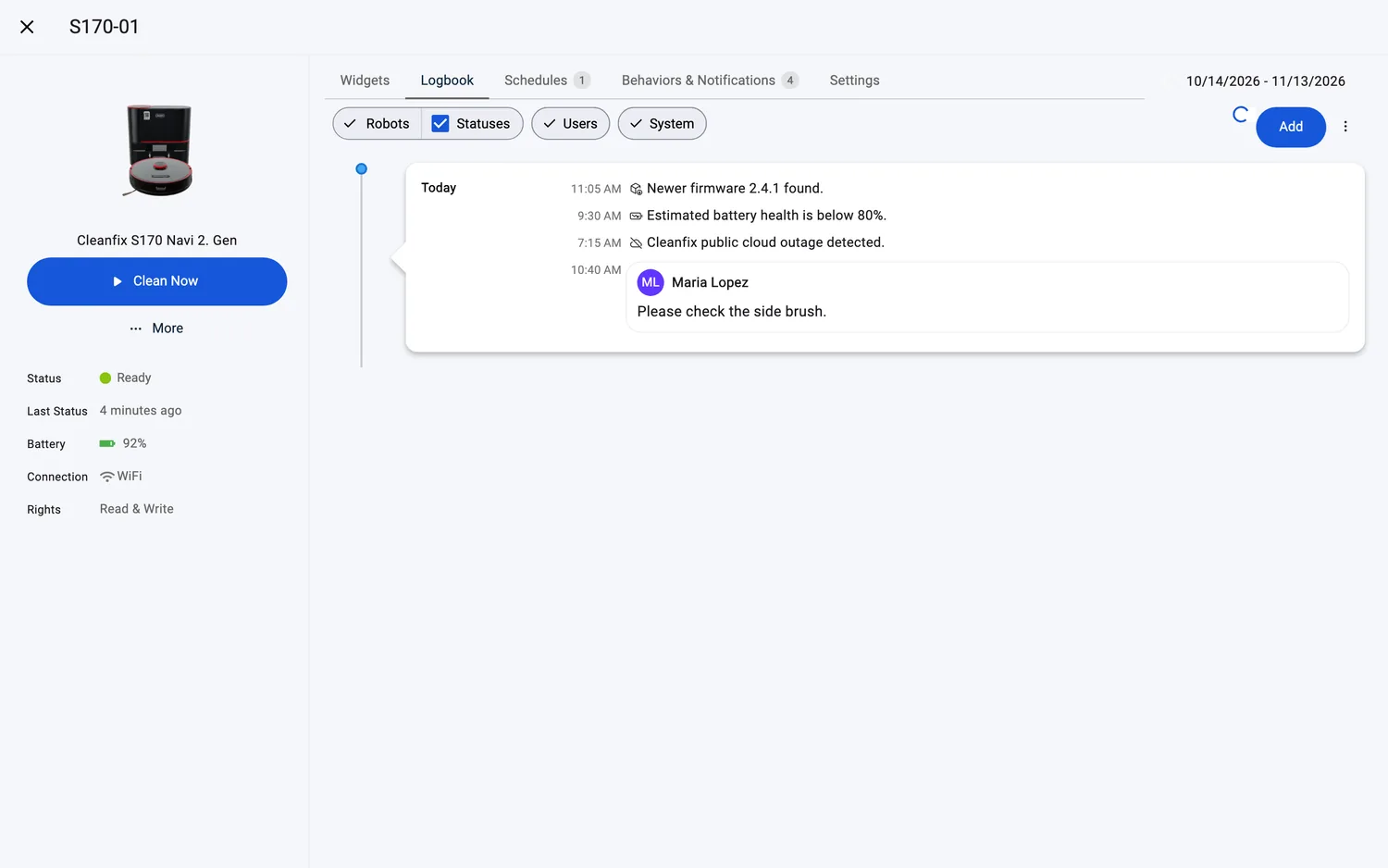
- Cleaning reports show the run's preview — for robots whose maps draw in 3D the preview is the 3D top view of the run with its cleaning path, the dock and where the robot ended — plus the task name, the "AI-Generated Summary" behind its icon, the cleaning mode, the completion rate, the area cleaned, how the run started and how it ended — "Finished" or "Ended Early". Click the card to open the full Task Report.
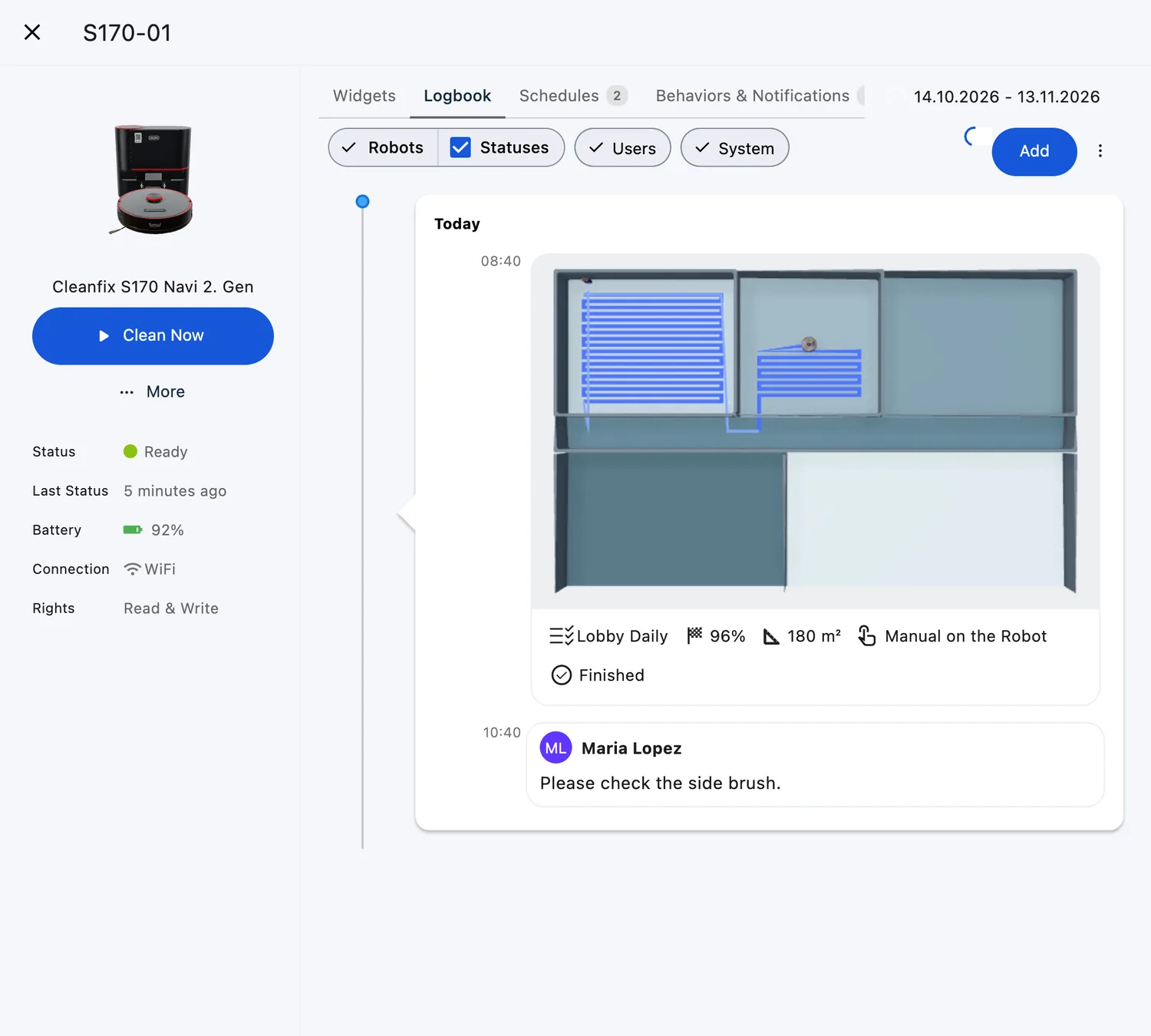
- Other rows read like short sentences, for example "Maria commented: Please check the side brush.", "Maria added document Cleaning plan Q4.pdf", "Newer firmware 2.4.1 found.", "Estimated battery health is below 80%." or "Action required: Replace Filter". Automatic findings carry the icon of the Automation menu entry they come from. Manufacturer fault rows carry the error code and message — see Error Log.

Add entries and export
- The "+" menu above the timeline offers "Task" first, then your team's forms — entries appear in the timeline right away. Managers get one more entry at the bottom, "Edit Forms (Manager)", set apart for managing those forms.

- The ⋮ menu holds "Excel Download" — it exports the robot's cleaning reports for the shown range as an Excel file named "FieldBots Performance History" with the time window.
Web / Mobile: The same pills, "+" menu and date control are available on phones; the timeline uses the full screen width.
Supported robot models
Available for all robots; detailed cleaning results (area, completion) are shown for models that report task completion (30 models).
Notes and limits
- The Logbook refreshes by itself about every 10 seconds while the shown range ends today; while an older range is shown, reload the page to bring it up to date.
- On an unlicensed robot the Logbook is reduced to cleaning reports: the "Statuses" checkbox and the "Users" and "System" pills open the licensing dialog, and the date control reads "Last 7 Days" with an "Upgrade" pill.

- Your filter choices are remembered the next time you open a Logbook.
- Entries are grouped by the date on your device.
- Opening a Task Report and going back keeps your place in the Logbook.
- Clicking a comment in the dashboard's Comments widget opens the robot's Logbook at that entry.