
What it is
Keep your whole fleet on the recommended firmware — from one page. The Firmware Updates page gives you a fleet-wide overview of firmware versions, highlights available updates, and lets you act right away: update directly where FieldBots can, or send a request where it cannot.
Who uses it
Technicians and managers who look after the fleet's software and want every robot on the latest recommended firmware.
Steps
Open the firmware overview
- Open "Automation" and choose "Firmware Updates".
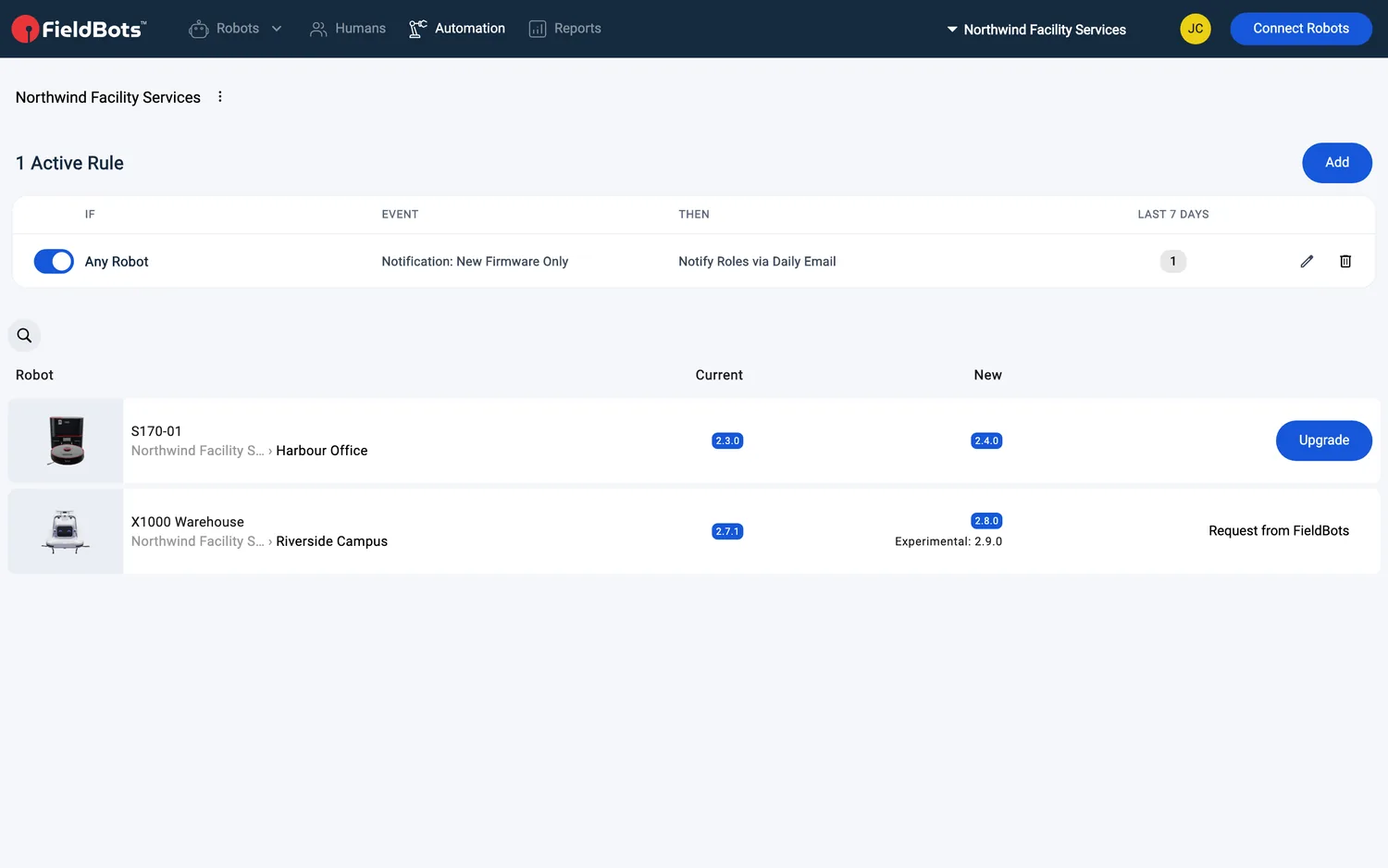
- At the top, the rules for firmware notifications are listed with the number of active ones and an "Add" button — a rule can notify your team when "New Firmware" appears for your robots.
- Narrow the list if you like: use the search box and the "Models" filter; the place you select in the left navigation scopes the robots shown.
- The table lists every robot with an update in three columns — "Robot", "Current" and "New" — plus the action for that robot. A robot appears once an update is available for its model.
- If nothing is pending, you see: "No firmware updates for your robots found."
- How to read the versions: "Current" is the version the robot runs; "New" is the release we recommend. Where an experimental release is ahead of the stable one, the "New" column shows it as "Experimental: <version>".
Update a robot directly
- Where FieldBots can update the robot itself, the row offers "Upgrade".
- Click "Upgrade" — the firmware is sent right away: "Firmware update triggered."
- The robot installs the update and restarts; it cannot clean while the update runs.
Request an update
- Where the update cannot be sent directly, the row offers "Request from FieldBots" — a support form opens, ready for your request.
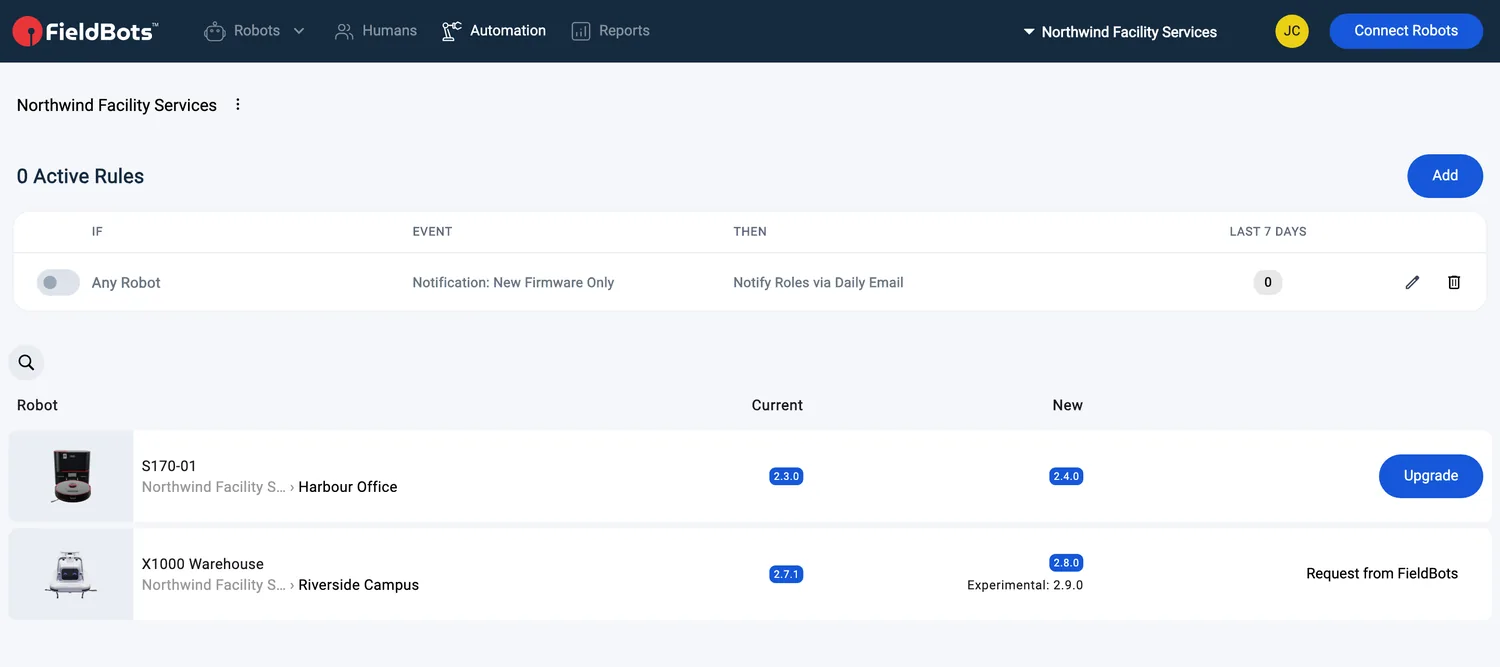
- Depending on the model and your team setup, a row can also show "Request from Distributor" — the request goes to your distributor ("A task was created for your distributor") — or the plain note "Contact Your Distributor".
Update from the robot's page
- Open the robot and click "More".
- Choose "Update Firmware" — the entry shows the version it would install, or "Current" when there is nothing to do.
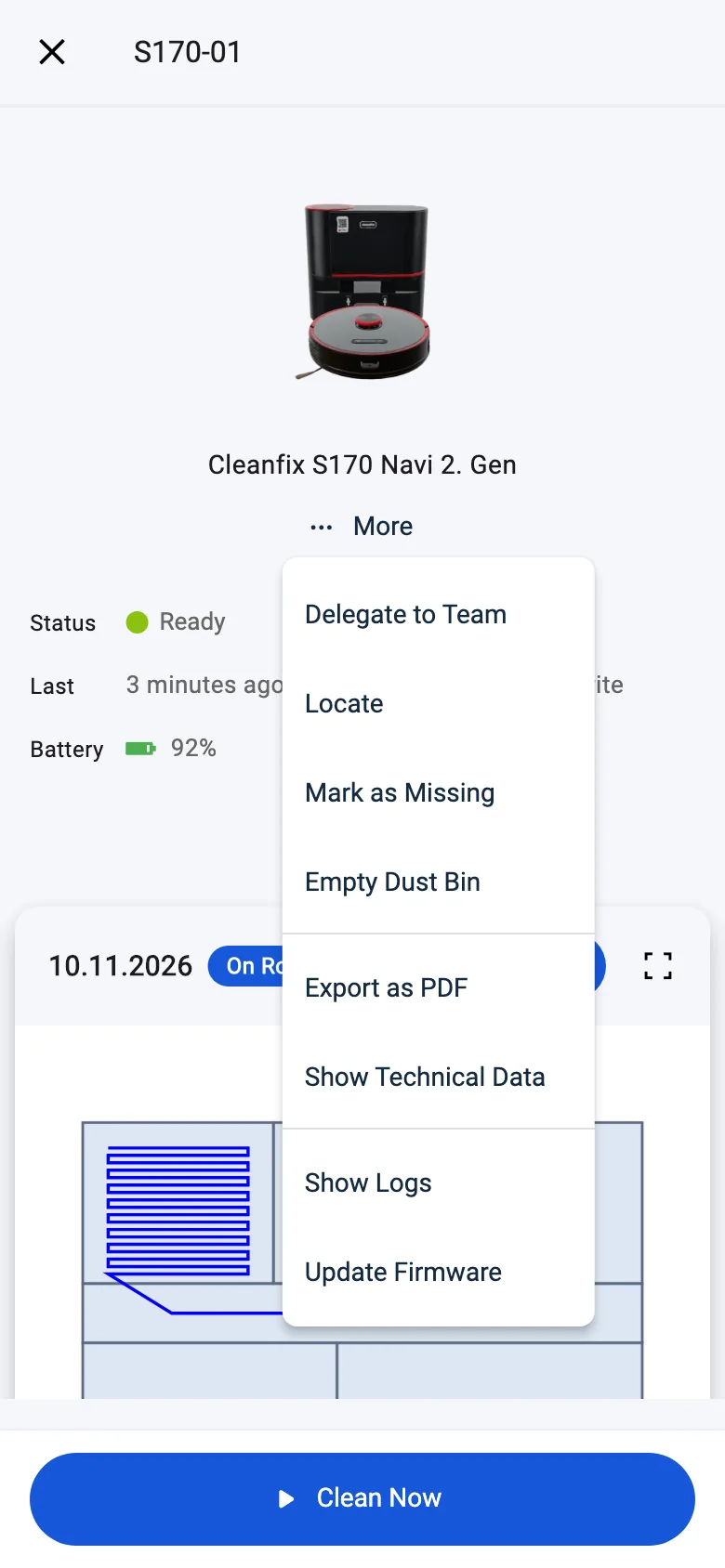
- What happens next depends on the robot:
- Nothing to update: "No Firmware Update Available" — "There is no newer firmware version for this robot. Nothing needs to be updated."
- Direct update: the dialog asks "Update firmware?" and explains that the firmware is installed right away — "The robot can't clean while the update runs and restarts afterwards." Confirm with "Start Update".
- Otherwise: "Request Firmware Update" — FieldBots asks the robot's distributor to install the update. Confirm with "Notify Distributor"; you will then see "The distributor has been notified."
- If no distributor is set up, "No Distributor" appears: "To notify your distributor, add it to your Team Settings." Team leads can open the Team Settings right from the dialog; everyone else is asked to have a team lead do it.
Web / Mobile: the same page on both. On phones the "Upgrade" action shows as an icon instead of a label, and robot pictures are hidden in the table.
Supported robot models
Firmware overview for 8 models:
Update directly from FieldBots:
Cleanfix
S170 Navi 1. GenS170 Navi 2. Gen
GeniusⓇ
Swift
Robot Sweeper
Robot Sweeper 8
i-team
co-botic 1700co-botic 1700 (2025)co-botic 1900
Request the update from FieldBots:
Zaco
X1000
Notes and limits
- Opening the page needs maintenance access (a Technician or Manager role) and a paid team plan; sending an update needs write access.
- On a Free team the menu entry reads "Firmware Updates (Upgrade)": tapping it opens the upgrade prompt, and the page itself leads to your robots list.
- A direct update interrupts cleaning and restarts the robot — plan it between cleaning rounds.
- The robot's "Update Firmware" menu offers stable releases only; experimental releases appear on the page only.
- Distributor requests need your distributor stored in the team settings — a team lead can add it.
- The robot's history notes firmware availability and completed updates — see Logbook.
- Elevators and other non-robot devices are not part of the firmware overview — see Elevator Integrations.
- Manufacturer cloud outages have their own page — see Public Cloud Outages.