
What it is
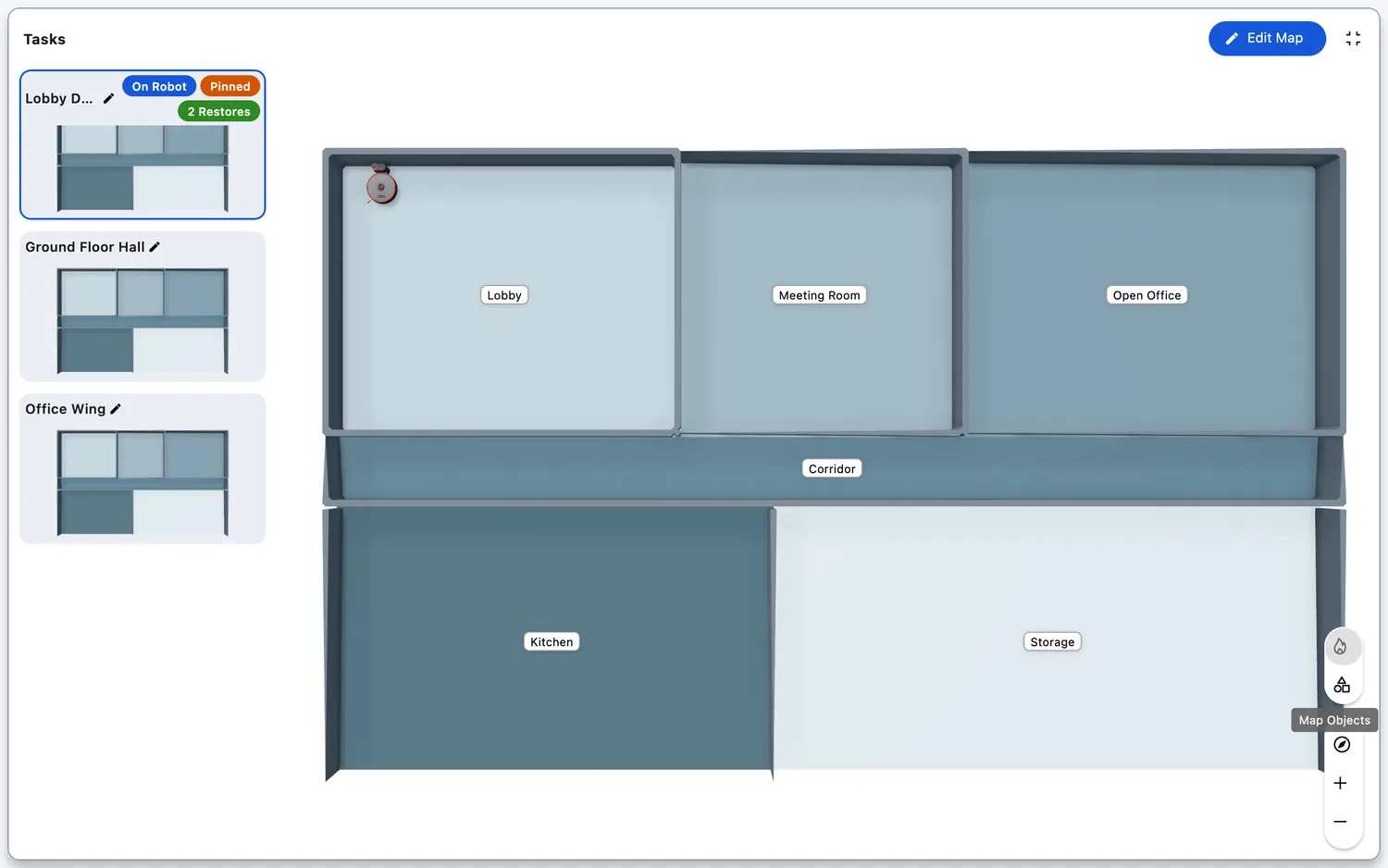
The map box is the robot's map at full screen: expanding the map card on a robot's page opens it over the app. Every robot whose map FieldBots shows has the same box. It carries the live map, the robot's tasks and their saved maps in the "Tasks" panel, pins and tags on the map, the map editor, and the actions of a saved map.
Who uses it
Everyone who works with a robot's map — following runs, browsing tasks and their maps, editing the map, or putting a saved map back onto the robot.
Steps
Open and close the map box
- On the robot's page, click the map card — or the expand icon in its top-right corner. The box opens full screen over the app; the icon in its top row closes it again.
- On models whose map FieldBots draws in 3D, the box shows the 3D view, and closing turns the map back to the top-down view first.
The "Tasks" panel
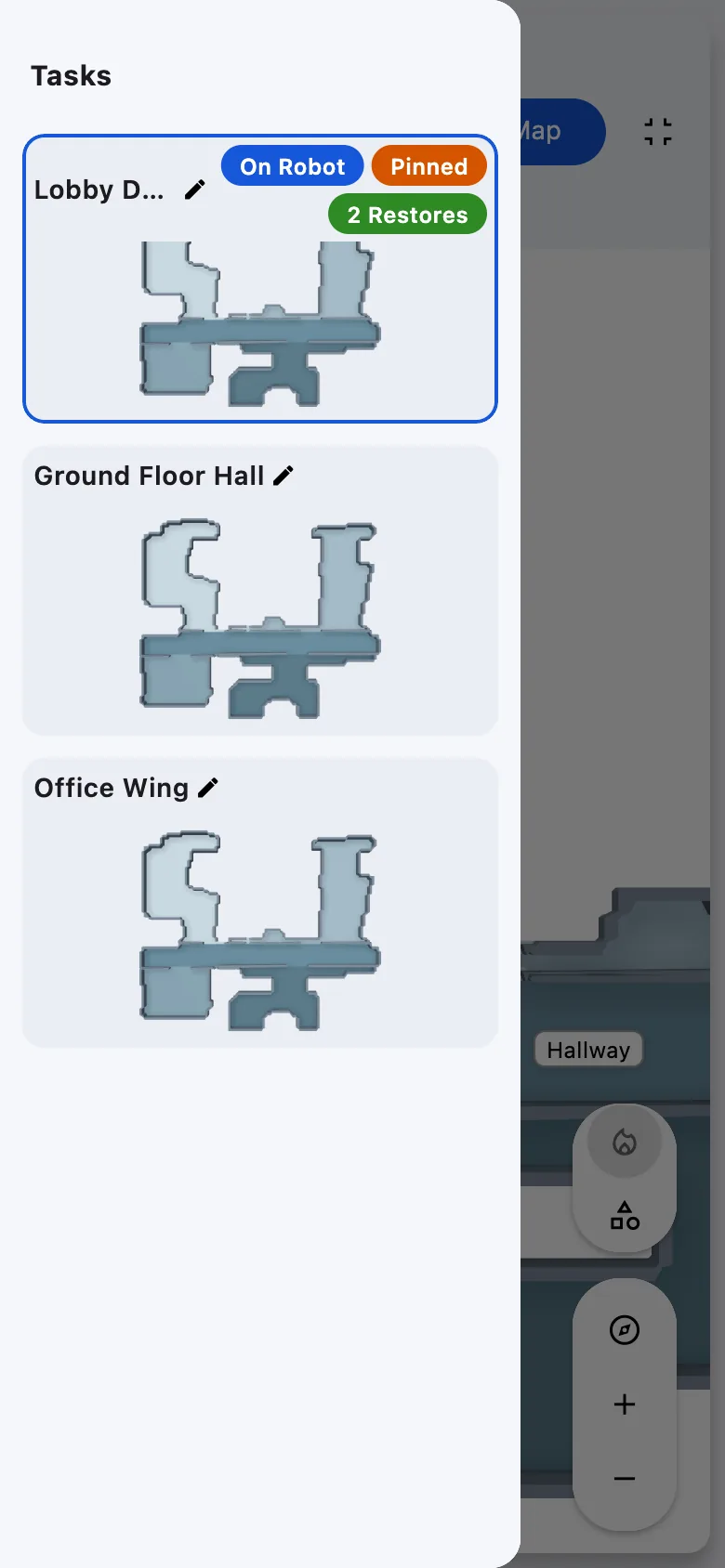
- At the left of the box sits the "Tasks" panel. It lists one tile per task of the robot — the task that ran last first — with a preview of the task's map, and a "Live Map" tile for the map that is on the robot.
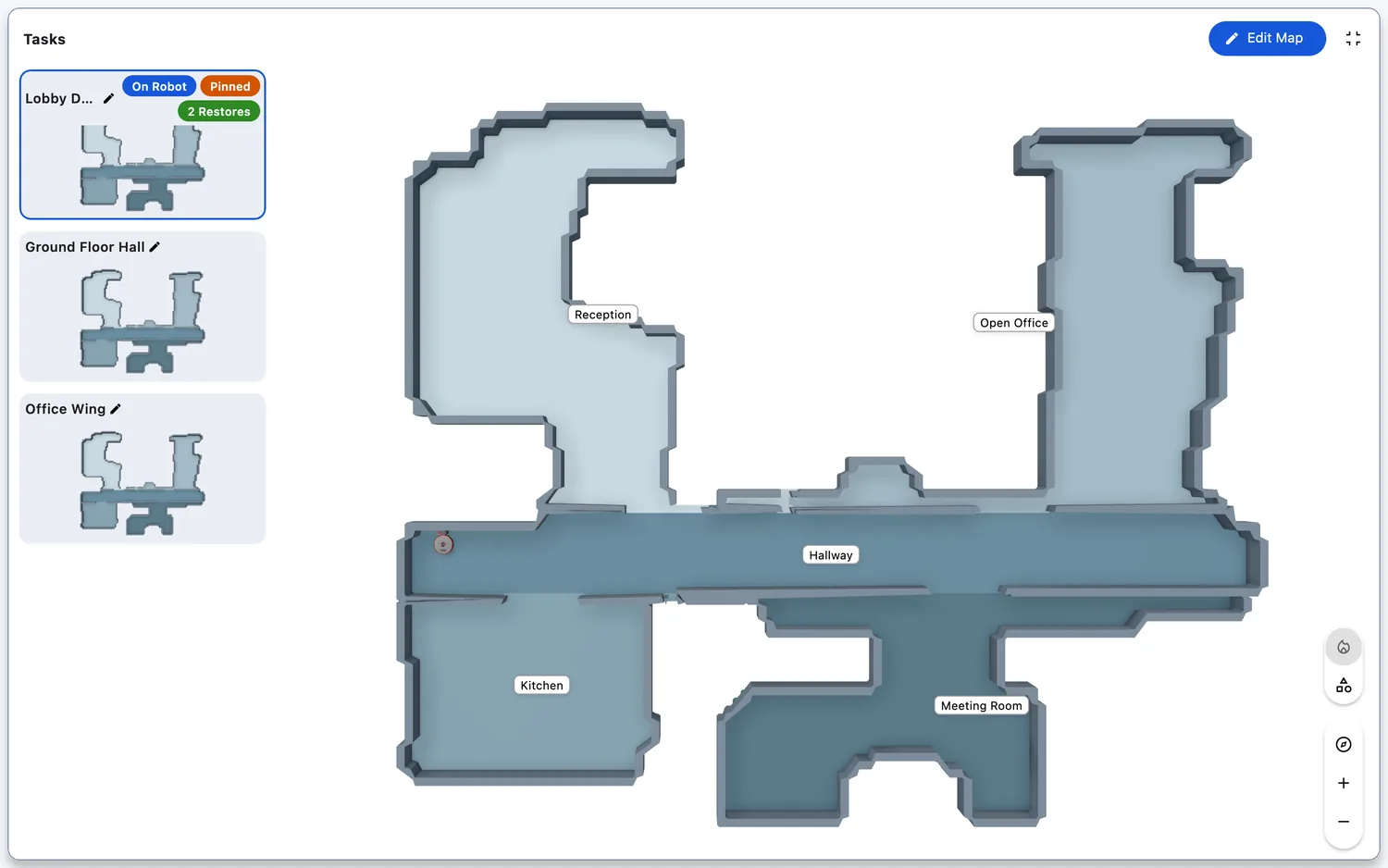
- Each tile carries the task's name and the map's pills: "On Robot" on the map that is on the robot, "Pinned" on a pinned map, and a green "Restore …" pill (for example "Restore Mon–Fri 07:00") for every schedule that restores the map — several restores fold into one "N Restores" pill.
- Click a tile to show that task's map in the box; the "Live Map" tile brings back the live map. Showing a map never starts a run (see Clean Now).
- A tile's pencil edits the task's name; this needs write access to the robot.
- If the robot has no task and no map, the box reads "No Tasks Available".
Web / Mobile: On phones the panel is a drawer — open it with the hamburger "Tasks" left of the title, or swipe from the left edge; picking a tile closes it.
Pins and tags on the map
- Click the expanded map at a spot — the "Map Objects" layer must be on — and a pin appears there.

- Click the pin: its menu offers "Add Task", "Add Tag" (on maps that offer tags) and "Remove Pin".
- "Add Task" opens the task form (see Tasks) with the map attached — the pin marks the spot, and the robot's place goes into the description. Save the task, and the pin stays on the map in its status colour; the pin's menu then offers "Open Task" and "Remove Pin".

- "Add Tag" opens a small dialog: type a name and save — an empty name is not saved. The tag appears as a white pill on the map; click the pill for "Rename" and "Delete" at the bottom of the map.
- Adding, changing and deleting tags needs write access to the robot.
Saved maps and Map History
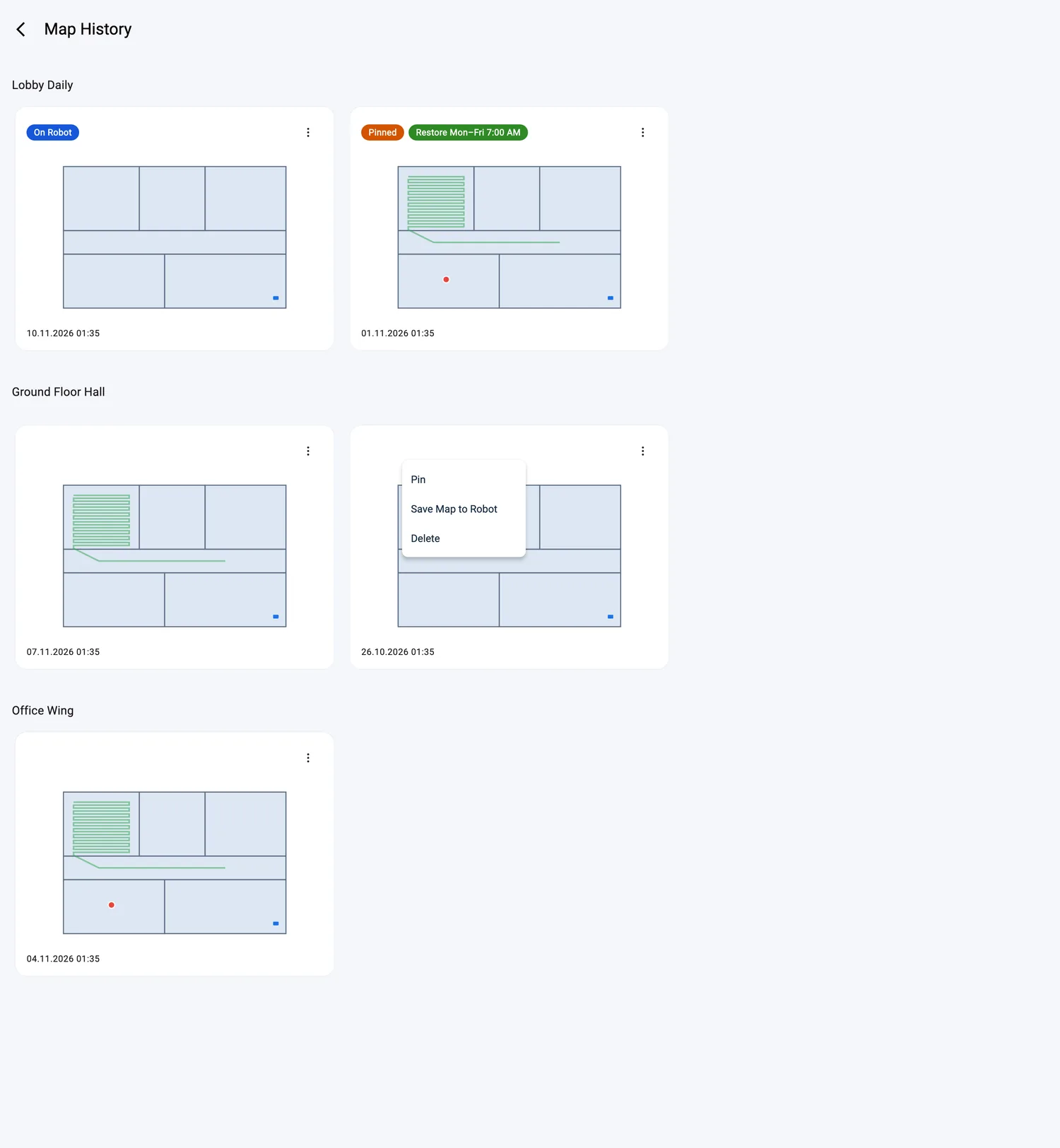
- The robot's saved maps open in full as "Map History": every map with its pills, grouped by task, and each card's ⋮ "Map Actions" menu with "Pin"/"Unpin", "Save Map to Robot" and "Delete" (see Map History).
The editor in the box
- "Edit Map" opens the map editor right inside the box — the tools card and the room panel sit on the map (see Edit Map).
- The undo menu holds "Revert Last Step", "Restore Map", "Wipe Map on Robot" and "Close Without Saving". The save button flips from "Close Map" to "Save Map" as soon as something changes.

Supported robot models
The map box is standard for every robot whose map FieldBots shows. What the box offers follows the model: map editing (8 models — see Edit Map), the saved maps (see Map History), and the coverage layers (see Heatmap).
The "Heat Map" layer appears on the robots whose runs FieldBots groups into tasks — the cleaning job a map belongs to:
Notes and limits
- Maps without a picture show "No map preview available".
- Where FieldBots draws the map in 3D, the box shows the 3D view on devices that support it; other devices show the flat map.
- Editing the map, changing a task's name, and adding or changing tags need write access to the robot.