
What it is
Some work is done by people, not robots: a blocked corridor, a brush to replace, a spot check to confirm. Tasks are exactly that — work items you create in FieldBots, assign to the right person or role, follow in a Logbook, and close when the work is done.
Who uses it
Managers who assign the work and keep track of it; Technicians and Operators who carry it out and document it in the Logbook.
Steps
See the tasks
- Open the "Humans" menu and select "Tasks" — the menu entry carries the number of open tasks of your team. The list shows "Task ID", "Name", "Status", "Robot" and "User"; a click on a column header sorts it.

- The filter row holds a search box, the "Status (‹x› of 5)" filter — by default all open statuses — and the "Users" filter for team members, roles and distributor teams.
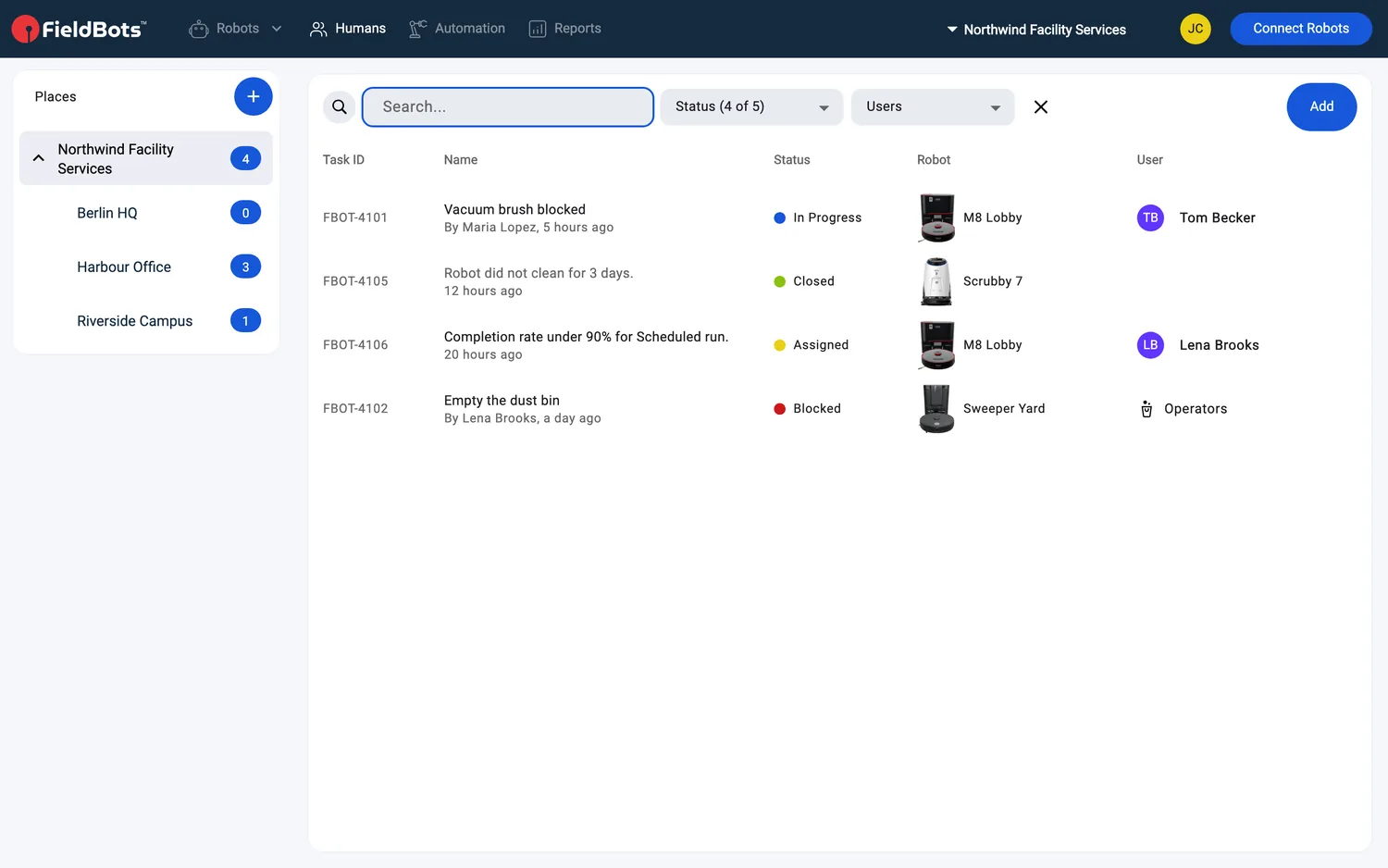
- The Status column shows a colour dot and the label: "Open" (grey), "Assigned" (yellow), "In Progress" (blue), "Blocked" (red) and "Closed" (green). "Assigned" appears while the task is assigned to a person.
- Every row's second line shows who created the task and how old it is ("By ‹name›, ‹age›"), or when a task starts ("Starts ‹when›") or repeats ("Every 2 weeks, starting ‹date›"). The Robot column shows the robot's picture, plus "+‹number›" for a repeating task's other robots; the User column names the person, role or distributor team.
- Empty lists read "No tasks found."; a filter that is set adds a "Clear Filters" button. The compact cards on robot pages read "No tasks yet."
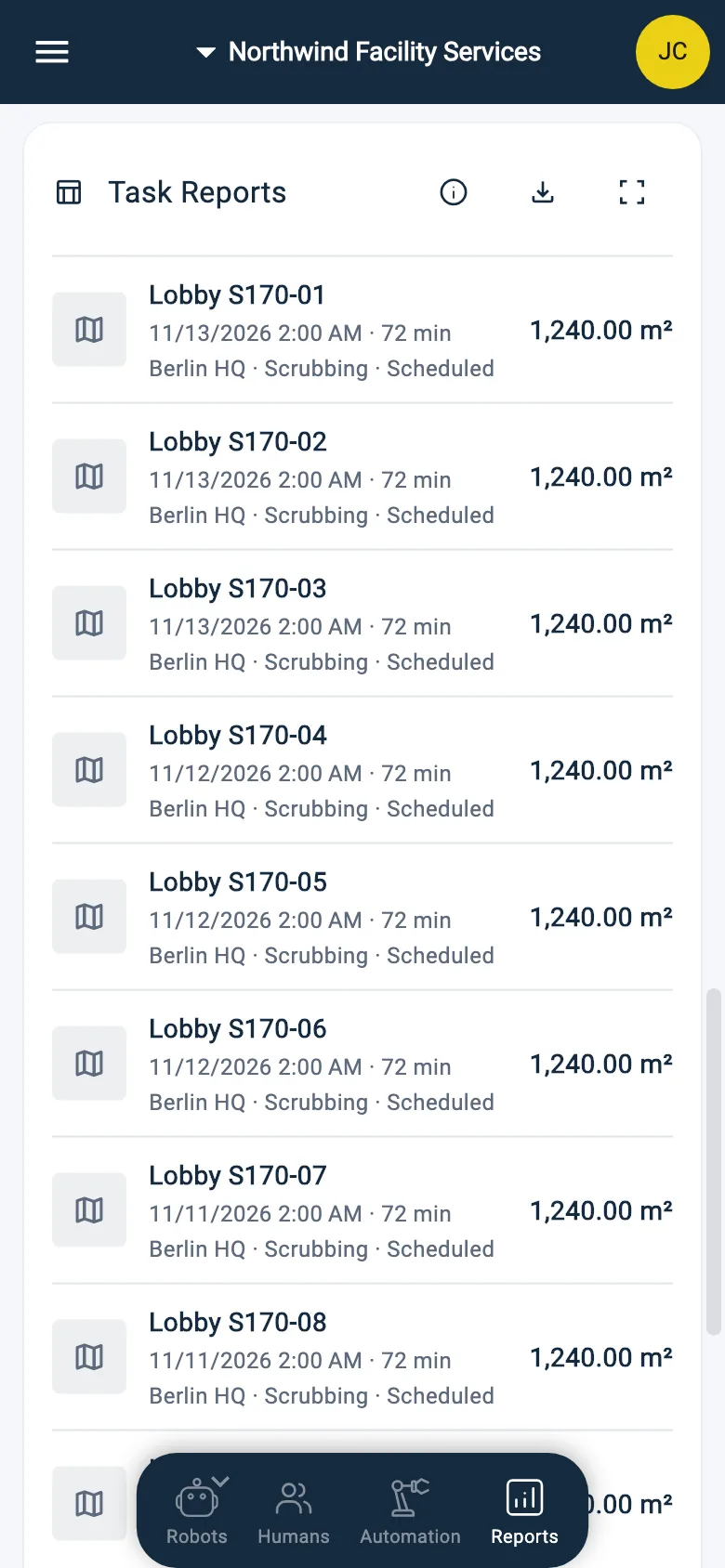
Web / Mobile: On phones the list shows the same columns in a sideways-scrolling table; the search and the two filters sit above it.
Create a task
- Click "Add" and choose "Task". (From a robot's page or the dashboard, the Tasks card's "+" menu offers the same two entries.)

- Fill in "Name"; a Task Form of your team, if there is one, sits right below it. Write the "Description".
- Under "Robot", choose the robot — or leave the task without one.
- Set the "Start Date" if the task should not start right away.
- Under "User", pick who should do it: a "Team Member", a role ("Operators", "Technicians", "Managers") or a "Distributor". Assigning a role hands the task to whoever holds that role.
- Click "Create Task". An existing task is saved with "Save".
Robot alerts appear in the compact task lists — for example on a robot's page — as suggestions. The note icon ("Convert to Task") turns one into a real task and opens the form with its robot filled in.

Repeating tasks
- Choose "Repeating Task" instead — the form adds the robot list and the rhythm.
- Use "Choose Robots" to tick every robot the repeating task covers; the first robot is the task's own.
- "Repeat Every" sets the rhythm — weeks, months or years — and "Start Date" sets when it begins.
- Fill in "Name", "Description" and "User" as usual, then click "Create Task".
The task page
- Open a task — on desktop the form sits on the left and the "Logbook" beside it. On phones an existing task opens with its Logbook first and the form below.
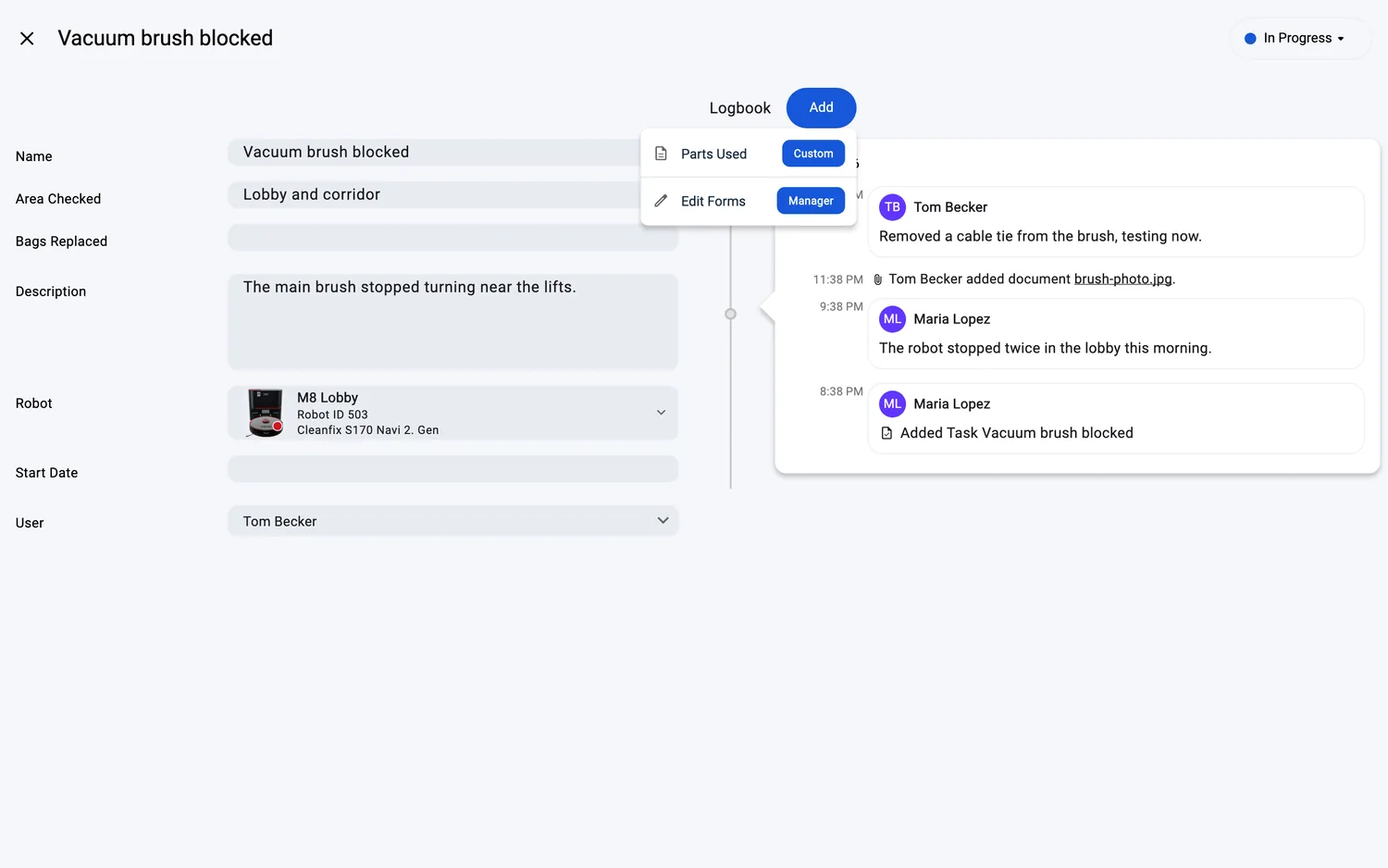
- Logbook entries are written through its Add menu — the team's task forms: "Comment" for a message, "Files" for pictures, documents and videos, "Link" for a web address. Type "@" inside an entry to mention a teammate; a question for FieldBots Intelligence is answered right in the Logbook.
- Photos, documents and videos go in through the "Files" form: jpg, jpeg, png, gif, webp, heic and pdf; videos only mp4 or mov ("Only MP4 or MOV videos can be attached."). Stored files show under the form.
- Change "User" on an open task to pass it on, and edit the other fields the same way — the changes save with "Save".
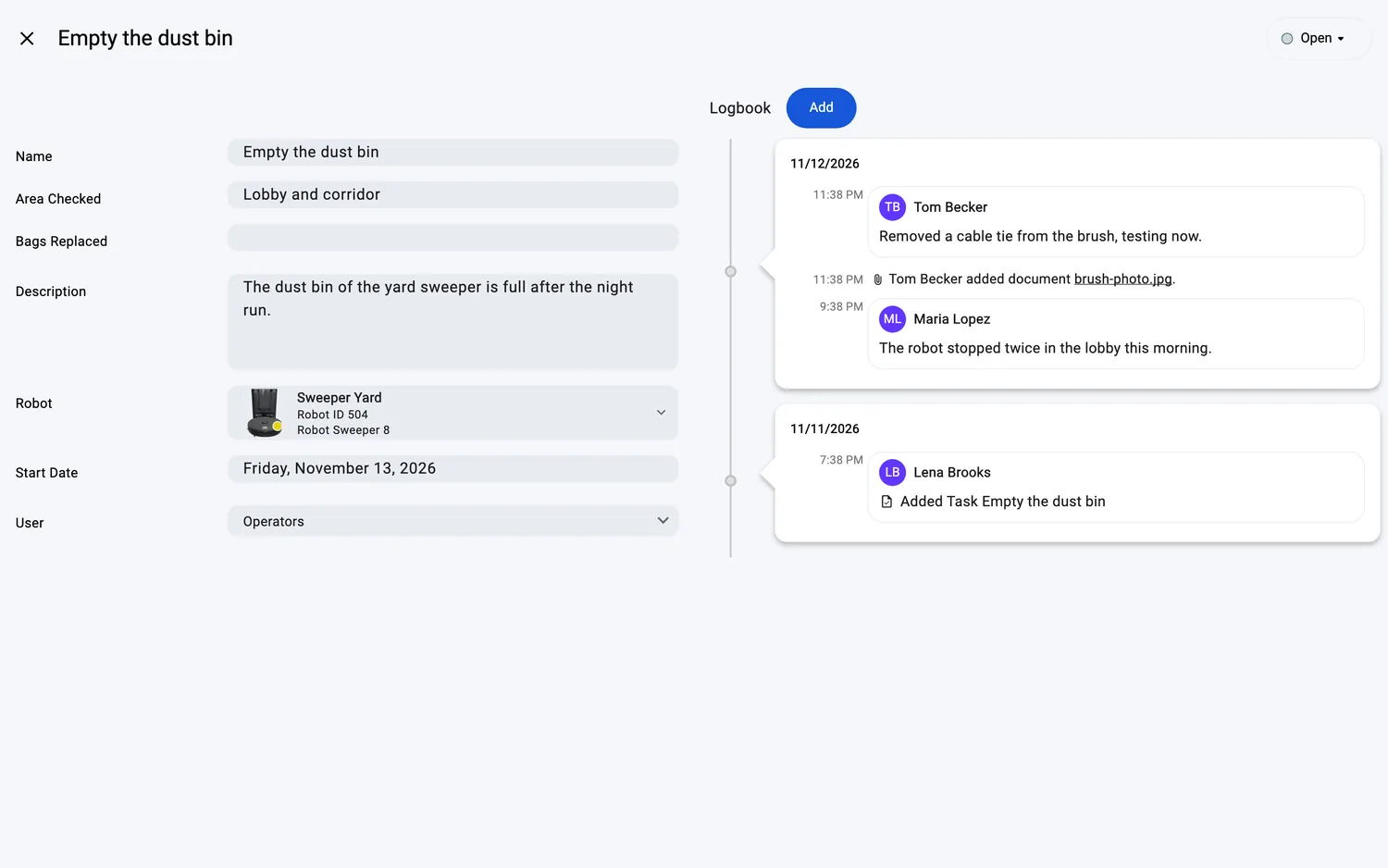
- The oldest entries hold the task's creation and the robot's documents. A click on an entry takes you where it was written — a task opens its page, anything else its robot's Logbook (Logbook).
- A closed task takes no further entries.
Web / Mobile: On phones the status pill and "Save" sit in a bottom bar; on desktop and tablet they sit in the page's top bar.
Change the status, close and reopen
- The status pill opens the status menu: "Open", "Assigned", "In Progress", "Blocked", "Closed".
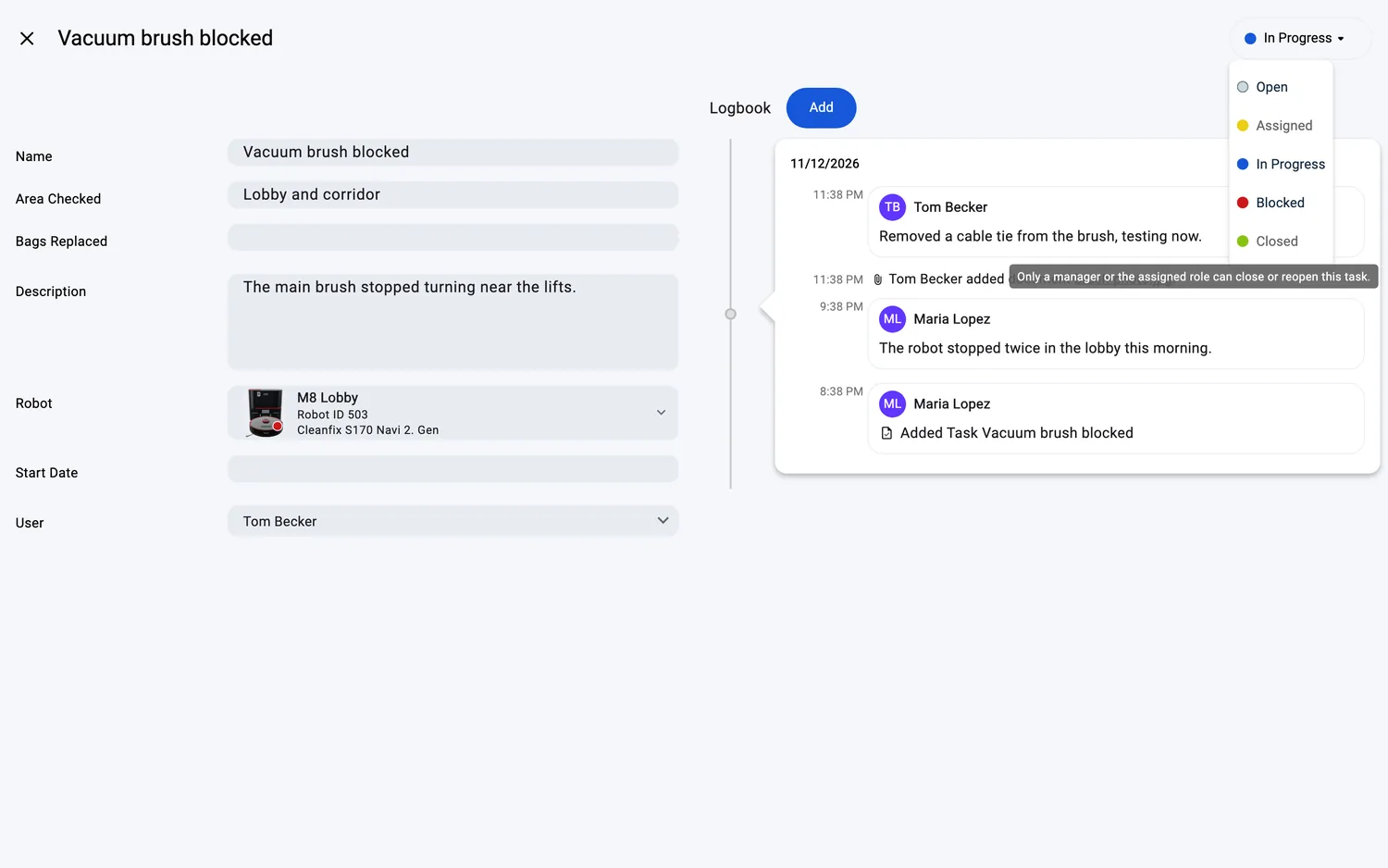
- Whoever edits the task can move it between the open statuses. "Assigned" is set by FieldBots while a person is assigned and cannot be picked by hand.
- Closing and reopening are the Manager's or the assigned role's call — otherwise "Closed" is greyed out, and a tap explains: "Only a manager or the assigned role can close or reopen this task."
- A closed task is read-only — change its name, description, robot, start date or assignee only after reopening it.
Supported robot models
Not robot-specific — tasks can be created for any robot, place, or without a robot.
Notes and limits
- Tasks assigned to a distributor team are emailed to that distributor; assigning a role hands the task to whoever holds that role.
- "Start Date" applies to one-off tasks too — a task that starts later shows "Starts ‹when›".
- Repeating tasks carry a repeat icon and show their rhythm in the list, for example "Every 2 weeks, starting ‹date›".
- A closed task is greyed rather than crossed out — the status says it is done.
- On the Free plan the menu entry reads "Tasks (Upgrade)", and opening the page points to the upgrade.