
What it is
Start, pause, resume and stop cleaning runs from the web app or the mobile app — without walking to the robot or opening the manufacturer's app. Depending on the model, one press starts the full mapped run; some robots first ask what to clean, which task to run, or which map to use.
Who uses it
Everyone who runs the fleet day to day: teams that start or correct runs from the office, and staff on site who pause, resume or send a robot home while standing next to it.
Steps
Start a cleaning run
The start depends on the robot's model. The app shows only the commands your robot supports.
Start a full run.
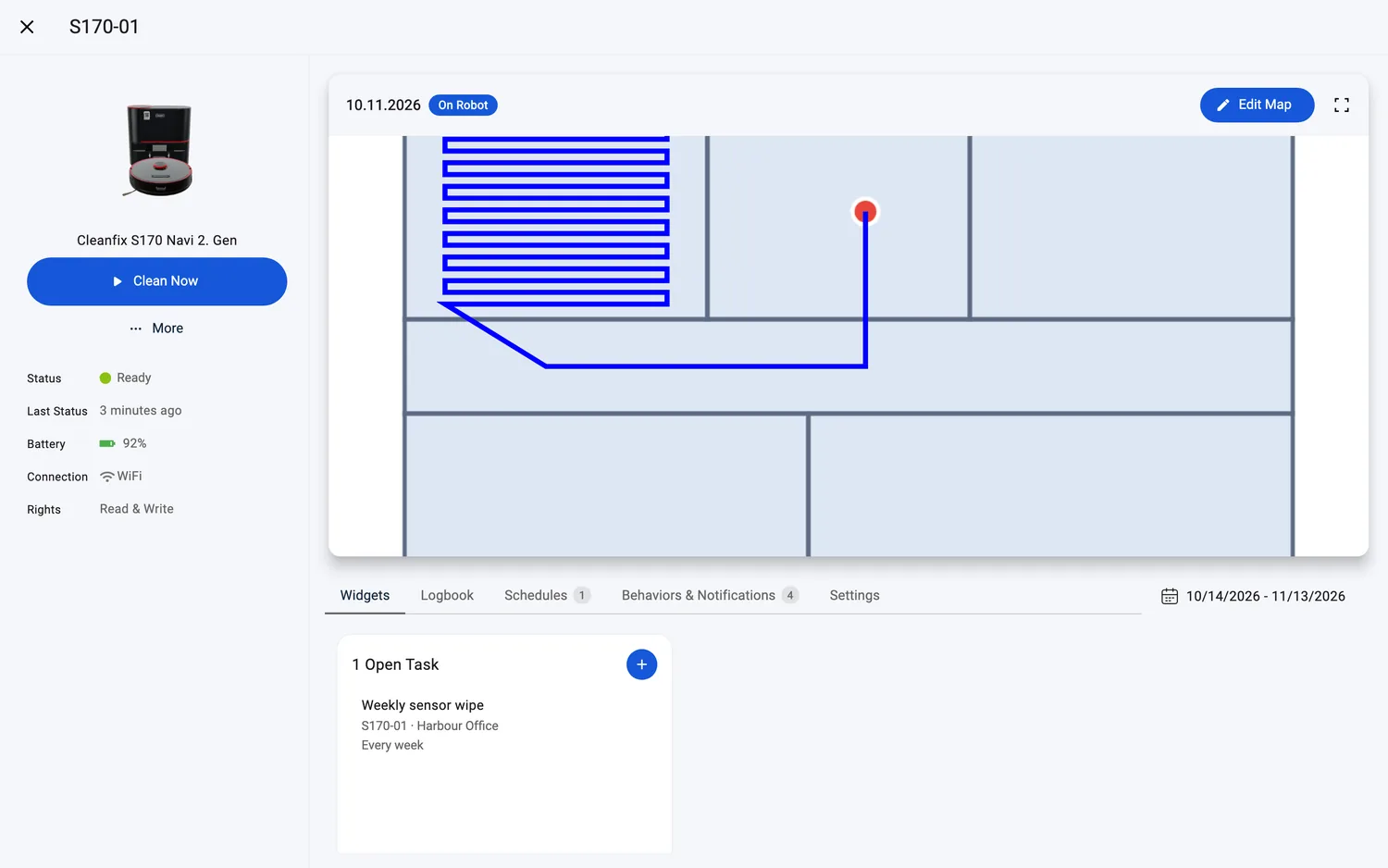
- Open the robot's page and press "Clean Now" — on desktop the button sits under the status, on phones the run buttons sit in a bar pinned to the bottom of the screen.
- On models that offer more, the button opens a menu or a picker first: choose "Everything" in the menu, or pick the robot's task or map (see below). On models with nothing else to choose, the run starts right away.
- The robot starts cleaning its mapped area.
Pick one of the robot's built-in tasks (Gausium, Pudu, Taski).
- Press "Clean Now". A dialog titled "Clean Now" opens with the robot's saved tasks — every row shows the task name and the map it uses; a task that last ran more than 100 minutes ago also shows "Last Ran On" with the date.
- Select the task. If the task has clean modes, pick at least one — "Vacuuming", "Mopping", "Vacuuming & Mopping" or "Scrubbing".
- Optional: set "Cleaning Passes" to repeat the run (see "Repeat a run" below).
- Press "Clean Now" in the dialog footer.
These tasks are created in the manufacturer's app — FieldBots lets you pick them, not create them. If the robot has none yet, the dialog says: "This robot has no saved tasks yet. Create one in the manufacturer's app, then try again."


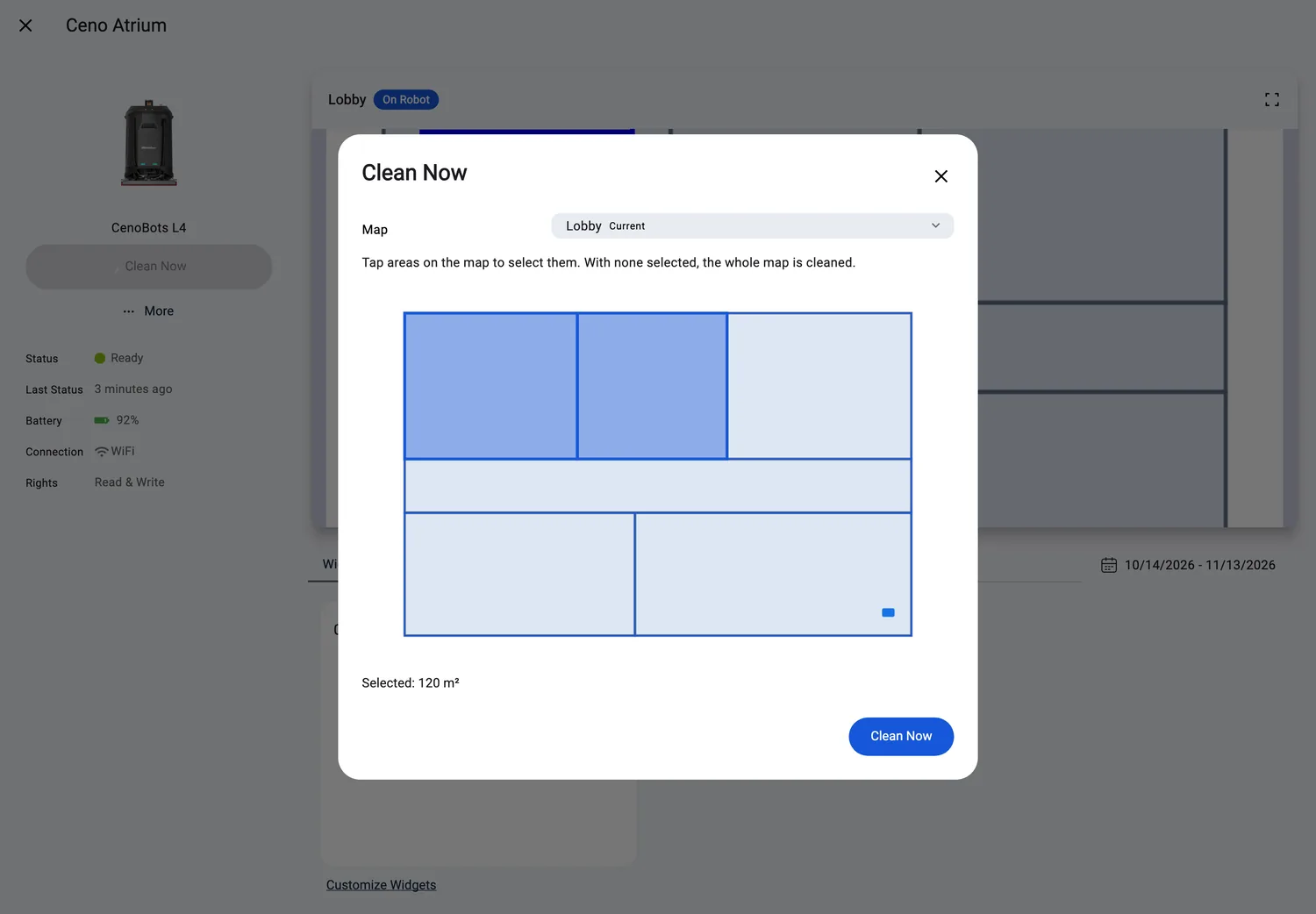
Pick a map and areas (CenoBots).
- Press "Clean Now". The dialog opens with the map picker: choose the map in the "Map" dropdown — the robot's current map carries the tag "Current".
- Tap the areas on the map: "Tap areas on the map to select them. With none selected, the whole map is cleaned." The total below shows your pick: "Whole Map" or "Selected: …". If the map has no tappable plan, the areas appear as a checkbox list instead: "Areas (optional; none selected cleans the whole map)".
- Press "Clean Now" in the dialog footer.
If the map has no areas, the dialog says: "This map has no areas. The whole map will be cleaned." If the robot has no maps at all: "This robot has no maps yet. Map the site in the manufacturer's app, then try again."
For CenoBots robots this is also how you clean a specific zone — you choose the areas right when you start the run.
From the "Robots" list or a widget.
- Every robot card on "Robots" has a round button that opens the robot's run menu: "Clean Everything", "Clean Area", "Clean Spot", then — below a separating line — "Back to Dock". While the robot runs, the menu holds "Pause" and "Stop", with "Back to Dock" below the line; while it is paused, "Resume" and "Stop".

- The "Clean Now" widget starts the robots in its scope with "Everything", "Area" or "Spot". "Everything" asks for confirmation first — "Do you really want to send out 3 robots in 1 places immediately?" — and names the robots it skips: "Not started: … Start these robots one at a time to choose what they clean." A single robot that needs its own task or map picker opens that picker instead.
Web / Mobile: On phones and tablets the run buttons sit in a bar at the bottom of the screen and the pickers fill the screen. Everything else works the same on web and mobile.
Clean an area ("Area")
- On the robot's page, press "Clean Now" and choose "Area" — or pick "Clean Area" from the card's round-button menu, or "Area" on a "Clean Now" widget.
- The "Area" dialog opens with the robot's map. Tap the rooms you want cleaned — you can select more than one.
- Optional: set "Cleaning Passes" where the dialog offers it.
- Press "Clean Now" — it is available once at least one room is selected.

The map must already be divided into rooms or areas; if it is not, the dialog explains that the map has no areas yet. Where a robot cannot clean an area, the option is greyed out on the "Clean Now" widget: "Not supported by the selected robots."
Clean a spot ("Spot")
- On the robot's page, press "Clean Now" and choose "Spot" — or pick "Clean Spot" from the card's round-button menu, or "Spot" on a "Clean Now" widget.
- The "Spot" dialog opens with the robot's map — draw the spot you want cleaned.
- Optional: set "Cleaning Passes" where offered.
- Press "Clean Now".
A spot must cover at least about 0.6 m²; smaller shapes are refused with "Selected spot is too small. Please draw a larger spot." A spot only needs the robot's map — the map does not need to be split into rooms.
Repeat a run — "Cleaning Passes"
- In the start dialog, set "Cleaning Passes": up to 3 passes in the task picker, up to 2 for an area or a spot where the dialog offers it.
- Press "Clean Now" — the robot repeats the run that many times.
The default is 1 pass, and the number resets to 1 whenever you select another task.
Pause, resume or stop a run
While a robot runs, its page shows "Pause" and "Stop", with "Back to Dock" below them.

- Press "Pause" — on the robot page (on phones in the bottom bar) or in the round-button menu on its card in "Robots". The robot interrupts its run and its status shows "Paused".
- To continue, press "Resume". The status returns to "Cleaning".

- To end the run, press "Stop" — or send the robot home; "Back to Dock" stops the run first.
Send the robot back to its dock
- Press "Back to Dock" — its own button on the robot page (below the run buttons) — or pick it from the card's round-button menu in "Robots".
- When the robot is running, the app stops the run first, then sends the robot home. Its status shows "Looking for the dock" and then "Charging" or "Ready".
The button only appears while the robot is not docked or charging — and only for models that have the command.
Empty the dust bin
- While the robot is at its dock or charging, open its "More" menu and choose "Empty Dust Bin".
- The app sends the command — "Empty Dust Bin sent to <robot>" — and the status may show "Emptying bin" while the robot works.
The entry only appears for models that can empty their bin and only while the robot is docked or charging.
What you see while a run is active
The robot's status — on its page and on every card in "Robots" — follows the run:
- "Ready" or "Charging" — at the dock, ready to start or finished.
- "Cleaning" — the run is active.
- "Paused" — the run is on hold; "Resume" is offered.
- "Stuck" — the robot needs help; "Resume" is offered.
- "Intermediate Charging" — a short top-up on the way; the robot continues the run afterwards.
- "Looking for the dock" — the run has ended and the robot is on its way home; then "Charging" or "Ready" again.
- "Not Reachable" — the robot cannot be reached at the moment. Its page keeps the run button visible but disabled, and the round button on its card is empty and does nothing.
Follow the route itself on the Live Map; what every status means is in Real-time Statuses.
Supported robot models
Remote control is available for 46 of 52 models (models not listed report status only):
Pick one of the robot's built-in tasks:
Start cleaning directly (map-based):
Pick map + areas (CenoBots):
Controls without in-app start (pause / resume / stop):
Status only — no remote commands (6):
Notes and limits
- The last two groups in the list above are limited: robots under "Controls without in-app start" can be paused, resumed and stopped from FieldBots — but you start their runs on the robot or in the manufacturer's app. "Status only" robots have no remote commands at all; FieldBots shows their status.
- After a command the app confirms it — a direct command flashes "Clean Now sent to S170-01"; when a choice came first (a task, a map area, a spot), the banner reads "The action will be performed shortly". The button shows a spinner until the robot's status changes — up to 30 seconds. If nothing happens: "S170-01 has not reacted to Clean Now yet." — check the connection and try again. A "Not Reachable" robot refuses a command right away: "S170-01 is not reachable".
- Not every model can pause: where a robot has no pause command (all Gausium robots, for example), a running robot shows "Stop" only.
- The run buttons follow the robot's state: running — "Pause" and "Stop" as the model supports them, with "Back to Dock"; paused — "Resume" and, where supported, "Stop"; stopped — "Clean Now" (with its menu where the model offers one), and "Back to Dock" while the robot is away from its dock. On some models — the Cleanfix S170 Navi 2. Gen, for example — a paused robot shows no "Stop": "Resume" continues the run.
- Where a page shows no main run button, the "More" menu offers the same continue action as "Continue Cleaning".
- Task lists for Gausium, Pudu and Taski robots come from the manufacturer's app — create the tasks there, then run them from FieldBots.
- "Area" needs a map that already has its rooms or areas drawn; "Spot" works without rooms. A spot must cover at least 0.6 m².
- Every run is 1 pass unless you raise it: "Cleaning Passes" goes up to 3 in the task picker and up to 2 for an area or a spot where the dialog offers it — the count returns to 1 when you select another task.
- "Empty Dust Bin" appears only while the robot is at its dock or charging, and only for models that can empty their bin.
- You need write access to control a run; read-only members see the robot's status only.