
What it is
Put your fleet on the big screen. The TV-Dashboard shows the dashboard full screen — made for a TV or wall display in the office, the workshop or the staff room. It keeps updating by itself, it is display-only (nobody can change anything from the wall), and it is part of the paid FieldBots plans.
Who uses it
Managers who want the state of the fleet visible to everyone; Operators, Technicians and read-only members who read it from across the room.
Steps
Open the TV-Dashboard
- On the screen that should show it — for example the browser on your TV — open FieldBots and sign in.
- Open "Team Settings" and click the "TV Dashboard" button at the bottom of the settings list. ("Team Settings" is the entry in the team-switcher menu next to the team name.)

- Turn on the "TV Mode" switch at the top right. The dashboard fills the whole screen; at the top only the team logo on the left and the switch on the right stay visible.

- Tip for a wall screen: point the TV's browser straight at your dashboard with "?tv=true" added to the end of its address — for example "app.fieldbots.com/dashboard?tv=true". The screen then opens in TV mode without any clicking; just keep the browser signed in to FieldBots.
Set up what the screen shows
- The screen shows the dashboard arranged by the user who is signed in on it — their own layout in this team, or the team's default layout until they arrange one.
- Set the layout up with "TV Mode" off: click "Customize Widgets" below the widgets, and add, remove or reorder them — see Widgets. In TV mode the "Customize Widgets" controls are not shown.
- Good for a wall screen: the "Maintenance List" widget pages through the robots that need attention all by itself — scrolling down slowly, back up quickly, then resting five seconds at the top before it repeats. In TV mode it shows no status filter.
Leave TV mode
- Switch "TV Mode" off — the dashboard returns to its normal view.
- Click the team logo at the top left to go to "Robots".
- Outside TV mode, the close button (X) at the top returns to the page you came from; if the dashboard was opened by a link, it opens "Users and Access".
Supported robot models
Available for all robots in your fleet — shows the team's dashboard widgets on a large screen (licensed teams).
Notes and limits
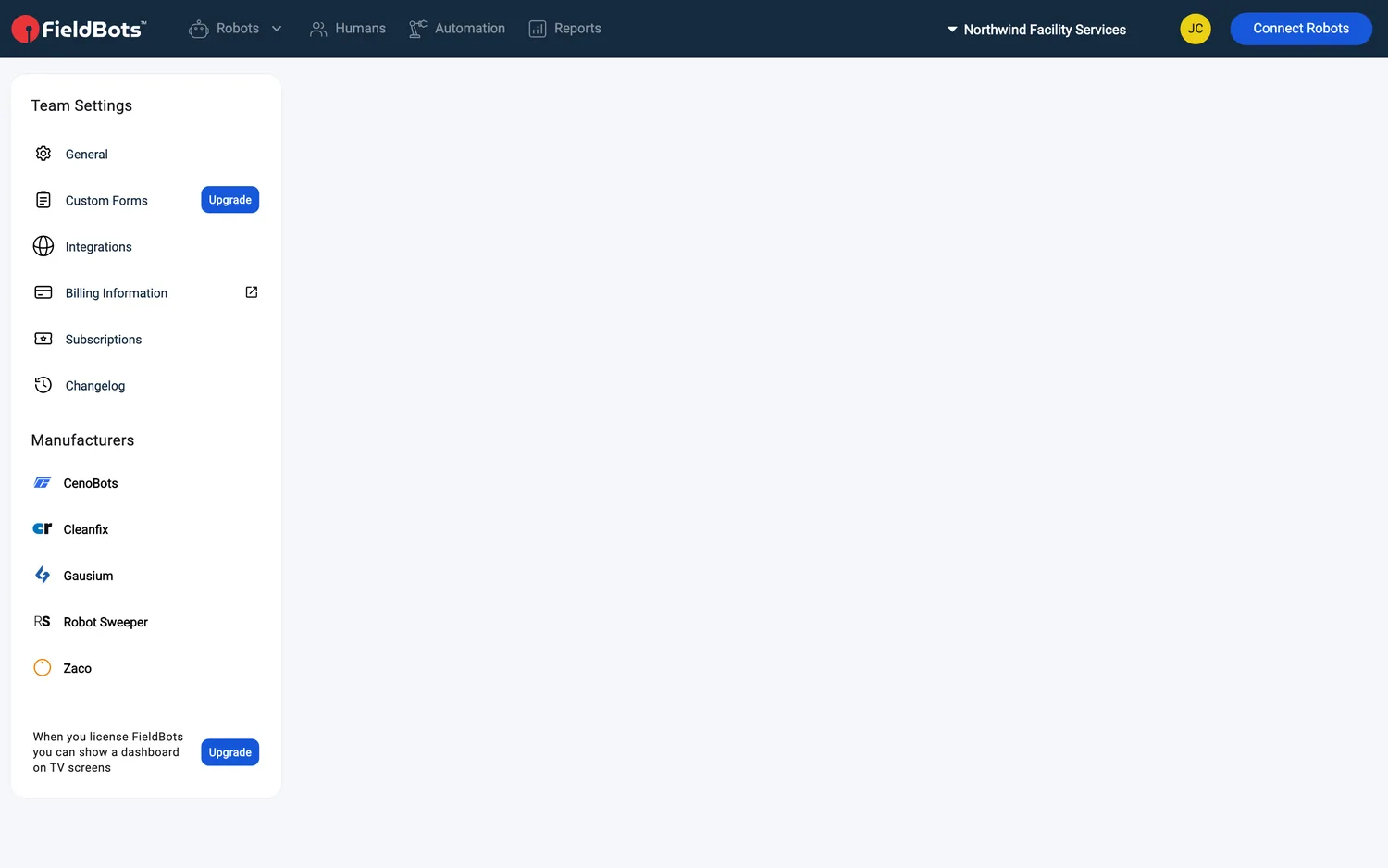
- On a Free team, the bottom of the settings list shows "When you license FieldBots you can show a dashboard on TV screens" with an "Upgrade" tag — the "TV Dashboard" button appears once your team is licensed.
- TV mode is a viewing mode: for example, the status widgets show no links there, and the "Clean Now" control is not part of the dashboard layout — nothing can be changed from the wall screen.
- The screen keeps updating live on its own — robot statuses arrive automatically (see Real-time Statuses).
- On very large screens (from 2500 px wide) everything scales up automatically, so the widgets stay readable from a distance.