
What it is
A robot is somewhere unexpected — or a robot is gone. FieldBots helps in both cases: "Locate" plays an acoustic signal so you can find a robot nearby, and "Mark as Missing" secures a robot that has disappeared — blocking it from use and protecting its data.
Who uses it
On-site teams searching for a robot that hides in a corner; managers who need to act when a robot does not come back.
Steps
Locate a robot
- Open the robot's page and click "More".
- Choose "Locate".

- FieldBots sends the command — you will see "The action will be performed shortly" — and the robot plays an acoustic signal while you walk towards it.
- No sound? The robot's acoustic feedback may be silenced: FieldBots then refuses the locate with "Acoustic Feedback is silenced. Please change the team setting first." Change the "Acoustic Feedback" team setting and try again.
Mark a robot as missing or stolen
- Open the robot's page, click "More" and choose "Mark as Missing". (The entry appears for physical robots that are not already marked missing.)
- The dialog "Mark Robot as Missing or Stolen" opens and explains what happens:
- Team leads read: "When you mark this robot as missing or stolen, we will disable it and register the serial number for separate monitoring when your robot returns online."
- Team members without team-lead rights read: "You can ask one of your managers to mark this robot as missing or stolen. We will then disable it and register the serial number for separate monitoring when your robot returns online."
- Below that, the dialog lists the steps — depending on the robot, these can include:
- "we will wipe the robot for data security",
- "make sure the robot is blocked from usage within FieldBots",
- "tell the user that the robot is marked missing or stolen and give a chance to give it back",
- "record the location of the robot to support the local authorities".
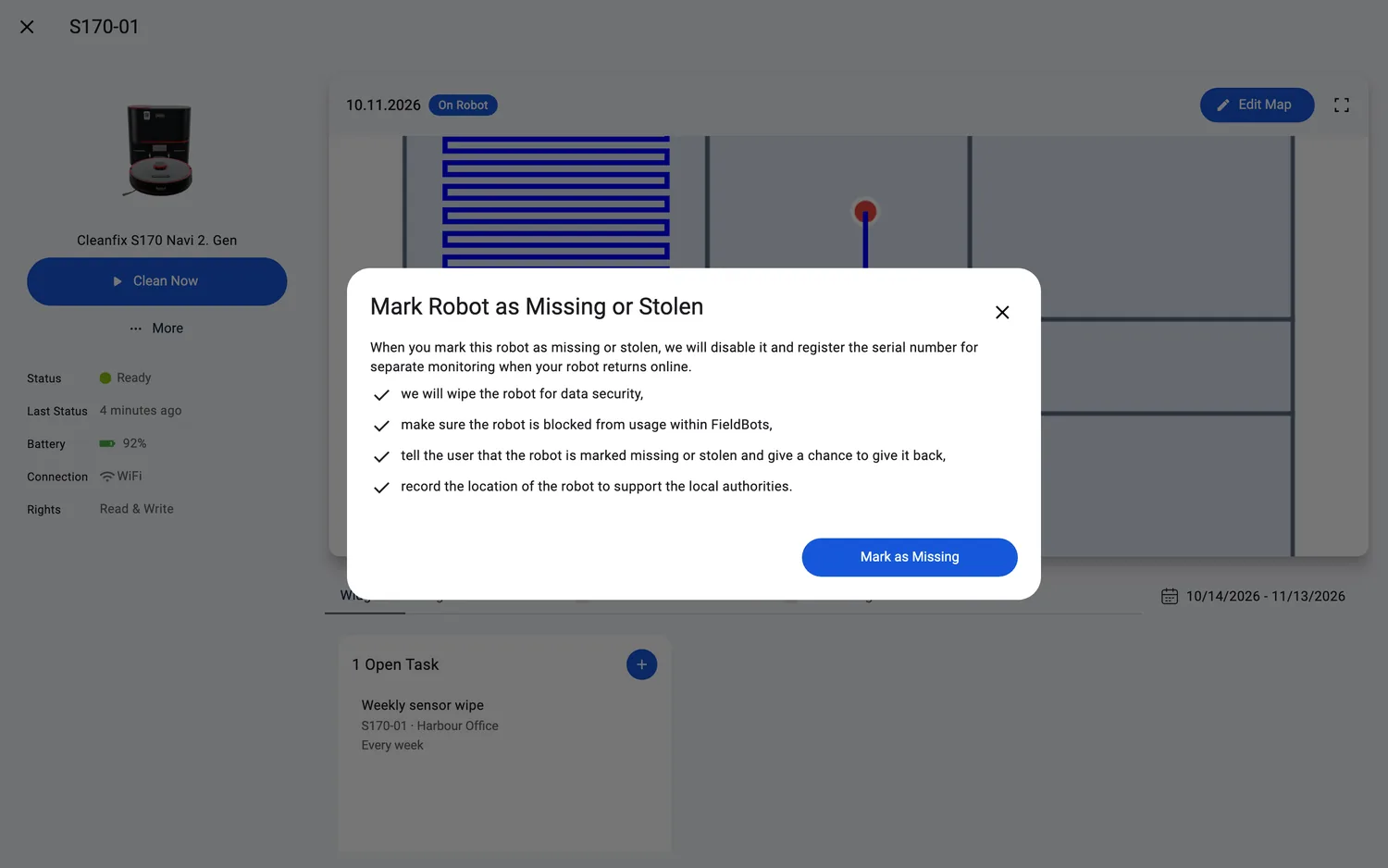
- Press "Mark as Missing" to confirm — the confirm button only appears for team leads (Managers).
- The robot's status changes to "Missing or Stolen" — and stays that way even while the robot is offline.
- From then on, the robot plays a constant jingle, and everyone who opens it sees the explanation: "This robot was marked missing or stolen and can not be used now. For privacy reasons, all data has been wiped. A constant jingle will be played. Your location and user account has been recorded to support local authorities." — "Please contact Support to help give the robot back to its rightful owner."
Web / Mobile: both flows work the same on web and in the app; on phones the actions render in the same menus and dialogs.
Supported robot models
Mark as missing/stolen: all 52 robots. Find via acoustic signal (Locate):
Cleanfix
S170 Navi 1. GenS170 Navi 2. Gen
GeniusⓇ
Swift
Robot Sweeper
Robot Sweeper 8
i-team
co-botic 1700co-botic 1700 (2025)co-botic 1900
GPS location of a stolen robot is recorded only for FieldBots-native microbots paired with a smartphone.
Notes and limits
- The GPS location of a missing robot is recorded to support the local authorities — but the app does not display it: there is no map pin or coordinates view.
- Marking a robot missing is a serious step: team leads (Managers) confirm it, and restoring a missing robot is handled by the FieldBots team — contact "Support" if the robot comes back.
- "Locate" and "Mark as Missing" need write access — read-only members do not see these actions.
- The robot's timeline records it: "marked robot as missing or stolen" — and "marked robot as recovered" when that happens.
- For a stuck iRobot Roomba, the robot's status explanation points to the same trick: use the map and the locate sound to find and free the device.