
What it is
The Service Delivery Report is your fleet's report card for a period: how the robots are doing, how much of the tracked time they actually cleaned, which weekday they deliver the most, and every cleaning task in one list. The app titles this page "Delivery Report", and the "Reports" menu entry reads "Delivery".
Who uses it
Fleet managers who report service quality to clients or management, and anyone checking whether the robots delivered what was planned.
Steps
Open the report
- Open "Reports" in the main navigation and choose "Delivery".
- Read the summary card: a large percentage plus "Fleet Health", the attention pill — "{count} of {total} robots need your attention", or "All {total} robots are ready" — and a headline in the form "{runs} tasks, {hours} hours, {area}". The bullet list below adds one-liners, for example "Robots spent 71% of the tracked time cleaning.", "Tuesday was the most productive day with 24,300 m² cleaned." or "The robots cleaned 89% of the planned area."

- The page header shows the place the report covers — click it to switch. The report includes the robots of that place, narrowed by the filters you set in the "Robots" view; there is no extra fleet-or-robot switch inside the report itself.
Set the period
- Use the range menu ("Last 30 Days", "Last Month", "This Year", "All Time", "Custom"); it ticks the preset the shown dates match. "Last 30 Days" is the default, and your choice is remembered for your team.
Read the cards
- "Fleet Health" shows the current status of the robots in scope with a green / yellow / red / grey legend. The info behind "More Information" is important here: "The underlying status can be up to 24 hours old." — the card is a snapshot of the current moment, not of the selected period.
- "Uptime" splits the tracked time into "Cleaning", "Delivering", "Moving", "Docked / Charging", "Stopped", "Error" and "Offline" — the share of time the robots really worked.
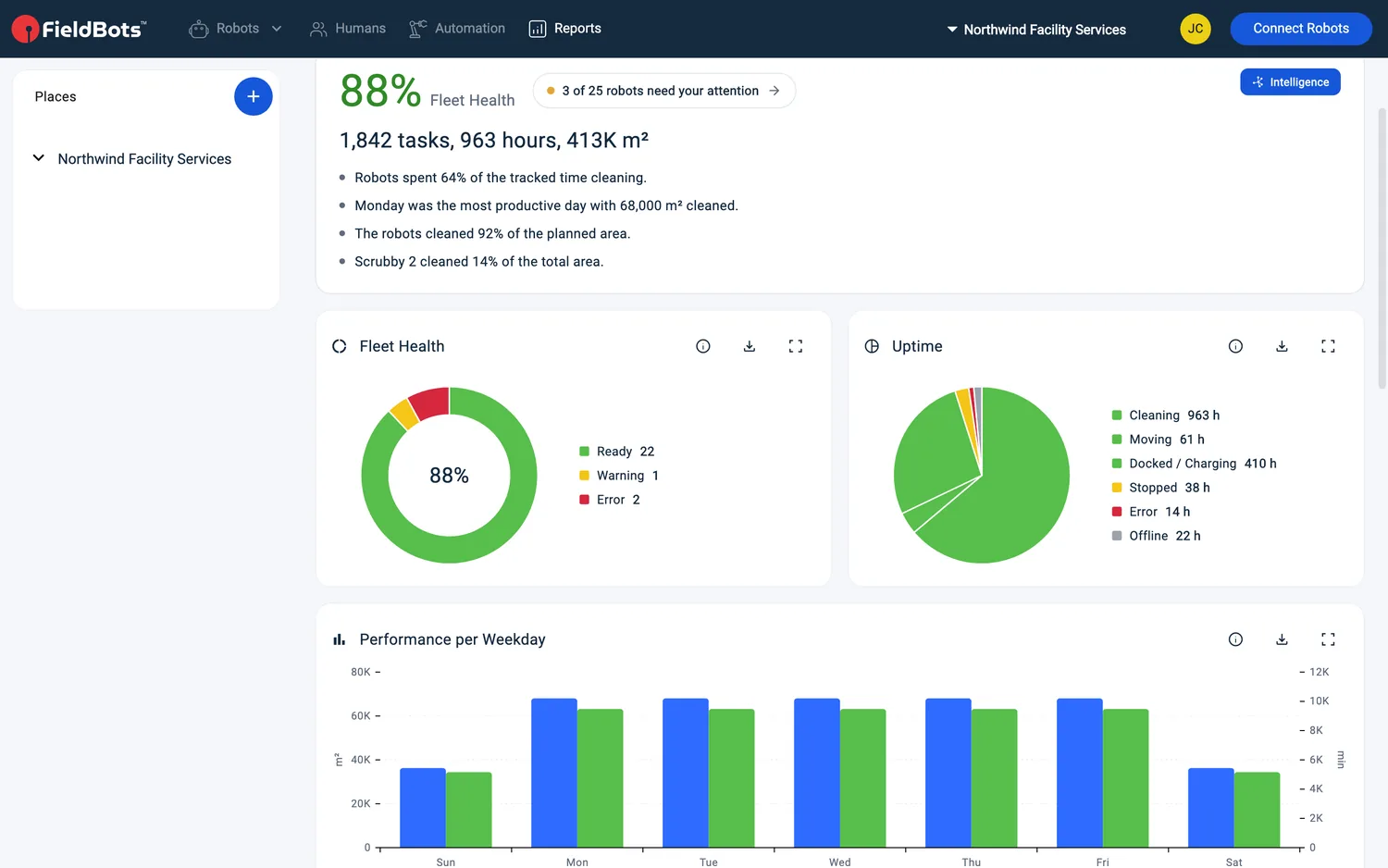
- "Performance per Weekday" shows which weekday your robots clean the most. "Workload Fleet" compares the delivered "Actual" cleaning with the "Target" and the "Maximum" possible for the fleet; "Workload per Robot" shows the same for each robot.
- Every card has its own controls: "More Information", "Download CSV" and "Expand" / "Collapse".
Browse the tasks
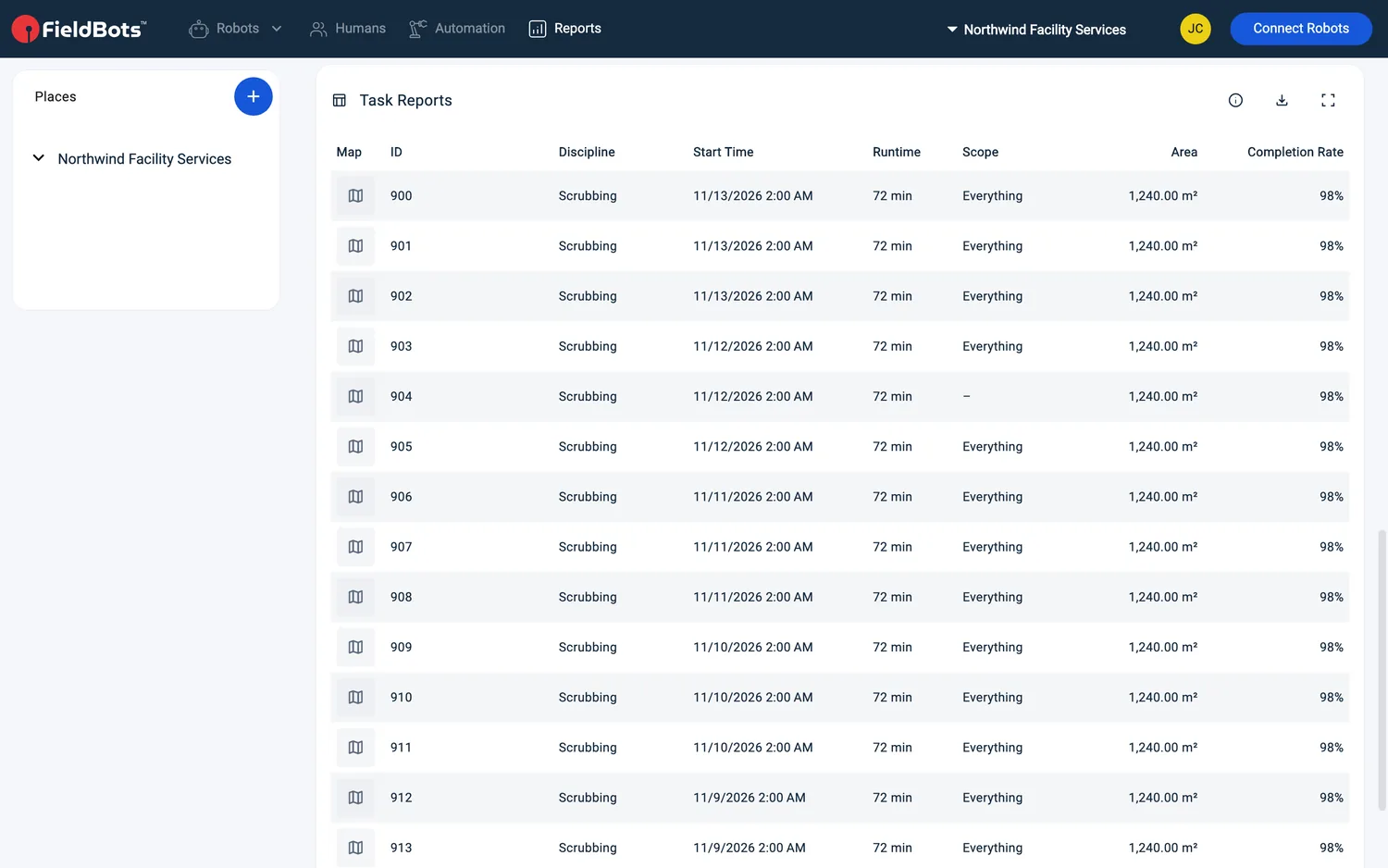
- "Task Reports" lists every cleaning run of the period — a sortable table on the web, one card per task on phones.
- On the web the table's columns are "Map", "ID", "Discipline", "Start Time", "Runtime", "Scope", "Area" and "Completion Rate": the "Discipline" is the cleaning mode (for example "Scrubbing"), "Scope" reads "Everything", "Spot" or "Area" — or "–" for models that report no scope — and the runtime renders in minutes, for example "72 min".
- The list keeps loading more tasks automatically while you scroll; the final line reads "Total: {count}".
Export the report
- "Download PDF Report" turns the cards and the full task list into one PDF for the period. On phones the button is condensed to "PDF".
- For single cards, use "Download CSV" — for example to continue with the task numbers in a spreadsheet.
Web / Mobile: On phones the task table becomes a list of task cards — each card shows the robot, the start time with the runtime, and the place, the mode and how the run was started — and the range menu sits under the page title.
Supported robot models
Available for all connected robots; task-level detail sections require the model to report completion data (30 models, e.g. area cleaned and task results).
Notes and limits
- "Fleet Health" counts only the licensed robots in the report scope — unlicensed robots are not included in the percentage — and its status can be up to 24 hours old.
- "Workload" compares delivered area with a theoretical maximum based on the model's general specifications — a gap is a hint, not a defect.
- The completion rate appears only for models whose manufacturer provides it.
- Runs from robots that have left your fleet keep their stored values and stay in the list.
- The task list keeps loading in the background while you scroll — there is no "Show more" button.