
What it is
Every robot keeps a history of its maps in FieldBots: the map that is on the robot, earlier versions, and maps the robot records over time. Map History is the view that lists those saved maps — the place to put a map back onto the robot, to pin the map the robot is reset to, and to delete maps you do not need.
Who uses it
Fleet managers and on-site teams who need an earlier or alternative map — for example after floor layout changes, or when the robot's map does not fit the area.
Steps
Open Map History
- Open "Robots" and select a robot.
- Click "Edit Map" on the robot's map card (see Live Map). Where FieldBots shows a robot's maps without editing them — for example Lionsbot or Nilfisk — this opens Map History right away. On models that can be edited in FieldBots, the map editor opens instead; there, choose "Restore Map" in the editor's menu (see Edit Map).
- If the robot shows "No map available right now.", a "Restore Map" button opens the same view — on robots that can take a saved map.
Browse the saved maps
- The maps appear as cards: the map's pills on top, its picture below, and the date and time it was recorded at the bottom. A map without a picture shows "No map preview available".
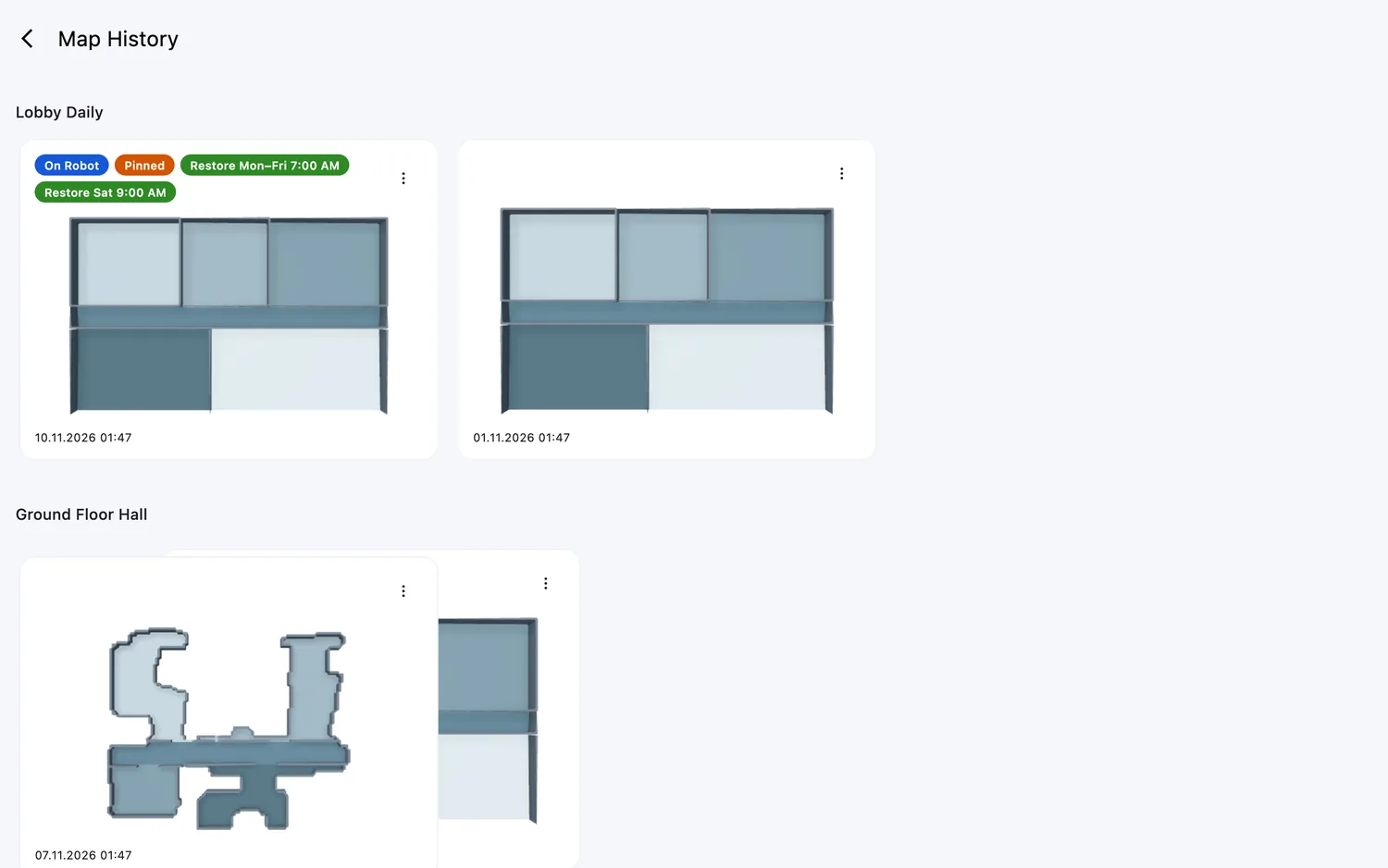
- On robots whose maps FieldBots draws in 3D, the cards show the map's top view.
- The map that is on the robot comes first. Pinned maps and maps that a schedule restores follow; the rest are sorted by the area cleaned on them.
- On robots whose runs FieldBots groups into tasks, the maps sit in sections — one per task, named by the task. A task's maps share one row and scroll sideways; on desktop, hover a row to spread its stack. Task sections whose maps are neither on the robot, pinned nor restored stay folded away — the "All Tasks (N)" button at the end shows them.
- A robot without saved maps shows "No maps found.".
Delete a map
- Click the ⋮ "Map Actions" on the map's card and choose "Delete".
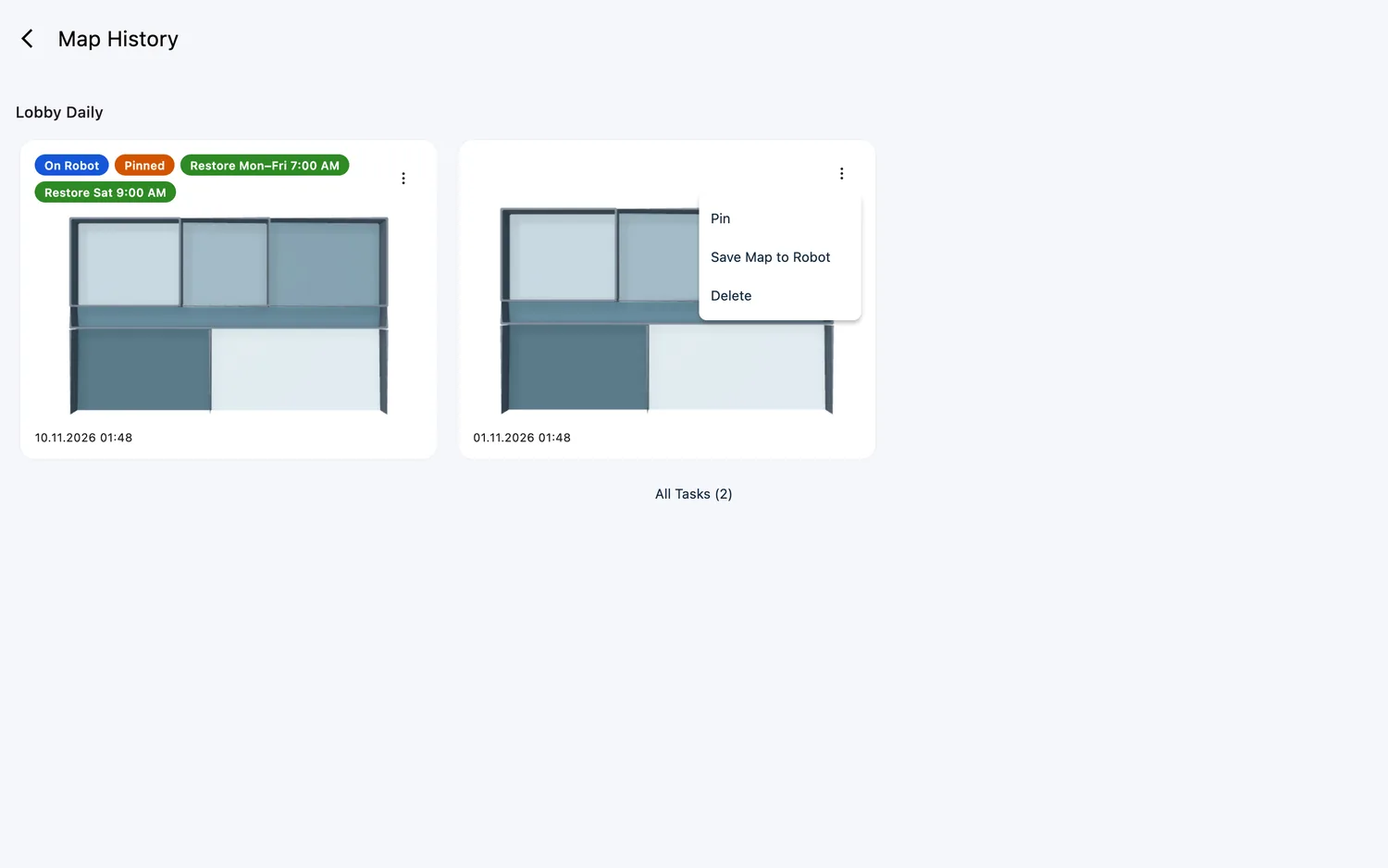
- Confirm with "Delete Map" — "Do you want to delete this map?" Deleting cannot be undone.
- While the robot is offline, the entry is greyed out and reads "Robot is offline – Delete once it is back online".
Restore a map onto the robot
- Click the ⋮ "Map Actions" on the map's card and choose "Save Map to Robot".
- Confirm the overwrite — the dialog names the robot: "The map that is on S170-01 right now will be overwritten by this map." Click "Restore Map Now".
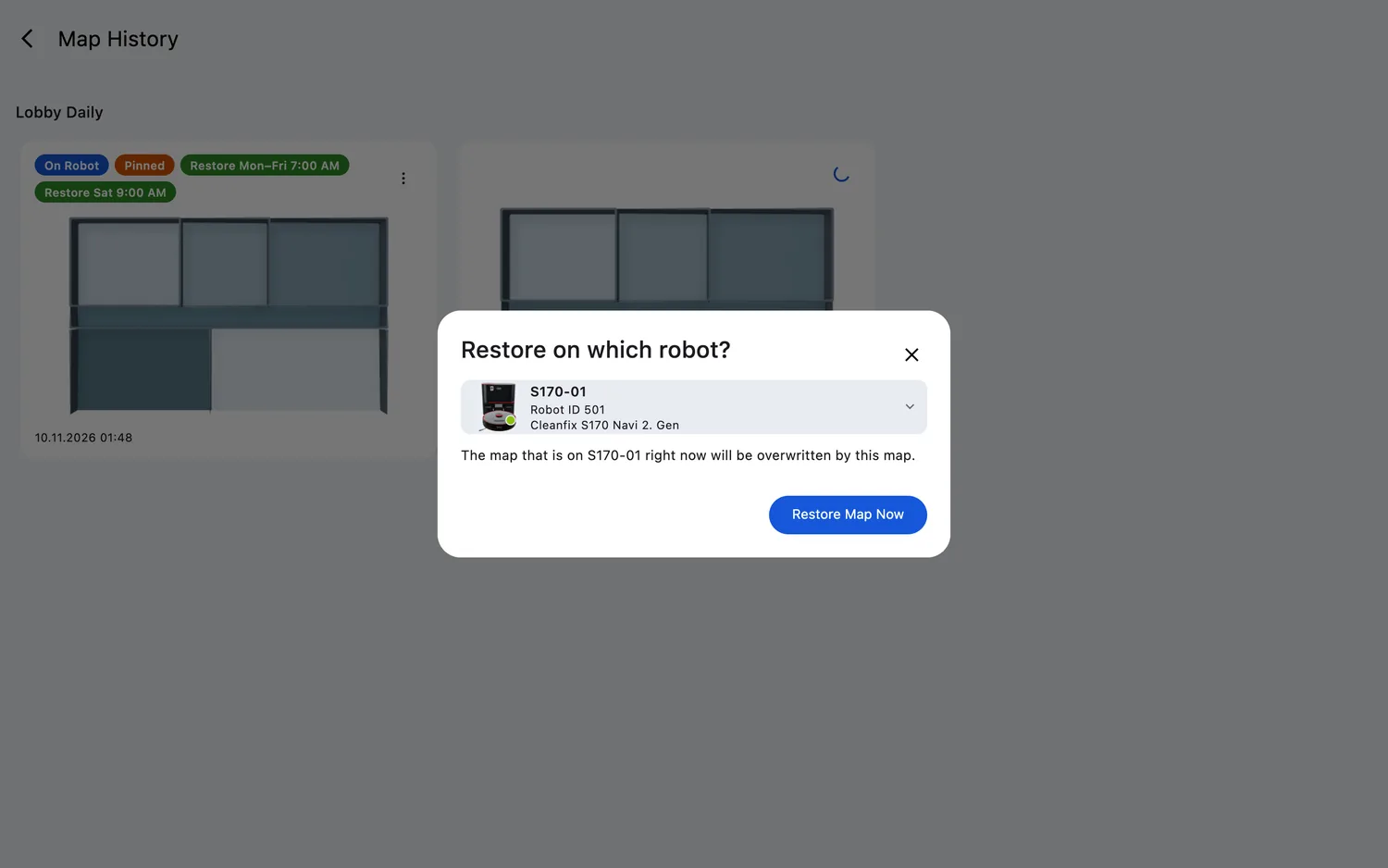
- FieldBots restores the map and opens the robot's page with the map box expanded on the restored map.
- If another robot of the same model can also take the map (paid teams, robots online), a "Restore on which robot?" picker comes first — this robot is preselected. When the map goes to another robot, the view stays and a message confirms which robot took it.
- While the robot is offline, the entry is greyed out and reads "Robot is offline – Restore once it is back online".
Pin a map (auto-restore)
- Click the ⋮ "Map Actions" on the map's card and choose "Pin". The card then carries the orange "Pinned" pill — hover it to read what the pin does: "To prevent the robot from updating the map, mark a map for auto-restore, and FieldBots will overwrite any potential changes daily."
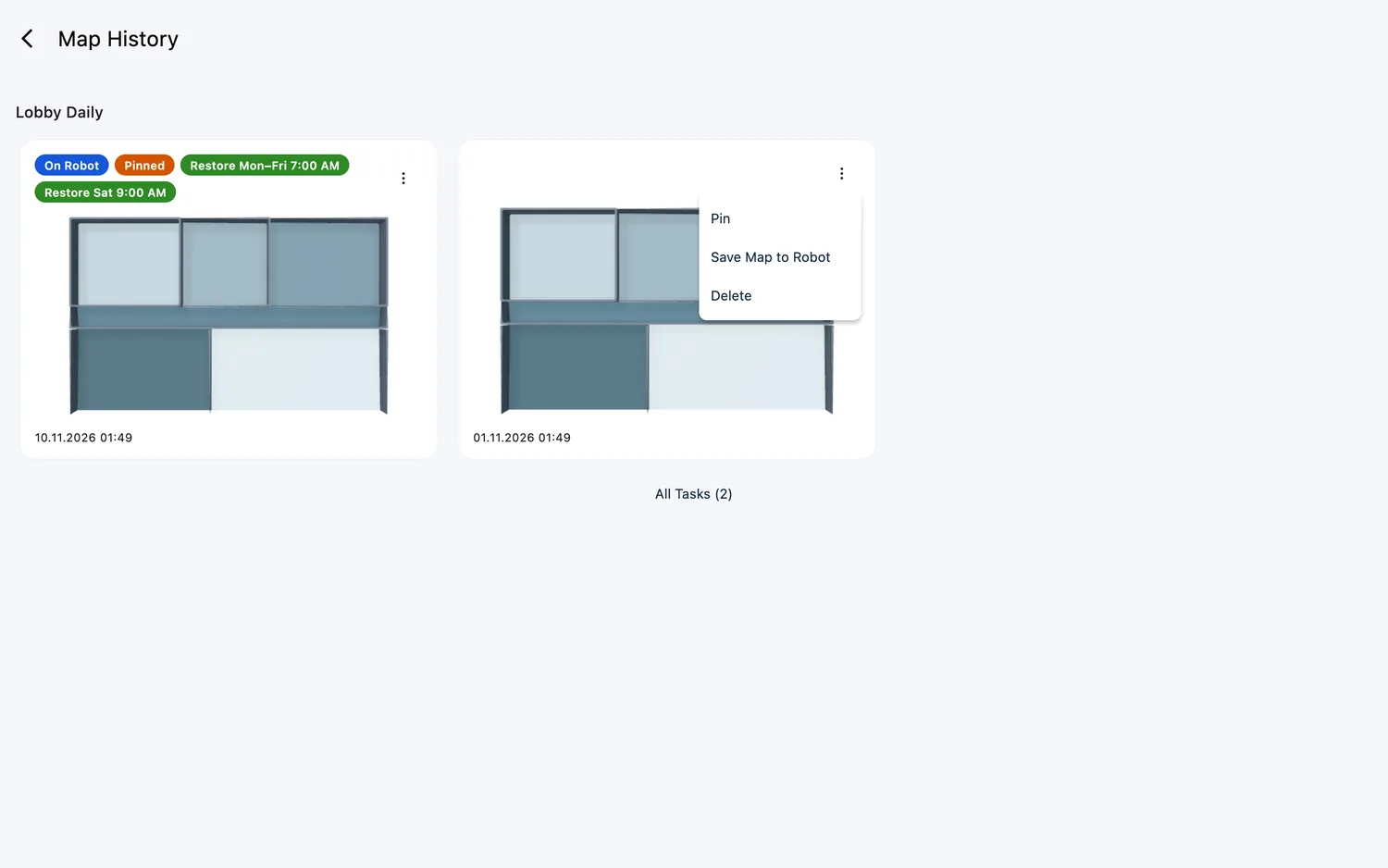
- FieldBots puts the pinned map back onto the robot with its nightly reset — changes the robot collects during the day do not stick. "Unpin" stops it.
- On models that pin the map on the robot itself, only the map that is on the robot offers "Pin" — the explanation then reads "Any changes in the map will no longer adjust the current map."
Pick a saved map for a schedule
- In the schedule editor (see Scheduling), click the field "Restore Map" — on some models it is labelled "Task" (those keep several maps on board and switch between them), and "Cleaning Area" on models that schedule by area.
- Map History opens as a picker: click the map the robot should load before this run; the chosen map is outlined.
- Save the schedule. The schedule then shows a history icon in the list (tooltip: "This schedule restores a map before it runs").
Web / Mobile: On phones the cards sit one per row. The same actions are available as on desktop.
Supported robot models
Which actions a robot offers depends on its model:
Browse & delete (19 models):
CenoBots
L3L4L50S5SP50
Cleanfix
S170 Navi 1. GenS170 Navi 2. Gen
GeniusⓇ
Swift
Lionsbot
LeoR3 ScrubR3 VacR5Rex
Nilfisk
SC25
Robot Sweeper
Robot Sweeper 8
Zaco
X1000
i-team
co-botic 1700co-botic 1700 (2025)co-botic 1900
Restore onto the robot (14 models):
Cleanfix
S170 Navi 1. GenS170 Navi 2. Gen
GeniusⓇ
Swift
Lionsbot
LeoR3 ScrubR3 VacR5Rex
Nilfisk
SC25
Robot Sweeper
Robot Sweeper 8
Zaco
X1000
i-team
co-botic 1700co-botic 1700 (2025)co-botic 1900
Rotate a map (8 models):
Cleanfix
S170 Navi 1. GenS170 Navi 2. Gen
GeniusⓇ
Swift
Robot Sweeper
Robot Sweeper 8
Zaco
X1000
i-team
co-botic 1700co-botic 1700 (2025)co-botic 1900
Pin map (midnight auto-restore) (3 models):
Cleanfix
S170 Navi 1. GenS170 Navi 2. Gen
Robot Sweeper
Robot Sweeper 8
Restore a map by schedule (5 models):
Cleanfix
S170 Navi 1. GenS170 Navi 2. Gen
Robot Sweeper
Robot Sweeper 8
Zaco
X1000
i-team
co-botic 1700
Notes and limits
- There is no way to change a saved map's name: on robots whose runs FieldBots groups into tasks, the task carries the name — its pencil in the map box's "Tasks" panel edits it (see The Map Box).
- The map box's "Tasks" panel shows the same maps grouped by task; Map History shows the full list with the map actions.
- If the robot does not answer in time, FieldBots shows a notice: "The robot did not answer in time. Check that it is switched on and online, then try again."
- Deleting a map cannot be undone.
- CenoBots maps are view-only in FieldBots: browse and delete them, but a map cannot be restored onto the robot.
- On a robot your team can only read, the map actions are not offered.
- Restoring a map onto another robot is a paid option; Free teams restore onto the robot whose Map History they opened.