
What it is
One app for every robot brand: "Connect Robots" is where robots join your team. Whatever the manufacturer — a Cleanfix scrubber, a Gausium sweeper, an i-team microbot — it ends up in the same fleet, with the same maps, statuses and reports. How a robot is connected depends on its model: some pair over your Wi-Fi through the FieldBots app, some are imported from their manufacturer's cloud, and a few are set up together with FieldBots.
Who uses it
Everyone who brings robots into a team: Managers and Operators add robots, run the setup wizards and reconnect robots that lose their connection. Technicians and read-only members can view connected robots and their pages.
Steps
Before you start
- Wi-Fi details for the robot: the network name (SSID) and password of the 2.4 GHz Wi-Fi network the robot will use. Some robots only support 2.4 GHz Wi-Fi and cannot join networks with a captive portal login page.
- The robot nearby and ready for a reset — the wizard shows the exact steps for your model.
- Your phone with the FieldBots app (iOS or Android). The pairing wizards run in the mobile app; on the web you are shown a QR code for it. Cloud accounts are managed on web and mobile.
- Bluetooth switched on (for Bluetooth pairing), location permission allowed (Android) or local network access (iOS), and an internet connection during setup.
Start the setup
- Open "Robots" and click "Connect Robots" in the top bar. The button appears for Managers and Operators.
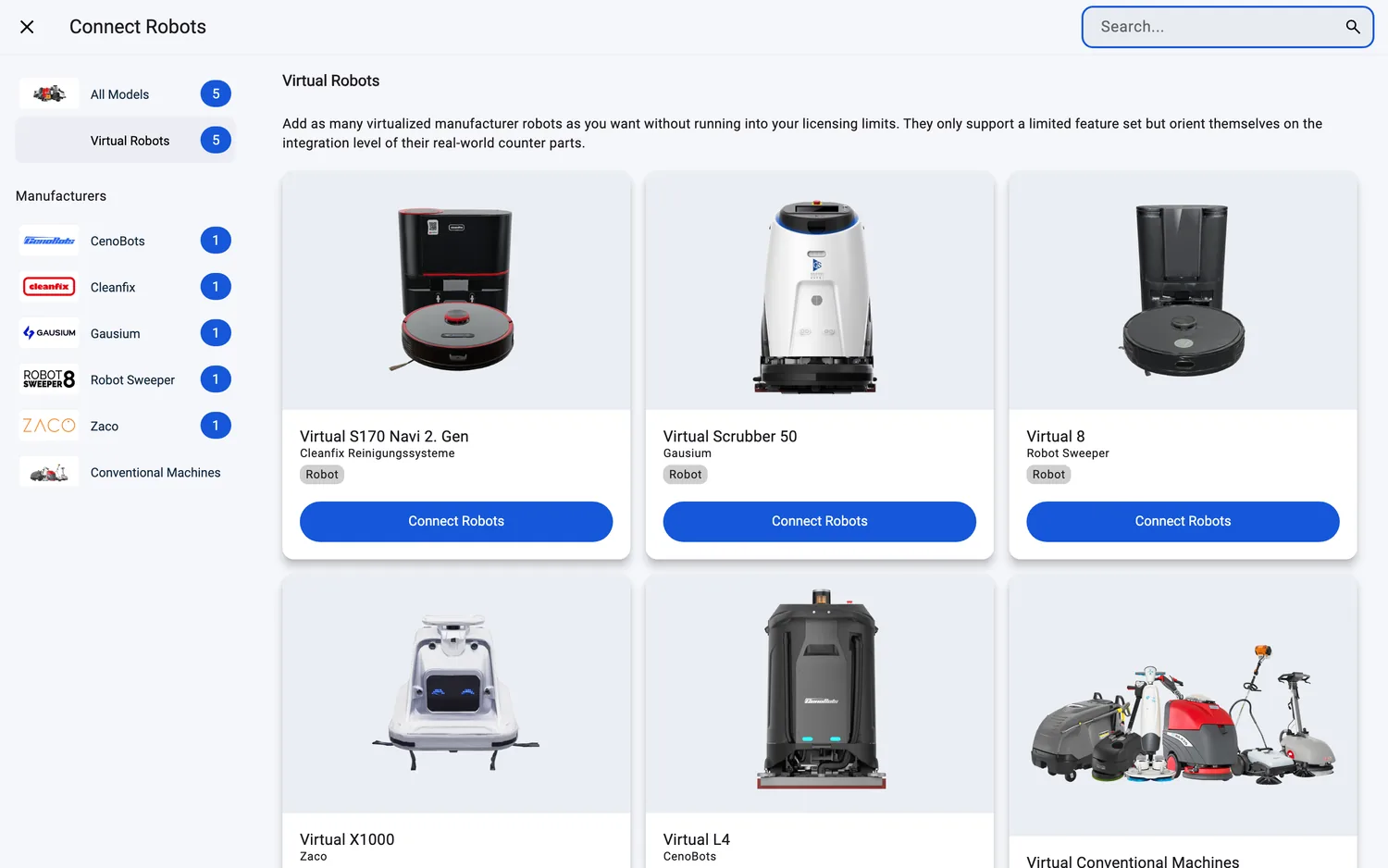
- Browse to your model. The catalog's categories — "All Models", "Robots", "Microbots" and "Virtual Robots" — are one list, and the "Manufacturers" rows with a count next to each brand are another; picking a category clears the chosen manufacturer, and picking a manufacturer clears the category. Use "Search..." to find a robot, model or brand by name; if nothing matches, the page offers "Clear Search".
- Tap the product card to start. Each card carries the full-width button "Connect Robots", and the whole card is tappable too; where a model has a performance page, the card also offers "Performance Data". What opens next depends on the model — the methods below cover all of them.

An empty fleet offers the same start: two cards — "Connect Your Robots" with the button "Connect Robots", and "Try a Virtual Fleet". Report pages without data offer "Add Robots" and "Add Virtual Robots"; "Add Virtual Robots" opens the catalog with the "Virtual Robots" category already selected.
Adding a tool or a machine instead of a robot? The "Conventional Machines" card at the end of the list adds those without a pairing wizard — its button reads "Add Robot", and on a Free team an "UPGRADE" tag marks it as part of the Connect Plus product.
Web / Mobile: on a phone, "Connect Robots" sits in the top bar of the "Robots" page, and the categories and manufacturer rows fold behind a header row that also carries "Clear". Everything else works the same.
Set up a robot over Wi-Fi (FieldBots app)
Models like the S170 Navi 1. Gen, Genius Swift, Robot Sweeper 8, Zaco X1000 and the i-team co-botic 1700 pair through the Wi-Fi wizard in the FieldBots app. A progress line on top keeps you oriented — for example "Step 1 of 4: Network".
- "Network": enter the "SSID" and "Password" of the Wi-Fi the robot should use. Some robots show a note — for example "This robot only supports 2.4 GHz Wi-Fi and no captive portal login pages." or "This robot does not support captive portal login pages." Tap "Next".

- "Reset": follow the reset instructions for your robot — for many models: "Press the POWER and HOME buttons on the robot simultaneously for 5 seconds to reset the WIFI of the bot." The Genius Swift uses a different, HOME-button-only instruction. Tap "Next".
- "WiFi": your phone joins the robot's own network for a moment. The app guides you — "Open the Wi-Fi settings on your smartphone and connect to the network '...'. Then return to the FieldBots app." — with an "Open Settings" button, or a "Connect to ..." button for the shown network. It then reports progress: "The access data is being transmitted to the robot." → "The robot is connecting to the internet." → "The robot is registering with the FieldBots Cloud."
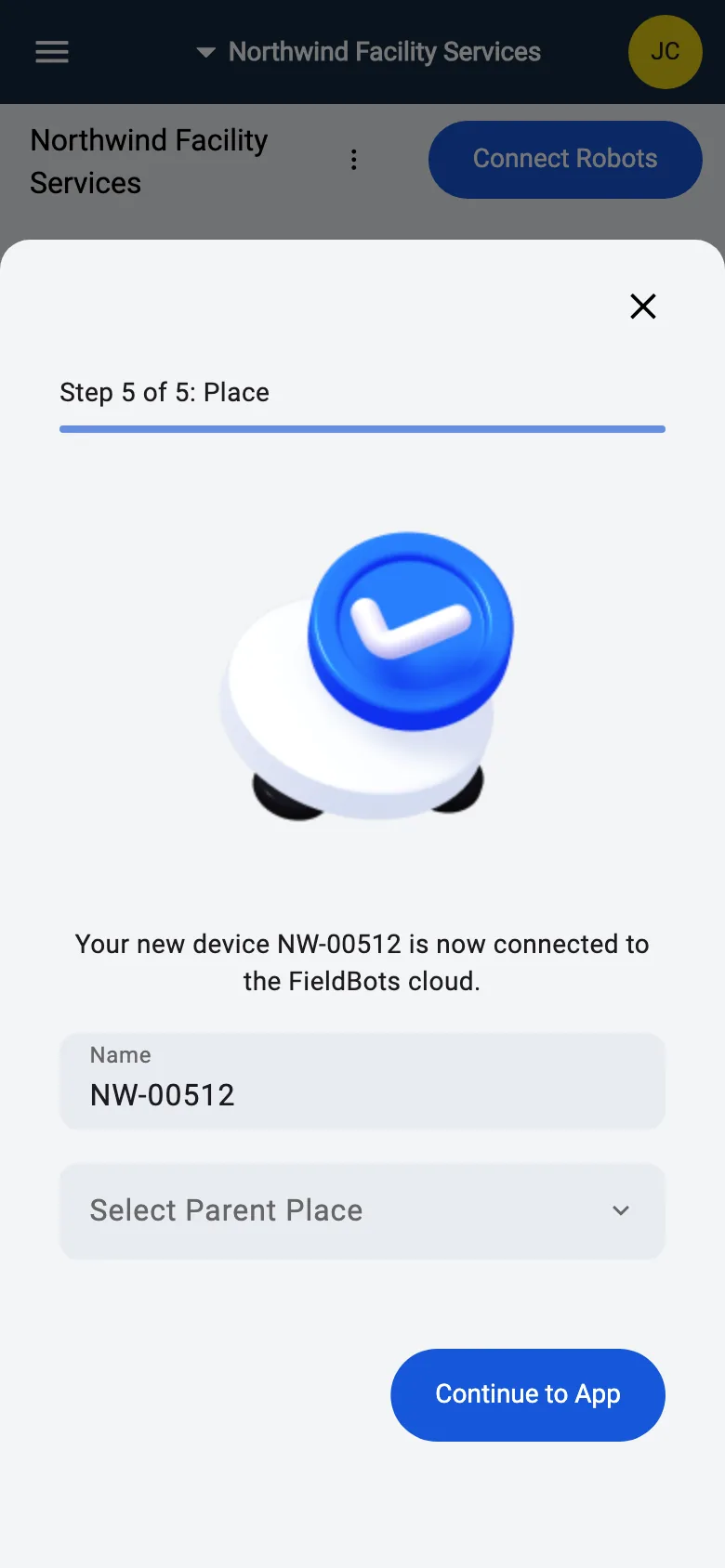
- "Place": give the robot a name — it starts with its serial number — optionally attach its QR sticker ("Scan QR Code"), and pick its Place. "Continue to App" finishes the setup.
If pairing does not go through, the app shows "Pairing failed. Please try again." with "Restart" and "Troubleshooting".
Web / Mobile: the wizard runs in the FieldBots app on iOS and Android only. On the web, picking such a model shows a card with a QR code and "Open the FieldBots app on your iOS or Android device."
Pair via Bluetooth (Genius Swift)
The Genius Swift can also pair over Bluetooth from the mobile app: keep your phone close to the robot — "Keep your phone close to the robot. FieldBots finds it via Bluetooth and sends it your WiFi details." The search starts by itself ("Looking for the robot via Bluetooth."); while it runs, the "Pair via Bluetooth" and "Use Robot Hotspot Instead" buttons are hidden. If no robot is found, "Try Again" repeats the search, and "Use Robot Hotspot Instead" switches to the Wi-Fi wizard above.

Bluetooth pairing is offered in the mobile app (iOS and Android) only.
Scan the robot's QR code (S170 Navi 2. Gen)
The S170 Navi 2. Gen starts with the QR code: tap "Scan QR Code" and point your camera at the code on the robot.
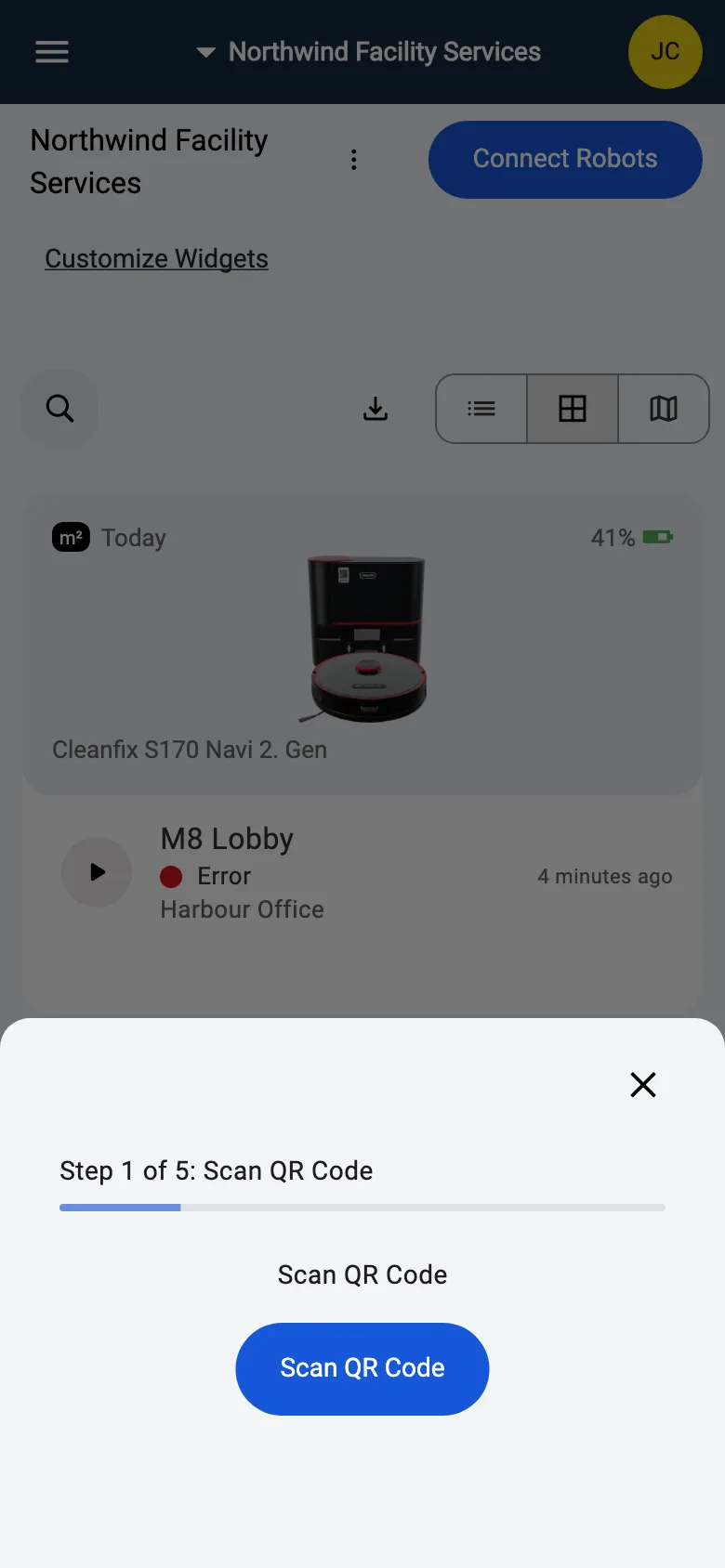
The co-botic 1700 (2025) works the same way. The wizard then continues like the Wi-Fi setup — network details, reset, WiFi — and ends with "Place" and "Continue to App".
Connect through the manufacturer's cloud account
Most cloud-based manufacturers — among them CenoBots, Gausium, Keenon, Kärcher, Lionsbot, Nilfisk, Pudu and Taski — are not paired in the app at all. FieldBots imports their robots through a cloud-to-cloud connection between FieldBots Connect and the manufacturer's cloud.
- Pick your model. The screen explains what happens next: the manufacturer's account is connected, and all of its robots then appear in FieldBots automatically and stay in sync.
- Managers can jump straight to the connection: "Go to Manufacturer Settings" opens the brand's page, where the account is connected under "Add Account" — see Manufacturer-Wide Settings.
- Without account rights, "Contact Your Manager" opens a ready-made email to your Manager.
- For several manufacturers the screen lists exactly what to do in their cloud — usually inviting FieldBots as a user with a specific role. "Get Support" reaches us if you need help.
By invitation (RA660 family and co-botic 1900)
The Cleanfix RA660 Navi M and RA660 Navi XL models join FieldBots in a guided onboarding. Picking one opens "Give FieldBots Access" with everything FieldBots needs from you — for the RA660 that means agreeing to the conditions listed on screen, for example adding your S170 Navi 1st and 2nd Generation microbots separately in the "Microbots" section. "Get Support" answers questions; "Invitation Sent" returns you to your fleet, and FieldBots takes it from there.
The i-team co-botic 1900 is also set up together with FieldBots. Its page shows the acknowledgement for an integration in alpha testing, with the buttons "Request Access" and "Add Other Bots".
Try a virtual fleet (no robots needed)
- On an empty fleet, the "Try a Virtual Fleet" card has the button "Set Up Virtual Fleet": FieldBots creates a fleet of simulated robots for you — explore every fleet management feature, set up places, users and schedules in advance, and switch to real robots whenever you are ready.
- Any time, "Add Virtual Robots" opens the same catalog with the "Virtual Robots" category selected: every model is offered as "Virtual ...", and one tap creates the simulated robot — no pairing, no hardware. The category notes that virtual robots do not count against your licensing limits and support a limited feature set.
Re-add a robot that lost its connection
If a cloud-connected robot loses its connection, its page explains it in red: "Disconnected from its manufacturer cloud — re-add the robot to control it again." Use "Re-Add Robot" there — or the same entry in the robot's menu — and the setup flow starts again.
Supported robot models
All 52 robots in the FieldBots catalog can be connected. The setup method depends on the model:
Via the manufacturer's cloud account (sign in with the robot's account)
Via the FieldBots Wi-Fi setup wizard (direct network setup)
By invitation only (FieldBots sets the robot up with you)
Via QR code / pairing code
Notes and limits
- The setup wizards (Wi-Fi, Bluetooth, QR) run in the FieldBots app for iOS and Android. On the web you get a QR code that takes you to the app — the rest of FieldBots works the same on web and mobile.
- While pairing, your phone briefly leaves your own network and joins the robot's. Internet is only needed again for the final registration step; on corporate networks the robot's MAC address may have to be whitelisted — the app shows it on the "WiFi" step.
- Some models show a useful hint: "The last characters of the Wi-Fi name are the first characters of the robot's serial number."
- The Wi-Fi name and password you type are remembered on your phone, so your next pairing is pre-filled. If your team stored its WiFi under the brand's settings page, the wizard is pre-filled from there, too.
- A robot that was paired without a name starts with its serial number as its name — you can rename it any time.
- Closing the wizard cancels the setup; the next attempt starts from the first step.
- Cloud-account models pair nothing on the robot: their robots appear in FieldBots only after the manufacturer account is connected and has synchronized.
- Don't see your model in the catalog? Talk to us — FieldBots regularly adds manufacturers and models.